Picture this. You take a great photo on your iPhone. It looks perfect. Then you try to upload it to a job portal, a school form or an online store, and the page says: “Invalid file type.”
Nothing is wrong with your photo. It’s just saved in a format the website doesn’t accept.
That format is usually HEIC. And the one the website wants is almost always JPG.
If you’ve ever wondered about HEIC vs JPG, which one is better, why your phone chose one without asking, and whether you should change it, this guide gives you a straight answer. No jargon, no tech background needed.
The 30-second answer
For everyday photos on an iPhone, HEIC is a perfectly good choice, because it saves storage space. For anything you need to upload, share widely or open on older devices, JPG is the safer choice.
Here is how that works in practice:
- Keep your iPhone on its default setting if storage matters to you, and convert photos to JPG only when you need to.
- Switch your iPhone to JPG if you constantly hit “unsupported file” errors and don’t want to convert every time.
- Whatever you do, keep your original photos before converting anything.
The rest of this article explains why, so you can decide for yourself.
Meet the two formats
JPG (also written JPEG)
JPG has been the standard photo format for decades. Almost every phone, computer, website, printer, editing app and email program understands it. When a form asks for “an image”, this is what it expects.
JPG uses lossy compression. That means it shrinks the file by throwing away some detail that your eyes are unlikely to notice. At good quality settings, you can’t see the difference. But the data that was thrown away is gone for good.
HEIC
HEIC is the file type that iPhones and iPads use to store photos in a newer format called HEIF (High Efficiency Image File Format). Apple started using it with iOS 11, and its support page explains that HEIF and HEVC are newer industry-standard formats that compress better than JPEG and H.264. According to Apple, they use less storage space on your device and in iCloud Photos while preserving the same visual quality. You can read the details in Apple’s guide to using HEIF and HEVC media.
In everyday terms: HEIC is a smarter way to pack a photo into a smaller file. The catch is that not everything in the world has caught up with it yet.
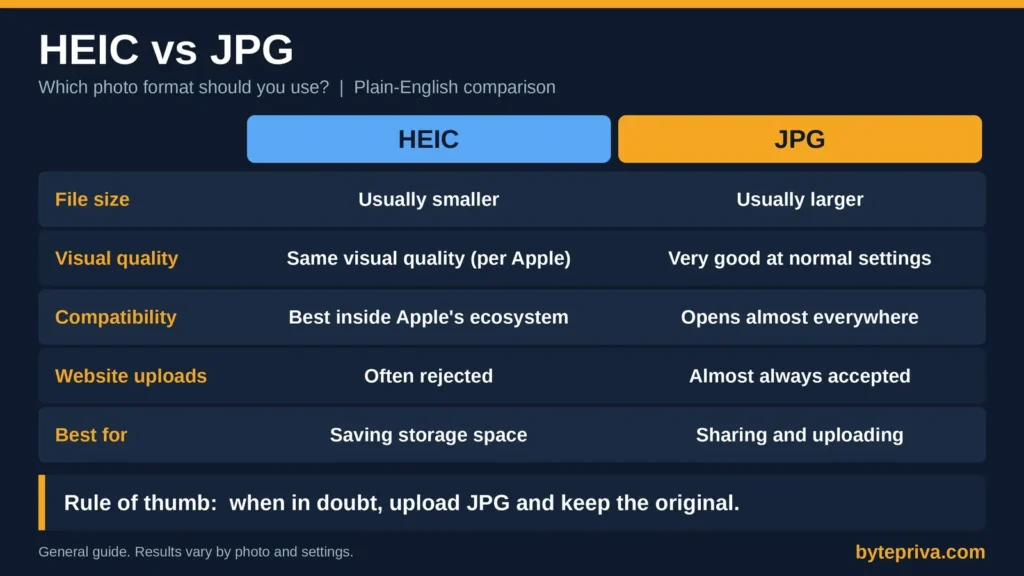
HEIC vs JPG: side-by-side comparison
| HEIC | JPG | |
|---|---|---|
| File size | Usually smaller than a JPG of similar quality | Usually larger |
| Visual quality | Apple says it keeps the same visual quality at a smaller size | Very good at normal quality settings |
| Compatibility | Works well inside Apple’s ecosystem; older software, some websites and some Windows setups may not open it | Opens almost everywhere |
| Uploading to websites and forms | Often rejected | Almost always accepted |
| Best for | Saving phone and iCloud storage | Sharing, uploading, printing, older devices |
| Colour depth | Can store richer colour information | Limited to 8 bits per colour channel |
A note on file size: you’ll often read that HEIC files are roughly half the size of JPG files. That is a common figure, but the real saving depends on the photo, so treat it as a rough guide and not a promise. The simplest way to find out is to compare a few of your own pictures.
Which one should you choose? Find your situation
Most people don’t need a technical comparison. They need an answer for their situation. Here are the common ones.
“My phone storage keeps filling up”
Choose HEIC. Since HEIC files are generally smaller, keeping the default setting helps you fit more photos on your device and in your iCloud storage. You can always convert individual photos later when you need them.
“I’m uploading a photo to a job portal, school form or government website”
Choose JPG. These websites are often strict about accepted file types, and JPG is the safest bet. Always check the file types the form lists, because the exact requirements differ from site to site.
“I’m sending photos to someone with an older phone or computer”
Choose JPG, or let your phone do it. Apple notes that when you share through methods such as AirDrop, Messages or email, and the receiving device doesn’t support the newer format, the photo might automatically be sent in a more compatible format such as JPEG. If you want to be certain, send a JPG yourself.
“I use older editing software”
Choose JPG. Some older programs can’t open HEIC at all. If you only need a few photos in an old program, converting those photos is easier than changing your whole camera setting.
“I’m printing photos at a shop”
Choose JPG unless the shop says otherwise. It’s the format print services are most likely to accept without trouble. If they list HEIC as supported, you can bring it as is.
“I’m putting images on a website or blog”
Use JPG (or another web-friendly format), not HEIC. HEIC isn’t the format you want to publish on a website, because visitors with different browsers and devices may not see it properly.
“I want to keep my photos safe for the long term”
Keep the originals, whichever format they’re in. Make converted copies when you need them. Never replace the original with a converted version.
Myth or fact?
Many beliefs about HEIC and JPG are only half true. Here are the most common ones.
Myth: “HEIC photos are lower quality than JPG.”
Reality: Not necessarily. Apple states that HEIF preserves the same visual quality as JPEG while using less space. Quality does depend on the photo and the settings, but for everyday viewing, most people can’t tell the difference.
Myth: “If I switch my iPhone to JPG, my old photos will change.”
Reality: No. The setting only affects new photos. Apple’s instructions say that after you choose Most Compatible, new photos and videos use JPEG or H.264. Your existing HEIC photos stay as they are.
Myth: “Converting HEIC to JPG ruins my photo.”
Reality: It can cost a little quality, but it’s usually small. JPG is a lossy format, so converting means the image is compressed again. At a good quality setting, the change is usually hard to see. What does hurt quality is converting and re-saving the same picture over and over. Convert once, from the original, and keep the original.
Myth: “My photos on a Windows PC will always be HEIC.”
Reality: Not always. Apple notes that when you import HEIF or HEVC media from an iPhone to a PC over USB, the media might be converted to JPEG or H.264. If you don’t want that conversion, there’s a “Keep Originals” option in the Photos settings on your iPhone.
Myth: “HEIC and JPG look different on screen.”
Reality: Once a photo is opened in a program that supports both, they look essentially the same. The differences are about file size, compatibility and the technology inside, not about what you see.
How to switch your iPhone between HEIC and JPG
If you want your iPhone to take JPG photos from now on, Apple gives these steps:
- Open Settings and tap Camera.
- Tap Formats.
- Tap Most Compatible.
From then on, new photos and videos use JPEG and H.264. To go back to the space-saving formats, choose High Efficiency in the same menu.
Two things to know. This setting appears only on iPhones and iPads that can capture HEIF or HEVC (Apple lists the iPhone 7 and later). And the exact menu wording can change between iOS versions, so if you don’t see these options, check Apple’s current support page.
Which setting should you pick?
- Pick High Efficiency if you mostly keep photos on your phone or in iCloud and want to save space.
- Pick Most Compatible if you often upload to websites, share with people on many types of devices, or work with older software and don’t want to convert each time.
Neither choice is “wrong”. It depends on how you use your photos.
How to convert HEIC to JPG safely
When you do need a JPG, follow these four habits to avoid problems.
1. Keep the original. Convert a copy, not the only version you have.
2. Convert once. Each time a JPG is edited and saved again, it’s compressed again. Starting from the original HEIC every time gives the best result.
3. Use a reliable method. On a Mac, Apple says you can open a HEIF image in Photos or Preview, choose File > Export, and pick a format such as JPEG or PNG. You can also use a converter in your browser. If you use an online tool, check how it handles your files before you upload anything private.
4. Check what’s inside the photo. Photos can carry hidden information such as the date and sometimes the location where they were taken. If you plan to share a picture publicly, it’s worth checking this first.
If your problem is the opposite, that you’ve received HEIC files and your Windows computer won’t open them, our guide on how to open HEIC files on Windows walks through the fixes.
Frequently asked questions
Is HEIC better than JPG?
It depends on what you need. HEIC is better at saving storage space. JPG is better at working everywhere. Neither is “better” in every situation.
Does HEIC lose quality compared to JPG?
Apple says HEIF preserves the same visual quality as JPEG while using less storage. In normal use, most people don’t notice a difference. Both formats compress images, so quality also depends on the settings used.
Can I make my iPhone take JPG photos?
Yes. Go to Settings > Camera > Formats and choose Most Compatible. New photos will be saved as JPG.
Will changing the format affect my old photos?
No. The setting applies to new photos and videos only. Existing photos keep the format they were taken in.
Why does my photo upload fail even though it opens fine on my phone?
Your phone can open HEIC, but the website you’re using may only accept formats like JPG or PNG. Converting the photo to JPG usually fixes it.
Is a JPG file bigger than a HEIC file?
Often yes, for photos of similar quality. The exact difference varies from photo to photo.
Is it safe to delete the HEIC after converting?
It’s better not to. Keep the original until you’re sure the JPG is what you need.
Final thoughts
The HEIC vs JPG question doesn’t have one winning answer. HEIC is smart for saving space. JPG is the format that works nearly everywhere. The best approach for most people is simple: let your phone use HEIC for everyday shooting, keep your originals, and convert to JPG whenever a website, program or person needs it.
If you only remember one rule, make it this: when in doubt, send or upload JPG, and keep the original.
Disclaimer
This article is general information. Menu names, features and behaviour can differ between iOS versions and devices, so check Apple’s current support pages if something looks different on your phone. Conversion results and file sizes vary depending on the photo and settings. Always keep a copy of your original photos before converting or editing them.
Need a JPG right now? You can use the free HEIC to JPG Converter to convert your photo in your browser.