Most HEIC to JPG converters ask you to upload your photos to their server first — which means your private vacation pictures, ID photos, or client files are sitting on someone else's computer, even if just for a few seconds.
This one doesn't. Your HEIC files are decoded and converted entirely inside your browser using real image processing — nothing is ever sent anywhere. Upload one photo or a whole batch, adjust the quality, and download your JPGs instantly.
Why this matters: iPhones save photos as HEIC by default, but most of the internet — Windows, older editors, email clients, print shops — still expects JPG. This converter bridges that gap without asking you to trust a stranger's server with your photos.
HEIC to JPG Converter
Convert iPhone HEIC photos to JPG — 100% in your browser. Your private photos are never uploaded anywhere.
Upload HEIC photos or drag them here — multiple files supported
Works with iPhone photos in HEIC/HEIF format.
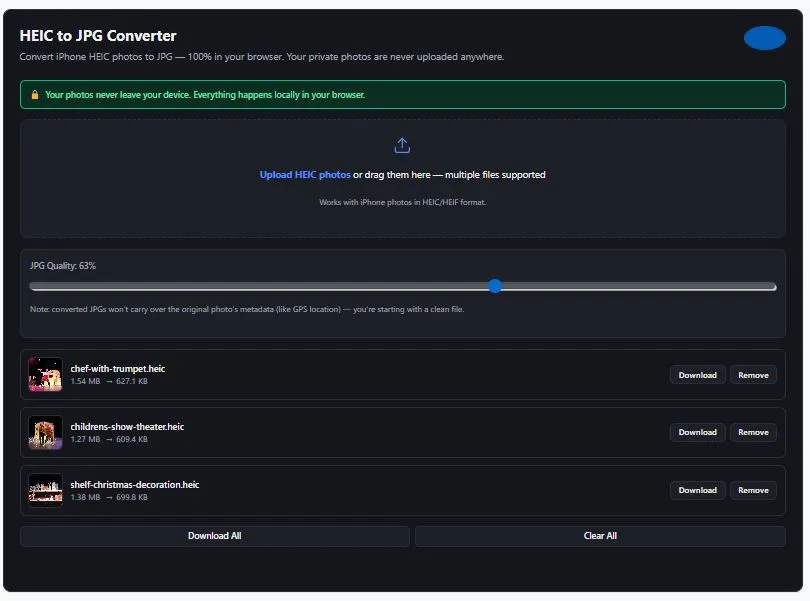
Table of Contents
How This HEIC to JPG Converter Works
Converting HEIC to JPG isn't as simple as changing the file extension — no web browser except Safari can actually read HEIC files natively. That's the real reason most HEIC converters require uploading your photo to a server: they need a computer that can decode HEIC, and most browsers can't.
This tool takes a different approach. Instead of sending your photo elsewhere, it loads a small, open-source HEIC decoder directly into your browser — the decoding then happens on your own device, using your own device's processing power. Your photo is decoded, converted to JPG at your chosen quality, and made available to download, all without a single byte of your image data leaving your browser.
Why Most Converters Upload Your Photos
Web browsers are built to display common formats like JPG, PNG, and WebP natively. HEIC, being a newer and more specialized format, isn't supported the same way — so many tools solve this by uploading your photo to their own server, decoding it there, and sending back a JPG. This works, but it means your photo — however briefly — exists on someone else's system. For personal, private, or sensitive photos, that's a real trade-off many people aren't comfortable with.
For Apple's official explanation of the HEIC/HEIF format, see Apple's support page on HEIF and HEVC media, which also covers how to switch your iPhone's camera to save photos in the more universally compatible JPEG format directly.
What Happens to Your Photo's Metadata
Converting through this tool does not carry over the original photo's metadata (like GPS location or camera details) to the new JPG file. For most people, this is a bonus — it means your converted photos start "clean." If you specifically need to preserve metadata for archival purposes, keep your original HEIC files as your source of record.
Why Use This HEIC to JPG Converter
- Your photos never leave your device — decoding and conversion happen entirely in your browser, unlike most converters that require a server upload
- Batch conversion — upload and convert multiple HEIC files at once, with individual or bulk download
- Quality control — adjust the JPG quality with a slider and see the converted file size for each photo
- Live file size comparison — see the original and converted file size side by side for every image
- No login, no ads, no daily limits — convert as many photos as you need
- Fast — the decoder only loads when you actually upload a HEIC file, keeping the page itself quick to load
Who This Converter Is Built For
This HEIC to JPG converter is built for anyone who's hit a wall trying to open or share an iPhone photo:
- Windows users — opening HEIC photos received from iPhone-using friends or family, since Windows doesn't display HEIC by default
- Anyone sharing photos privately — converting personal, family, or sensitive photos without uploading them to an unfamiliar server
- Online sellers & content creators — converting iPhone product or content photos to JPG for platforms that don't accept HEIC
- Email senders — converting HEIC attachments to JPG so recipients on older devices or email clients can actually view them
- Print shops & photo labs — converting customer-submitted iPhone photos to a format their printing software accepts
- Web developers & designers — converting client-submitted HEIC images to a web-compatible format
Tips for Best Results
- Start around 85-90% quality — this range preserves visual quality well for most photos while still reducing file size compared to keeping the original.
- Convert one photo first when doing a large batch — check that quality and output look right before processing many files at once.
- Keep your original HEIC files if you need the metadata — since converted JPGs won't carry over GPS location, camera details, or date-taken information, hold onto your originals if you need that data later.
- Give large batches a moment to process — HEIC decoding takes real processing power, so converting many high-resolution photos at once may take a little longer than a single photo.
- Use this before uploading photos anywhere sensitive — converting locally first means you're not depending on a third-party server's privacy practices for private photos.
- Check your converted file size before downloading — this converter shows both original and converted sizes, so you can adjust quality if the result is larger than expected.
FAQs
How do I convert a HEIC photo to JPG?
Upload your HEIC file to this converter, adjust the quality if needed, and download the converted JPG. The conversion happens automatically in your browser, with no server upload required.
Why can't I open HEIC photos on my Windows computer?
HEIC is Apple's default photo format since iOS 11, but most non-Apple systems, including Windows by default, don't support it natively. Converting to JPG makes the photo viewable and editable on virtually any device or software.
Is it safe to convert private or sensitive HEIC photos with this tool?
Yes. Unlike many HEIC converters that require uploading your photo to a server, this tool decodes and converts your photo entirely within your browser. Your image data is never uploaded, transmitted, or stored anywhere.
Does converting HEIC to JPG keep the original photo quality?
JPG uses lossy compression, so some quality change is expected, but you control how much through the quality slider. Higher settings (90-100%) preserve more detail; lower settings produce smaller files with more compression.
Will my converted JPG have the same GPS location and camera info as the original HEIC?
No. This conversion process does not carry over metadata like GPS location or camera details to the new JPG file. If you need to preserve that information, keep your original HEIC files.
Can I convert multiple HEIC photos to JPG at once?
Yes. This HEIC to JPG converter supports batch conversion — upload multiple files at once, and download them individually or all together.
Is this HEIC to JPG converter really free?
Yes, completely free with no daily limits, no signup, and no watermarks added to your converted photos.
Why do some HEIC converters ask me to upload my photo, but this one doesn't need to?
Most web browsers can't natively read HEIC files, so many converters solve this by decoding the photo on their own server. This tool instead loads a small decoder directly into your browser, so the decoding happens on your own device without any upload.
Quick Summary
This free HEIC to JPG converter solves the biggest complaint about most HEIC converters: having to upload private photos to a server. Instead, your photos are decoded and converted entirely within your browser, with nothing ever leaving your device. Upload one photo or a whole batch, adjust the quality, and download standard JPG files that work everywhere HEIC doesn't — Windows, older devices, email clients, and more. There's no login, no daily limits, and no watermarks. Whether you're a Windows user who can't open an iPhone photo, someone sharing sensitive images, or a business converting client photos, this converter gives you a fast, private, and reliable way to get standard JPG files.
Disclaimer
The HEIC to JPG Converter and all information on this page are provided by BytePriva for general informational and utility purposes only. This tool performs image format conversion using browser-based decoding technology; results may vary slightly depending on your specific browser, device, and the complexity of the original HEIC file.
This tool does not preserve metadata (such as GPS location, camera details, or date-taken information) from the original HEIC file in the converted JPG. Users requiring this information should retain their original HEIC files. Users are solely responsible for verifying that converted images meet their specific requirements before use in professional, commercial, or client-facing contexts.
BytePriva, its owners, and contributors make no warranties, express or implied, regarding the accuracy, completeness, or reliability of this tool or its results. To the fullest extent permitted by law, BytePriva shall not be held liable for any direct, indirect, incidental, or consequential loss, damage, or cost arising from the use of, or reliance on, this tool.
By using this tool, you acknowledge and agree to these terms.
Note: All image decoding and conversion for this tool occurs locally within your browser using open-source decoding technology. No images are uploaded, transmitted, or stored on BytePriva's servers.