This bulk image renamer lets you rename hundreds of photos at once — with sequential numbers, the date each photo was taken, or a custom prefix/suffix — all without installing any software. Every new filename shows up in a live preview before you download anything, so there's never a surprise rename or an overwritten file; duplicate names are even caught and fixed automatically. Everything happens right in your browser, on any device, with nothing uploaded anywhere.
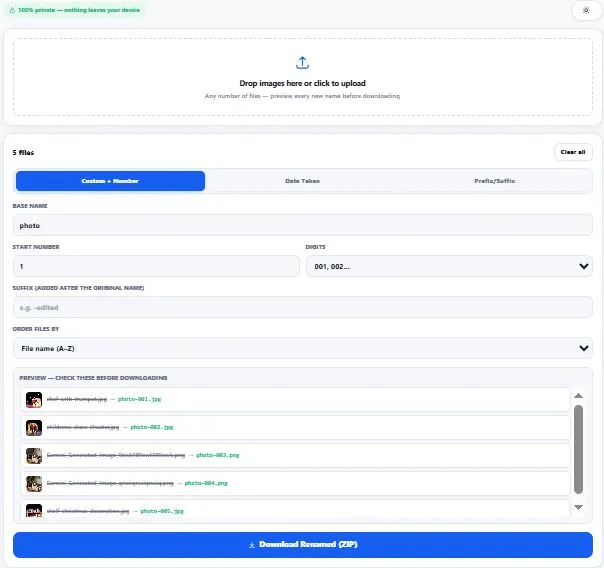
Drop images here or click to upload
Any number of files — preview every new name before downloading
Preview — check these before downloading
Table of Contents
How This Bulk Image Renamer Works
This tool offers three separate renaming methods, since "bulk rename" means different things depending on what you're organizing. Custom + Number builds names like base name-001.jpg, base name-002.jpg, in whichever order you choose (file name, date, or size). Date Taken reads the actual capture date from a JPEG's EXIF metadata — the same hidden data your camera or phone embeds in every photo — and builds names like base name-2026-03-14-01.jpg; if a photo has no EXIF data (common for PNGs, screenshots, or edited files), it automatically falls back to the file's last-modified date instead of failing.
Prefix/Suffix keeps your original filenames intact and simply adds text before or after them. In every mode, if two files would ever end up with the exact same new name, the tool automatically appends _1, _2, and so on — so a file is never silently overwritten inside the downloaded ZIP.
The EXIF date data this tool reads is part of a much larger metadata standard embedded in nearly every photo taken today — camera model, exposure settings, GPS location, and dozens of other fields, alongside the capture date. For a full technical reference on everything EXIF metadata can contain, see this documentation from ExifTool, the industry-standard tool for reading and editing image metadata.
Why Use This Bulk Image Renamer
Every feature below is something the tool above actually does, right now, in your browser:
- Live preview before you download anything — every new filename is shown next to the original, so you can catch a mistake before it happens instead of after.
- Three renaming modes — sequential numbering, EXIF date-taken, or prefix/suffix on the original name, covering the most common ways people actually organize photos.
- Automatic duplicate handling — if two files would end up with the same new name, the tool appends _1, _2 automatically and flags it in the preview, so nothing gets silently overwritten.
- Sort before renaming — order files by name, date taken, or file size before numbers get assigned, so your sequence actually reflects a meaningful order.
- No installation, works on any device — this runs in the browser, not as Windows-only or Mac-only desktop software.
- Handles large batches without crashing — renaming is just text and metadata work, not heavy image processing, so hundreds of files process smoothly.
- One ZIP download with all your renamed files — no downloading one at a time.
- Everything runs in your browser — your photos are only read locally to rename them and are never uploaded to any server.
- Light and dark mode — toggle to match your screen preference, saved for your next visit.
Who This Bulk Image Renamer Is Built For
This bulk image renamer is built for anyone staring at a folder full of files named IMG_4821.jpg, IMG_4822.jpg, and wanting something more useful. Photographers rename an entire shoot by date taken instead of manually retyping each filename after import. Online sellers batch-rename product photos into a clean, consistent sequence before uploading to a marketplace or store.
Real estate agents and property managers organize listing photos by property name and number so folders stay sortable and searchable. Anyone organizing old photo dumps — vacation folders, phone backups, inherited photo archives — brings order to hundreds of randomly-named files in one pass, without installing desktop software or learning a new app. In every case, the goal is the same — a folder that actually makes sense, without doing it one file at a time.
Tips for Best Results
- Always check the preview list before downloading. This is the entire point of the live preview — glance through it for anything unexpected, especially with the Date Taken mode, before committing to the ZIP.
- Use Date Taken mode only with real photos, not screenshots or edited files. EXIF capture-date data typically only exists in original camera/phone JPEGs — screenshots, PNGs, and images that have been edited or re-saved often lose this data, in which case the tool automatically falls back to the file's last-modified date instead.
- Sort by date taken before numbering, if order matters to you. In Custom + Number mode, choosing "Date taken" as the sort order means -001, -002, etc. will follow the actual chronological sequence the photos were taken in, not just alphabetical file order.
- Keep your base name short and simple. Very long base names combined with long sequence numbers can occasionally hit filename length limits on some operating systems — a short, clear base name avoids this entirely.
- If you see "AUTO-RENAMED (duplicate)" in the preview, that's expected, not an error. It means two files would have matched under your chosen naming pattern, and the tool safely separated them — nothing was lost or skipped.
Frequently Asked Questions
How do I bulk rename photos with sequential numbers?
Upload your photos, select the "Custom + Number" mode, type a base name, and choose a starting number and digit padding (like 001 or 0001). Every file is renamed instantly in the preview as base name-001.jpg, base name-002.jpg, and so on, following whichever sort order you pick.
Can this rename photos using the date they were taken?
Yes — the "Date Taken" mode reads the EXIF capture date embedded in JPEG files by cameras and phones, and builds filenames like base name-2026-03-14-01.jpg. If a photo has no EXIF date (common with screenshots or edited files), it automatically uses the file's last-modified date instead.
What happens if two renamed files would end up with the same name?
The tool automatically detects the collision and appends _1, _2, and so on to keep every filename unique — it's flagged clearly in the preview as "AUTO-RENAMED (duplicate)" so you know it happened, and no file is ever silently overwritten in the final ZIP.
Does this bulk image renamer actually rename the files on my computer?
Not directly — for security reasons, browsers can't modify files already saved on your device. Instead, this tool creates renamed copies and packages them into a ZIP file for you to download, leaving your original files untouched.
Why doesn't Date Taken mode work correctly on some of my photos?
EXIF date data is typically only present in unedited JPEG files straight from a camera or phone. PNGs, screenshots, and images that have been edited, cropped, or re-saved often don't carry this metadata — in those cases, the tool automatically falls back to using the file's last-modified date instead.
Is there a limit to how many photos I can rename at once?
There's no hard limit — renaming is lightweight text and metadata processing, not heavy image editing, so it handles large batches (hundreds of files) without crashing. Very large batches may take a little longer to zip up for download, which is expected.
Do I need to install any software to bulk rename images?
No — this tool runs entirely in your web browser, unlike most bulk renaming tools which are Windows-only or Mac-only desktop software. It works the same way on any device with a modern browser.
Is this bulk image renamer free, and does it upload my photos anywhere?
Yes, it's completely free with no sign-up required. Every photo is read and renamed locally in your browser — nothing is ever uploaded to a server, which is also why there's no limit on how many times you can use it.
Quick Summary
A bulk image renamer takes a folder full of inconsistently or meaninglessly named photos and renames all of them at once, following a pattern you choose — sequential numbers, the date each photo was taken, or a custom prefix/suffix. This tool does that entirely in your browser, with a live preview of every new filename before anything downloads, and automatic handling of any naming collisions so files are never silently overwritten. Whether you're organizing a photo shoot, product listings, or years of accumulated phone photos, the same principle applies: rename once, in bulk, with full visibility into exactly what's about to change — no desktop software, no installation, nothing uploaded.
Disclaimer
BytePriva strives for accuracy, but renaming logic can occasionally behave unexpectedly on unusual file names or metadata — please review the preview list yourself before downloading and replacing any original files. This tool does not modify or delete your original files; it only creates renamed copies inside a downloadable ZIP, so your source photos remain untouched regardless of the outcome — by using this tool, you agree that you're responsible for checking your own renamed files before relying on them. Your photos are processed entirely in your browser and are never uploaded, stored, or sent anywhere.