Convert PDF to JPG instantly with BytePriva's free, browser-based converter — no software to install and no file ever leaves your device. Simply upload a PDF and choose how you want to convert it: every page at once, a custom page range like "1-5, 8", or by tapping individual page thumbnails to select exactly which ones you need.
Before converting, pick your output resolution from three presets — Web (72 DPI), Standard (150 DPI), or Print (300 DPI) — and adjust JPG quality with a simple slider. Single pages download immediately as a JPG file, while multi-page selections are packaged into a ZIP for one-click download. Because all conversion happens locally in your browser using JavaScript, your PDF is never uploaded to a server, making it a safe option for private or sensitive documents.
Tap to choose a PDF or drag & drop it here
One file at a time
Every page in this PDF will be converted into a separate JPG image.
Tap the pages above to choose which ones to convert.
Done!
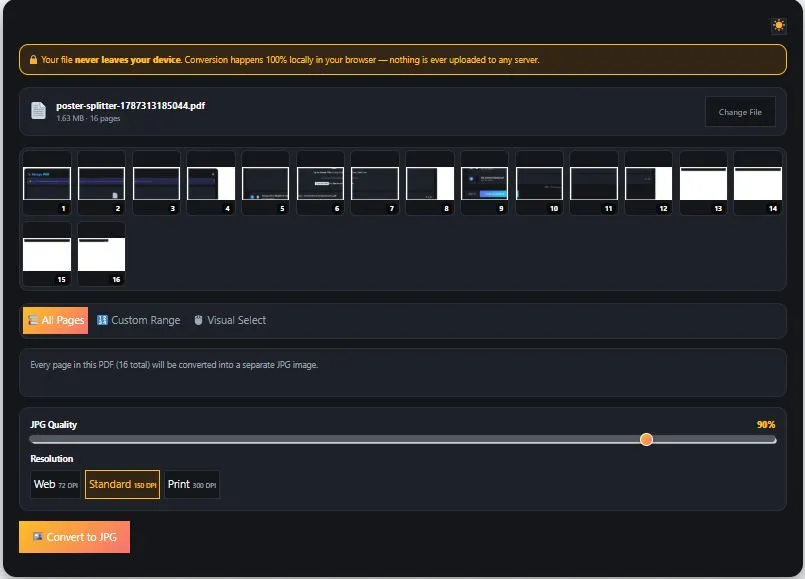
Table of Contents
How to Convert PDF to JPG
- Upload your PDF — Tap the upload box or drag and drop your PDF file directly into the converter.
- Choose your pages and settings — Select whether to convert All Pages, a Custom Range (like "1-5, 8"), or tap individual thumbnails in Visual Select mode. Then pick your resolution (Web, Standard, or Print) and adjust the JPG quality slider.
- Click "Convert to JPG" — The tool renders your selected pages directly in your browser, with a progress bar showing conversion status.
- Download your file — A single page downloads immediately as a JPG. Multiple pages are automatically packaged into a ZIP file for one-click download.
Why Use This PDF to JPG Converter
Most online PDF to JPG converters require uploading your file to a remote server before anything happens. This means your document — even if temporarily — sits on someone else's computer while it's being processed, which is a real concern if the file contains a signed contract, medical record, financial statement, or any other private information.
This converter avoids that entirely by running inside your own browser. When you select a PDF, it's read directly from your device's memory, rendered onto a canvas element, and converted to a JPG using canvas.toBlob() — the same native browser API that handles image export in countless web applications, not a custom or experimental method. Your file is never transmitted to any server at any point in the process.
Tips for Getting Accurate Results
- Use "Print" resolution (300 DPI) for text-heavy pages — if you plan to print the JPG or need to zoom in without blurring, the higher DPI preserves sharper edges on text and fine details.
- "Web" resolution (72 DPI) is enough for screen use — if the JPG is only going on a website, in an email, or on social media, lower resolution keeps the file size small without any visible quality loss on screen.
- Lower the quality slider for large multi-page conversions — dropping quality from 90% to around 70-75% can noticeably shrink file sizes when converting many pages at once, with minimal visible difference.
- Use Visual Select when you only need a few specific pages — it's faster than typing page numbers and lets you confirm you're picking the right pages by seeing them before converting.
- JPG doesn't support transparency — any transparent areas in the original PDF page will be filled with white in the converted image, since JPG is not capable of storing transparency data.
FAQs
Can I convert PDF to JPG for free?
Yes, this PDF to JPG converter is completely free to use with no limit on the number of conversions or pages.
Does this tool upload my PDF to a server?
No. The entire conversion happens locally in your browser using JavaScript. Your PDF file is never uploaded to any server at any point.
Can I convert only specific pages instead of the whole PDF?
Yes. Use the Custom Range mode to type page numbers like "1-5, 8", or use Visual Select to tap individual page thumbnails and choose exactly which pages to convert.
What resolution should I choose for printing?
Select the Print preset, which converts pages at 300 DPI. This produces sharper, higher-resolution images suitable for printing compared to the Web or Standard presets.
Can I adjust the image quality of the converted JPG?
Yes. A quality slider lets you choose anywhere from 40% to 100% JPG quality, letting you balance file size against image sharpness.
Quick Summary
This free PDF to JPG converter lets you turn PDF pages into JPG images entirely inside your browser, with no software installation and no file upload to any server. You can convert every page, a custom range, or hand-picked pages using Visual Select, and choose your output resolution from three presets alongside an adjustable quality slider. Because the entire PDF to JPG conversion runs locally using your browser's own canvas rendering, your documents stay completely private throughout the process — making it a fast, safe option for converting both everyday files and sensitive personal documents.
Disclaimer
This PDF to JPG converter is provided free of charge. It converts PDF pages into JPG images directly in your browser, and no file or data is ever uploaded to our servers.
Conversion quality and output may vary depending on your original PDF's content, resolution, and formatting. This tool is provided "as is" without any warranty, and we are not liable for any loss, damage, or issue arising from its use.
For documents where accuracy or quality is critical — such as legal, official, or print-ready materials — we recommend reviewing your converted files carefully and consulting the appropriate software or professional if needed.