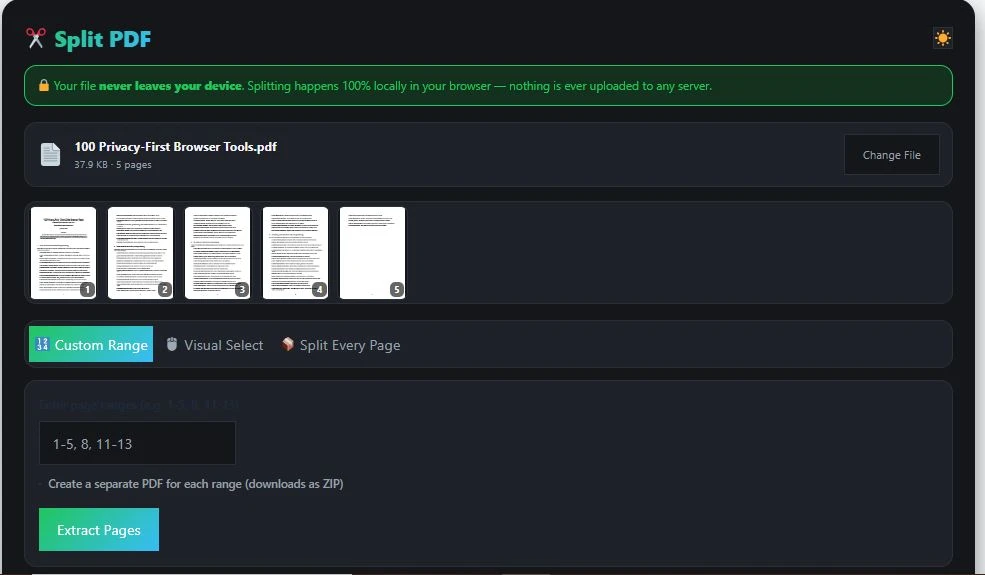
BytePriva's split PDF tool lets you pull specific pages out of a PDF file, or break one large PDF into several smaller files, entirely inside your web browser. There is no need to upload your document to a server first. The tool reads your file, shows you every page as a small preview, and lets you choose exactly which pages you want using page ranges or simple clicks. Once you're happy with your selection, the new file (or files) download straight to your device. It's a free split PDF tool that works without an account, and runs on phones, tablets, and computers alike.
Tap to choose a PDF or drag & drop it here
One file at a time
Tap the pages above to select the ones you want in your new PDF.
This will create a separate PDF for every page, packaged into one ZIP file.
Done!
Table of Contents
What Does "Split a PDF" Actually Mean?
Splitting a PDF does not change the content on any page. It simply separates certain pages from the rest of the document. Think of it like tearing a few pages out of a printed book and keeping them as their own small booklet — the words on those pages stay exactly the same, only the number of pages you're holding changes.
This split PDF tool gives you three ways to do that:
- Custom Range — type the page numbers you want, such as "1-5, 8, 11-13", and get one combined PDF with just those pages.
- Visual Select — tap on page previews to choose exactly which ones you want, then combine them into a new PDF.
- Split Every Page — turn every single page of your document into its own separate PDF file, delivered together in one ZIP folder.
How to Split a PDF File Online
Splitting a PDF with BytePriva takes only a few steps:
- Click "Tap to choose a PDF" or drag your file into the upload box.
- Wait a moment while the tool reads your file and shows a small preview of every page.
- Pick one of the three modes at the top: Custom Range, Visual Select, or Split Every Page.
- If you chose Custom Range, type the page numbers or ranges you want, separated by commas.
- If you chose Visual Select, tap each page preview you want to include — a checkmark will appear on selected pages.
- If you chose Split Every Page, no extra input is needed — every page will become its own file.
- Click the extract or split button, and your new file will be ready to download in seconds.
Everything happens on the page you're already on. There's no upload progress bar to wait for and no delay while a server processes your file, because your file is never sent anywhere.
Is It Safe to Split a PDF Online?
Yes, and the reason comes down to how the tool actually works. Many online PDF tools require you to upload your document to a remote server before anything happens. That means your file — even briefly — sits somewhere outside your control, which matters if the document contains a signed contract, a medical form, financial records, or anything else private.
Our split pdf tool avoids that step completely. It uses a JavaScript library called pdf-lib that runs inside your browser and can read, extract, and rebuild PDF pages without sending any data over the internet. When you choose a file, it's loaded straight into your browser's own memory, processed there, and the result is offered back to you as a direct download. Your document never leaves your device at any point in the process.
Why Split a PDF Instead of Sharing the Whole Thing
There are plenty of everyday situations where using a split pdf tool makes more sense than sending an entire document. Splitting lets you share only what's relevant:
- Sending just the signature page of a long contract instead of the whole document
- Pulling out one chapter of an e-book or manual to read separately
- Separating a scanned bundle of receipts into individual files for expense reports
- Extracting a single certificate or ID page from a larger scanned batch
- Breaking a large report into smaller sections so it's easier to review and comment on
- Removing pages you don't need before printing, to save paper and ink
Split PDF: Choosing the Right Mode
Each of the three modes suits a different situation. Here's how to decide which one fits what you're trying to do:
| Mode | Best For | What You Get |
|---|---|---|
| Custom Range | You already know the exact page numbers you need | One PDF with the pages you typed, in order |
| Visual Select | You want to look at each page before deciding | One PDF with only the pages you tapped |
| Split Every Page | You need every page as its own separate file | A ZIP folder containing one PDF per page |
If you're working with a short document and know precisely which pages you want, Custom Range is the fastest option. If you're not sure and want to see thumbnails first, Visual Select gives you more control. If your goal is to break a whole document into individual pages — for example, to send each page to a different person — Split Every Page handles that in one click.
Frequently Asked Questions
Is this PDF splitter free to use?
Yes. There is no cost, no page limit, and no account needed to split your PDF files.
Will splitting change the content on my pages?
No. Splitting only changes how many pages are in the file. The text, images, and formatting on each page stay exactly as they were in the original document.
Is my file uploaded to a server when I split it?
No. The entire process happens locally in your browser. Your file is never sent to BytePriva's servers or anywhere else.
Can I select specific pages instead of typing page numbers?
Yes. The Visual Select mode lets you tap on page previews directly, so you don't need to know the exact page numbers in advance.
Does this tool work on mobile devices?
Yes. The interface is built to work smoothly on phones and tablets, not just desktop computers.
Final Thoughts
Splitting a PDF doesn't have to mean uploading a private document to an unfamiliar website and hoping for the best. With this tool, your file stays on your own device from start to finish, whether you're pulling out a single page or breaking a document into dozens of separate files.
The PDF format has been a stable, open international standard (ISO 32000) since 2008. Which is exactly why splitting and rebuilding pages this way works reliably across every device and browser. Whether you're a student, a freelancer, or just trying to organize scanned paperwork, you can split your PDF in a few clicks without giving up control of your file. Explore BytePriva's full collection of free browser-based tools for more privacy-first utilities.
Disclaimer:
At BytePriva, we genuinely care about your privacy — that's why this tool processes your files locally in your browser, never on our servers. That said, we always recommend double-checking your split files before using them for anything important, as we can't guarantee everything will be 100% error-free. By using any tool on this website, you acknowledge that you have read and agree to our Terms & Conditions and Privacy Policy, and that you do so at your own discretion and risk.