This free pdf margin cropper for Kindle automatically detects and removes the excess white space around your document's text, making it much easier to read on small e-reader and tablet screens. Simply upload your PDF, and the tool scans a sample of pages to find exactly where your content starts and ends, then applies that crop uniformly across every page.
You can fine-tune the result with three detection sensitivity presets, or manually adjust the top, bottom, left, and right margins with live sliders while previewing any page before you commit. Everything happens entirely inside your browser using vector-quality cropping, so your original text and images stay perfectly sharp and your file is never uploaded anywhere. Whether you're reading scanned books, research papers, or reports on a Kindle, Kobo, or tablet, this tool gives you a screen-optimized version in seconds.
Click to upload or drag & drop a PDF
Nothing is uploaded — processed entirely in your browser
Upload a PDF to see the margin preview
Upload a PDF to begin.
0 / 0 pages
🔒 100% private — your PDF never leaves your device.
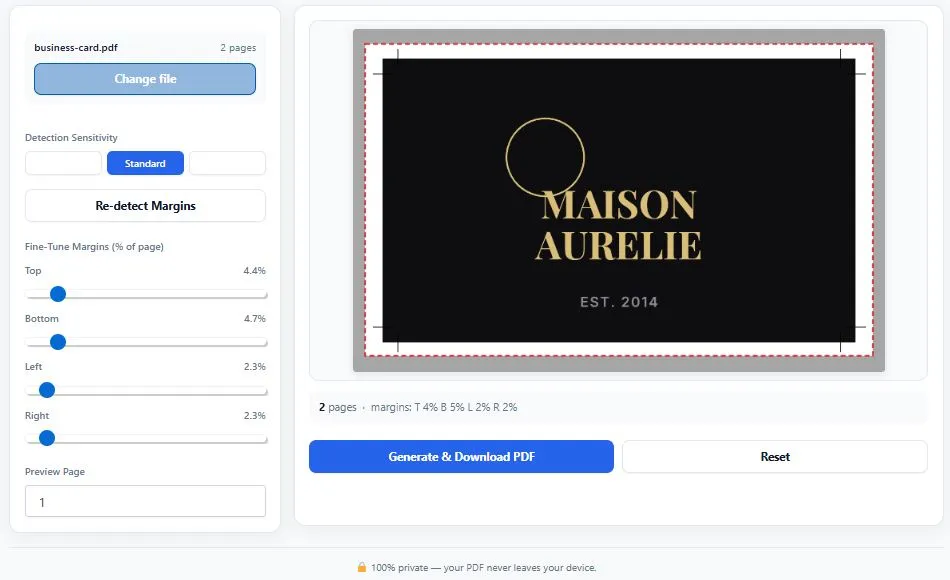
Table of Contents
How This PDF Margin Cropper for Kindle Works
Cropping your PDF's margins takes just a few steps, with the tool handling the detection work automatically. Here's how it works:
- Upload your PDF — click the upload area or drag and drop any PDF file from your device.
- Auto-detection runs instantly — the tool scans a sample of your pages and calculates the tightest margin that fits all of them without cutting off content.
- Fine-tune if needed — adjust the sensitivity preset or drag the four margin sliders while checking the live preview on any page.
- Generate and download — click the button to produce your cropped PDF, ready to load onto your Kindle, Kobo, or tablet.
Why Use This PDF Margin Cropper for Kindle
PDFs display as fixed, print-shaped pages on Kindle and other e-readers rather than reflowing text like a native ebook, according to Amazon's own support documentation on converting personal documents. That means every white margin printed into your original file stays exactly where it is on the device screen too, permanently eating into the small amount of space you already have. On a 6-inch e-reader, a document with typical 20 to 25mm print margins can lose nearly a third of its screen to blank space, forcing constant zooming and panning just to read a normal-sized line of text.
This tool fixes that at the source instead of asking you to zoom in every few seconds. By detecting and removing the margins before the file ever reaches your device, the remaining text is rendered as large as your screen physically allows. Because cropping is applied through the page's underlying boundaries rather than by rasterizing or resizing the content, text and images keep their original vector sharpness with no quality loss. Because the entire process runs locally in your browser, using the same techniques described in Amazon's own Kindle document guidelines, there's no upload wait and no size limit — useful for cropping full scanned books or lengthy reports in one pass.
Who This PDF Margin Cropper for Kindle Is Built For
- Kindle, Kobo, and e-reader owners — anyone reading scanned books, manuals, or PDFs on a small e-ink screen where every millimeter of visible text matters.
- Students and researchers — reading academic papers or textbooks formatted for A4 or Letter print, now optimized for tablets and phones.
- Digital archivists — cleaning up old scanned books or documents so they're more comfortable to read on modern devices.
- Frequent travelers and commuters — who read documents on their phone or tablet and want to avoid constant pinch-zooming on small screens.
- Anyone converting print-formatted PDFs for screen reading — reports, manuals, or forms originally designed for paper that now need to work well digitally.
Tips for Getting Accurate Results
- Check more than one page before downloading — since the same crop is applied to every page, use the Preview Page selector to check the first page, a middle page, and the last page, especially if your document has varying layouts like chapter title pages.
- Try "Safe" sensitivity first for documents with images — images or diagrams with light colors can sometimes be detected as margin space; "Safe" mode is more conservative and less likely to clip them.
- Use "Aggressive" sensitivity for lightly-scanned or faint documents — if auto-detect leaves more margin than expected, faint scanner noise or shadows may be confusing the standard threshold.
- Password-protected PDFs won't load — remove the password with a separate PDF unlock tool first, then upload it here.
- Re-run detection after switching sensitivity — changing the sensitivity preset doesn't automatically re-scan your pages; click "Re-detect Margins" to apply the new setting.
Frequently Asked Questions
What does a PDF margin cropper for Kindle actually do?
It automatically detects the white space around your document's text and removes it, so the content fills more of your Kindle or e-reader's screen instead of leaving large blank borders on every page.
Is this tool free to use?
Yes, this tool is completely free with no signup required. You can upload a PDF, crop the margins, and download the result without creating an account or paying anything.
Will cropping affect my PDF's text quality?
No. The tool crops using the page's underlying boundaries rather than converting pages into images, so your text and graphics stay exactly as sharp as the original file.
Is my PDF uploaded to a server?
No. This tool processes your PDF entirely inside your browser. Your file is never sent to a server, which keeps your document private with no practical file size limit.
Can it crop each page differently?
No, the same crop margins are applied uniformly across every page for a consistent look. If your document has pages with very different layouts, check a few sample pages in the preview before downloading.
What if the auto-detected margins cut off some of my content?
Switch to the "Safe" sensitivity preset and click "Re-detect Margins," or manually widen the affected slider using the live preview to confirm nothing is clipped before downloading.
Does this work on scanned books, not just typed documents?
Yes. It works on both scanned and digitally created PDFs, since it detects margins by analyzing the rendered page content rather than relying on selectable text.
Can I use this on a password-protected PDF?
Not directly. You'll need to remove the password using a separate PDF unlock tool first, since password-protected files can't be read by the browser for analysis.
Quick Summary
This free pdf margin cropper for Kindle automatically detects and removes excess white space around your document's text, making it much easier to read on small e-reader and tablet screens. Simply upload your PDF, let auto-detection scan your pages, fine-tune with sensitivity presets or manual sliders, then preview and download instantly. Because cropping is applied through the page's own boundaries rather than rasterizing content, your text and images stay perfectly sharp with zero quality loss. It's a fast, private way to turn print-formatted PDFs into a screen-optimized version for your Kindle, Kobo, or tablet.
Disclaimer
This PDF margin cropper is provided for free, as-is, and processes your document entirely within your own browser — no files are ever uploaded to or stored on any server. While auto-detection is built to work reliably across most scanned and digital PDFs, results can vary depending on your document's formatting, image content, and scan quality, and the tool does not guarantee a perfect crop for every possible page layout.
BytePriva is not responsible for any loss, damage, or other issues that may result from using this tool, and it is provided with no warranty of any kind. Always preview a few sample pages before downloading, and for important documents, verify the final cropped file on your actual device before deleting the original.