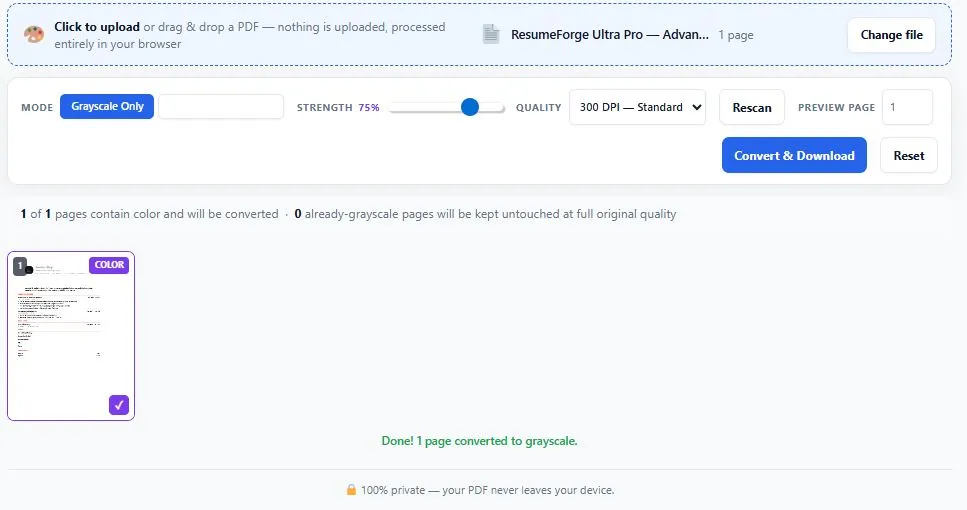
This free pdf ink saver converts color PDFs to grayscale to save printer ink, but unlike most grayscale converters, it automatically detects which pages actually contain color and leaves already-gray pages completely untouched at full original quality. Simply upload your PDF, and every page gets scanned instantly, with color pages marked for conversion in a visual thumbnail grid you can review or override before committing.
Choose between a straightforward Grayscale Only mode or Grayscale plus Ink Saver, which further lightens light backgrounds and midtones while keeping actual text dark and readable. A live before-and-after preview lets you confirm exactly how any page will look before you convert anything. Everything runs entirely inside your browser using real pixel-level analysis, so your document is never uploaded anywhere.
Upload a PDF to begin.
Scanning pages...
🔒 100% private — your PDF never leaves your device.
Table of Contents
How This PDF Ink Saver Works
Turning a color PDF into an ink-saving grayscale file takes just a few steps, with color detection handled automatically. Here's how to convert PDF to grayscale with this tool:
- Upload your PDF — click the upload area or drag and drop any PDF file from your device.
- Pages are scanned instantly — every page is analyzed for real color content and shown in a thumbnail grid, with color pages marked for conversion.
- Choose your mode — pick Grayscale Only, or Grayscale plus Ink Saver to further lighten backgrounds, and select your preferred quality level.
- Convert and download — click the button to generate your finished PDF, with only the pages that needed it actually converted.
Why Use This PDF Ink Saver
Most tools that convert a PDF to black and white apply the same treatment to every single page, whether it needs it or not, which means pages that are already grayscale get needlessly re-rasterized and can lose their crisp, selectable text in the process. This tool scans every page first and only converts the ones that actually contain color, based on real pixel analysis rather than assumptions. Pages that are already black and white are copied through untouched, keeping their original vector quality and text completely intact.
The grayscale conversion itself follows the luma formula defined in ITU-R BT.601, the same broadcast-industry standard used for converting color video and images to grayscale, so results are consistent and predictable rather than a rough approximation. The optional Ink Saver mode goes a step further for genuine printer-friendly PDF output: light backgrounds are pushed to pure white and midtones are lightened, while dark text is left alone so it stays sharp and readable. A live before-and-after preview means you can check exactly how any page will print before committing to the full document, and because everything happens locally in your browser, your file is never uploaded anywhere.
Who This PDF Ink Saver Is Built For
- Students and researchers — printing lecture notes, textbooks, or papers on a budget by converting color pages to black and white before printing.
- Office and admin staff — preparing internal reports, contracts, or training materials for black-and-white printing without wasting color toner.
- Small businesses — reducing printing costs on invoices, forms, and client documents where color isn't essential.
- Environmentally conscious printers — cutting toner and cartridge waste by defaulting to grayscale for drafts, archives, and internal-only documents.
- Anyone with a mostly-black-and-white document — since only genuinely colored pages get converted, the rest of the file stays at full original quality automatically.
Tips for Getting Accurate Results
- Use the before-and-after preview before converting — check the Preview Page field for any page you're unsure about, especially ones with subtle color or light backgrounds.
- Choose 300 DPI for most documents — it balances sharp text and images with a reasonable file size; use 600 DPI only for detailed graphics or 150 DPI for quick drafts.
- Try Ink Saver mode for scanned documents — off-white or cream-tinted scans benefit the most from background lightening, since pure grayscale alone won't remove a tinted background.
- Review the color badges before downloading — pages marked "Already gray" are skipped automatically; click any thumbnail to override the auto-detected result if needed.
- Password-protected PDFs won't load — remove the password with a separate PDF unlock tool first, then upload it here.
FAQs
What does a pdf ink saver actually do?
It converts color pages of a PDF to grayscale to reduce color ink usage when printing, while automatically detecting and skipping pages that are already black and white so their original quality stays untouched.
Is this tool free to use?
Yes, this tool is completely free with no signup required. You can upload a PDF, convert it to grayscale, and download the result without creating an account or paying anything.
What's the difference between Grayscale Only and Ink Saver mode?
Grayscale Only converts colors to their equivalent gray tones using a standard broadcast formula. Ink Saver mode does the same but also lightens backgrounds and midtones further, using less ink while keeping text dark and readable.
Will this affect pages that are already black and white?
No. Pages that are already grayscale are detected automatically and copied through untouched, keeping their original vector quality and selectable text exactly as they were.
Is my PDF uploaded to a server?
No. This tool processes your PDF entirely inside your browser. Your file is never sent to a server, which keeps your document private with no practical file size limit.
What quality setting should I choose?
300 DPI works well for most documents. Use 600 DPI for detailed graphics or fine print, and 150 DPI for quick drafts where file size matters more than sharpness.
Will converted pages still have selectable text?
No. Pages that contain color are converted using image-based rendering to guarantee accurate grayscale results, so their text is no longer selectable. Pages that were already grayscale keep their original selectable text.
Can I use this on a password-protected PDF?
Not directly. You'll need to remove the password using a separate PDF unlock tool first, since password-protected files can't be read by the browser for processing.
Quick Summary
This free pdf ink saver converts color pages to grayscale to reduce printing costs, while automatically detecting and skipping pages that are already black and white to preserve their original quality. Simply upload your PDF, choose Grayscale Only or Ink Saver mode, preview any page before committing, then convert and download instantly. Because conversion follows a standard broadcast luma formula and only touches pages that actually need it, this pdf ink saver delivers consistent, predictable results without unnecessary quality loss. Everything runs locally in your browser, so your document is never uploaded anywhere.
Disclaimer
This PDF ink saver is provided for free, as-is, and processes your document entirely within your own browser — no files are ever uploaded to or stored on any server. Actual ink or toner savings depend on your printer, cartridge type, paper, and print settings, and this tool cannot guarantee a specific real-world savings amount, only that color content is converted to grayscale as displayed in the preview. BytePriva is not responsible for any loss, damage, or other issues that may result from using this tool, and it is provided with no warranty of any kind. Always review the before-and-after preview before printing important documents.