This free WhatsApp store builder makes a shop page in your browser, with no account. Add products, prices and photos, set delivery rules, then press Export to get one index.html file to host yourself. Customers fill a cart, and their order opens in WhatsApp as a ready-written message to your number.
What does this WhatsApp store builder do?
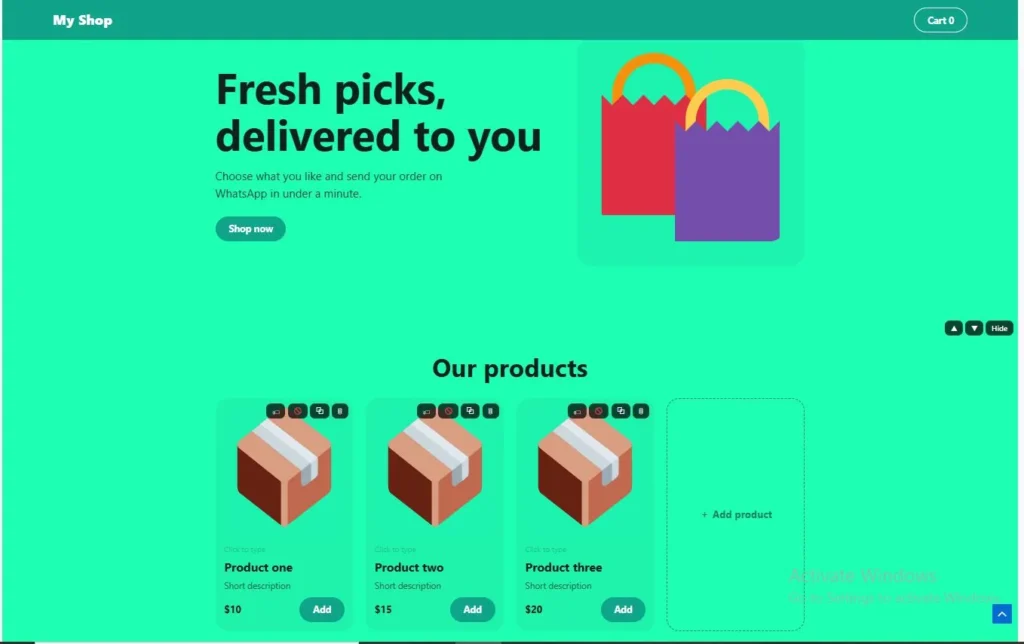
You edit a real shop page directly: click any text or photo and type or replace it. The finished shop has a header with a cart button, a headline section, a product grid, optional extra sections such as About us, a contact section and a footer. Export saves the whole shop as one file named index.html.
The builder has no login, no payment gateway, no stock counter and no order history. Orders travel as WhatsApp or email messages, and the exported file is yours to host.
How to build your WhatsApp shop page
- Enter your shop details. Open Settings and fill in your shop name, country, WhatsApp number and, if you want one, an order email. Press Test this number in WhatsApp to open a chat with that number in a new tab.
- Edit the text. Click any text on the page and type. Single-line fields finish when you press Enter. The headline, subtitle, product descriptions and section texts also accept line breaks. To change a price, click it and type a number.
- Add products. The page starts with three sample products. Press + Add product, paste many at once into Add many products at once, or use Photos → products to create one product from each photo. That last option uses the file name as the product name and sets the price to 0, so set the prices afterwards.
- Add photos. Click a product photo box, or drag a photo onto it. JPG, PNG, WebP and GIF files up to 20 MB are accepted. The builder shrinks each photo to at most 700 pixels on its longest side and saves it as WebP, or as JPEG if your browser cannot make WebP. Hover over a photo to make it smaller or bigger, change its animation or remove it.
- Use the product card buttons. Each card has buttons for a sale price, Sold out on or off, duplicate and delete. For a sale price you enter the old price, and it is shown crossed out beside the new one. Type a category in the small line above a product name; filter buttons appear once at least two different categories exist.
- Set the look. Choose a brand color and background color, card size, photo shape, text size, font and photo animation. The options under Pro effects are optional.
- Set your store rules. Under Store rules, add a delivery fee, a free delivery above amount, a minimum order, how customers should pay and the first line of the order message.
- Add shop info. Fill in opening hours, address, Instagram, Facebook and TikTok. Your address gets a Map link, and social links get https:// added if you leave it out.
- Preview and back up. Press Mobile for a phone-width preview and Undo (or Ctrl+Z) to step back. Press Save project file to download a backup.
- Export, upload and test. Press Export to download index.html, upload it to a web host, open the link on a phone and place one test order.
How do customers place an order?
- A customer taps Add on a product. A bar appears with the item count, the total and View order; the Cart button in the header opens the same cart. A product marked Sold out shows a Sold out label instead of Add.
- In the cart they change quantities, choose Delivery or Pickup, choose As soon as possible, Today or Tomorrow, and type their name (required) and details. Your Hint inside the order box text is the placeholder in the details field.
- They can tap Share my location. If the browser allows it, a Google Maps link with their coordinates is added to the details.
- If you wrote a How to pay note, it is shown in the cart.
- They send the order with Send on WhatsApp (shown when your number is valid), Send by email or Open in Gmail (shown when you added an order email), or Copy message.
If you set a minimum order, the send buttons stay disabled until the subtotal reaches it, and the cart shows the minimum. Send by email opens the customer's own email app with the message ready; the builder does not send email itself. A round WhatsApp button also stays in the corner of the shop, and the contact section has a WhatsApp us button, both only when your number is valid.
What the order message looks like
This sample was produced with the builder's own message format, using two sample products, a delivery fee of 3 and free delivery above 150:
Hello! I would like to order:
Order ref: #A1B2C3

- 2 x Red Shoes ($90)
- 1 x Blue Shirt ($20)

Subtotal: $110
Delivery: $3
Total: $113

Delivery - As soon as possible
Name: Ali
Details: House 12, Street 4
The first line is yours to change in Store rules. The order reference is a short code made for each order. A Delivery line appears only when you set a delivery fee:
| Situation | Delivery line |
|---|---|
| Customer chooses Pickup | Free |
| Delivery, subtotal at or above your free delivery amount | Free |
| Delivery, subtotal below that amount | Your delivery fee, added to the total |
| No delivery fee set | No delivery line |
How do orders reach your WhatsApp?
Send on WhatsApp opens a new tab with https://wa.me/ followed by your number and the order text. WhatsApp's click-to-chat help page says this link format needs the full phone number in international format and that the pre-filled message appears in the chat's text field. So the customer still taps send inside WhatsApp, and the order arrives as a normal message in your chat.
The builder converts the number you type into that format. Choose your country, then type the number the way you dial it locally: a leading 0 is replaced by the country code. For a country that is not in the list, start the number with + or 00. A line under the box shows who customers will message. These are sample numbers:
| Country chosen | You type | Customers message |
|---|---|---|
| Pakistan +92 | 0300 1234567 | +923001234567 |
| Pakistan +92 | +92 300 1234567 | +923001234567 |
| United Kingdom +44 | 07911 123456 | +447911123456 |
| None | +44 7911 123456 | +447911123456 |
If no country is chosen and the number starts with 0, the builder cannot tell the country and asks you to choose one or start with +. Always press Test this number in WhatsApp before you publish.
Which settings can you change?
| Area | Options |
|---|---|
| Shop basics | Shop name, country, WhatsApp number, order email, currency, hint inside the order box |
| Look | Brand color, background color, product card size, photo shape (Square, Tall, Wide), text size, font (Clean, Serif, Rounded, Wide, Typewriter) |
| Photo animation | None, Float, Pulse, Wobble, Bounce, Zoom on hover, 3D spin |
| Pro effects (optional) | 3D tilt on product cards, a rotating 3D ring of product photos in the headline section, scroll reveal (Fade up or 3D flip up), announcement bar text, product search box (Auto shows it with 7+ products, or Never) |
| Store rules | Delivery fee, free delivery above, minimum order, how to pay, first line of the order message |
| Shop info | Opening hours, address, Instagram, Facebook, TikTok, tab icon (one emoji) |
| Page sections | Add, move up or down, hide or show, and delete sections; set image position (left, right, top or none) and text alignment |
| Language | Writing direction: Left to right or Right to left (Urdu, Arabic) |
| Bulk tools | Add many products at once, Photos → products, change all prices by a percentage, reset photo sizes, remove all products |
Currency is plain text placed before each price, so you can type a symbol or letters such as $ or Rs. Fonts are system fonts already on the visitor's device, so no font file is downloaded.
How do I put the shop online?
Press Export to download index.html. Before it downloads, the builder checks for common slips and lets you export anyway or go back: no WhatsApp number or email, a shop name that is still the sample, products without photos or prices, a WhatsApp number or email that looks wrong, and no country chosen.
Upload the file to any web host that can serve a normal HTML page, open the link on a phone and place a test order. As one example, Cloudflare Pages has a Direct Upload option that accepts a zip file or a folder by drag and drop; see Cloudflare's documentation for the current steps and limits. Put index.html in a folder (or zip it) first. Accounts, pricing and limits are set by each host, so check the host's current pages before you choose.
What is inside the exported file?
- One file that holds the shop's styles, script, product data and photos.
- The page title is your shop name, the meta description is your headline section's subtitle, the tab icon is your emoji and the browser theme color is your brand color. Write a clear subtitle, because it becomes the description.
- The language attribute is set to en, with right-to-left direction added when you choose Right to left.
- The products are drawn by JavaScript when the page opens. The HTML itself holds only the title, description and an empty container.
- A built-in security policy blocks network requests and any image that is not embedded in the file, so outside scripts and external images do not load unless you edit the file.
How do I update the shop later?
The builder saves your work in your browser's local storage about half a second after each change and shows Saved when it is done. If saving fails because storage is full, it says so and asks you to save a project file instead. To update a live shop, open the builder in the same browser (or load your project file with Open project file), edit, press Export and replace the old index.html on your host.
Opening a project file replaces what is currently in the editor. Delete all saved data and start over asks for confirmation before it clears the saved shop and cart data.
What does this builder not do?
- No payments. There is no payment gateway; the How to pay field is a note shown in the cart.
- No order records. Nothing stores orders. They exist only as messages in WhatsApp or email.
- No stock counting. Mark products Sold out yourself and export again.
- No automatic sending. The customer taps send in WhatsApp, or in their own email app.
- English button labels. Built-in labels such as Add, Cart, View order and Send on WhatsApp are in English. Texts you can edit, such as the headline, product names and descriptions, section texts and the first line of the order message, can be in any language.
- No currency conversion or tax. Currency is a text symbol, and prices are the numbers you type.
Where is my shop data stored?
While you edit, your shop is kept in your browser's local storage, and photos are resized in your browser before they are saved there. The project file and index.html are downloaded to your device. The exported shop blocks network requests through a built-in security policy. For how the BytePriva website itself handles data, see the Privacy Policy.
Who is this builder for?
- Sellers who already take orders in chat and want a cleaner page to show products and prices.
- People who want a shop page without creating an account for the builder.
- Anyone who prefers to keep the shop as a single file they host themselves.
If you need built-in payments, order history or staff logins, a hosted store platform that offers them will suit you better.
Frequently asked questions
Do I need an account to use this WhatsApp store builder?
No. The builder has no login. The web host you choose for your exported file may ask you to create its own account.
Is the builder free?
Yes. Every option in Settings, including the ones listed under Pro effects, works without payment: nothing in the builder is locked. Hosting your exported file is separate and priced by your host.
Does BytePriva take a commission or handle payments?
No. The builder has no payment step and no fee logic. It only shows the How to pay note you write, such as cash or bank transfer. Hosting costs, if any, are set by the host you choose.
How do orders reach my WhatsApp?
The customer taps Send on WhatsApp, which opens a chat with your number and the order text ready. They tap send, and the order arrives as a normal WhatsApp message. If you add an order email, customers can also send the order by email.
What does the order message contain?
The first line you set, a short order reference, each item with quantity and line total, the subtotal, a delivery line if you set a fee, the total, Delivery or Pickup with the chosen time, and the customer's name and details.
Which photo formats can I use?
JPG, PNG, WebP and GIF, up to 20 MB each. Each photo is shrunk to at most 700 pixels on its longest side and saved as WebP, or JPEG if the browser cannot make WebP.
Can I use Urdu or Arabic?
Yes. Type your shop texts in any language and set Writing direction to Right to left (Urdu, Arabic). Built-in button labels such as Add and Send on WhatsApp stay in English.
How do I add many products or change all prices at once?
Open Settings. In Add many products at once, type one product per line, such as Red Shoes - 45, then press Add these products. The price can follow a hyphen, colon, comma, pipe or just a space. To change every price, type a percentage such as 10 or -10 and press Apply. Crossed-out sale prices are not changed.
Is there a limit on the number of products?
The builder sets no product limit. Photos are stored in your browser, so full browser storage shows a warning; save a project file as a backup.
What happens if I clear my browser data?
The saved shop is removed from that browser. Press Save project file now and then, and use Open project file to load it again.
Disclaimer
This tool is not affiliated with or endorsed by WhatsApp. Before you share your shop link, double-check your WhatsApp number, prices and delivery details, and place a test order yourself. Payment and delivery terms are between you and your customers.