A Base64 decoder is a free online tool that converts Base64-encoded text back into its original form — whether that's plain text, a file, or a JWT (JSON Web Token). Paste your Base64 string to decode it instantly, reconstruct a file for download, or break down a JWT into its header and payload with an expiry check — all directly in your browser.
Table of Contents
How to Use This Base64 Decoder
This Base64 decoder handles three different situations, so pick the tab that matches what you're working with.
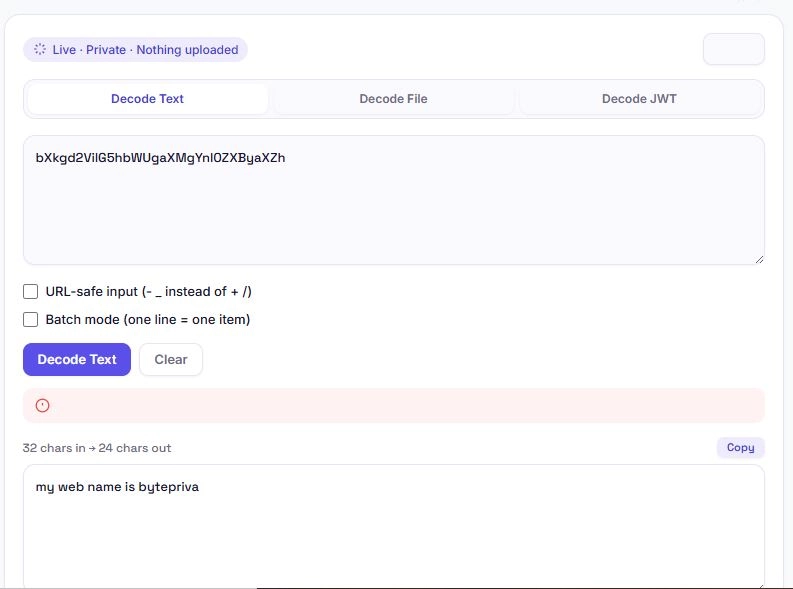
Decode Text — paste your Base64 string, enable URL-safe mode if needed, and click "Decode Text" to get the original text back.
Decode File — paste a Base64 string or a full Data URI, choose the file type from the dropdown (or let it auto-detect from a Data URI), name your file, and click "Decode & Download." If it's an image, you'll see a preview before downloading.
Decode JWT — paste a full JWT token, and this Base64 decoder splits it into its header and payload, decodes both, and flags whether the token has expired.
Decoding JWTs: What You're Actually Looking At
A JWT (JSON Web Token) is made of three Base64 URL-safe-encoded parts separated by dots: a header, a payload, and a signature. This Base64 decoder breaks down all three:
- Header — typically contains the token type and the signing algorithm used (like HS256 or RS256)
- Payload — contains the actual claims, such as a user ID, issue time, and expiration time
- Signature — a cryptographic value used to verify the token hasn't been tampered with
This Base64 decoder shows you the header and payload in full, readable JSON, and automatically checks the exp claim to tell you whether the token is still valid or has already expired. It does not — and cannot — verify the signature, since that requires the secret or public key used to sign the token in the first place. Decoding a JWT only reveals its contents; it doesn't confirm the token is legitimate.
Fixing Common Base64 Decode Errors
When this Base64 decoder can't decode a string, it's almost always one of these issues:
| Error | Likely Cause | Fix |
|---|---|---|
| Invalid character error | The string uses - and _ instead of + and / | Enable "URL-safe input" mode |
| Incorrect padding | The Base64 string is missing trailing = characters | Make sure the full string was copied, including any = at the end |
| Unexpected token / garbled output | Whitespace or line breaks got mixed into the string | This Base64 decoder strips whitespace automatically, but check for extra pasted text |
| Nothing happens on decode | The input box is empty or contains non-Base64 text | Confirm you're pasting the encoded string, not the original data |
Most decode failures come down to one of these four causes — checking them in order usually finds the problem quickly.
A Word on JWT Privacy
JWT payloads are only encoded, not encrypted — anyone who has the token can decode the header and payload using any Base64 decoder, including this one, without needing a password or key. This means JWTs should never contain sensitive information like passwords, credit card numbers, or private personal data in the payload itself.
The official JWT.io introduction covers this distinction in detail, along with how JWTs are structured and used for authentication. Since this Base64 decoder processes everything locally in your browser, pasting a token here to inspect it doesn't expose it anywhere — but the token itself may already reveal more than expected if it was built with sensitive data in the payload.
Why This Base64 Decoder Checks Token Expiry Automatically
Most JWTs include an exp claim — a Unix timestamp marking when the token stops being valid. Manually converting that timestamp into a readable date is a small but repetitive task anyone debugging authentication issues runs into constantly.
This Base64 decoder reads the exp claim automatically after decoding a JWT, converts it into a readable date, and compares it against the current time to show whether the token is still valid or has already expired. If a token doesn't include an exp claim at all, this section is simply left out rather than showing a false status — the check only appears when there's an actual expiration value to evaluate.
Batch Decoding and URL-Safe Input
The Decode Text tab includes two settings worth knowing about.
URL-safe input should be enabled when your Base64 string uses - and _ instead of the standard + and / characters — this is common in JWTs, URL parameters, and some API tokens. Without this toggle on, this Base64 decoder will treat those characters as invalid and show an error.
Batch mode decodes each line of your input separately instead of treating the whole input as one continuous string. This is useful when you've collected a list of separately encoded values — for example, several individually encoded IDs or tokens — and need to decode all of them in a single pass instead of one at a time.
Frequently Asked Questions
Is this Base64 decoder free to use?
Yes. There's no sign-up, no limit on how much you can decode, and no premium tier. Text, file, and JWT decoding are all free.
Does my data get uploaded anywhere?
No. This Base64 decoder runs entirely in your browser using JavaScript. Nothing you paste — including JWTs — is ever sent to a server, logged, or stored.
Can this Base64 decoder verify if a JWT is legitimate?
No. It decodes and displays the header and payload, but it cannot verify the signature, which requires the secret or public key used to sign the token. A decoded JWT shows you its contents, not whether it's authentic.
Why do I get an "invalid character" error when decoding?
This usually means the Base64 string uses - and _ instead of the standard + and /. Enable "URL-safe input" mode and try decoding again.
Can I decode a Base64 string into an image?
Yes. Switch to the "Decode File" tab, paste the Base64 string or Data URI, select an image MIME type (or let it auto-detect from a Data URI), and you'll see a preview before downloading.
What does it mean if my JWT shows as "expired"?
It means the token's exp claim contains a timestamp earlier than the current time. Most systems will reject an expired JWT even if the rest of the token is otherwise valid.
What's the difference between the three tabs?
Decode Text converts Base64 back into plain text. Decode File reconstructs Base64 data into a downloadable file, with an image preview when applicable. Decode JWT specifically parses JWT tokens into their header and payload components.
Will this work on my phone?
Yes. All three modes work the same way on mobile browsers as they do on desktop, with the layout adjusting for smaller screens.
Quick Summary
This Base64 decoder converts Base64 back into text, files, or JWT tokens — all processed locally in your browser. Unlike a basic Base64 decoder that only handles plain text, this one reconstructs files with image preview, decodes JWTs into readable header and payload sections, and automatically checks token expiry. Helpful error messages point you toward the fix — like enabling URL-safe mode — instead of just saying "invalid input." Nothing you paste is ever uploaded, which matters since Base64 decoding is often used on sensitive data like authentication tokens.
Disclaimer
This Base64 decoder is provided as a free utility for decoding Base64 text, reconstructing files, and inspecting JWT tokens. It decodes and displays data as-is — it does not verify JWT signatures, validate file integrity, or confirm that decoded data is safe or legitimate for any specific purpose.
BytePriva and its owner(s) make no guarantees regarding the accuracy, security, or suitability of decoded output for any specific use case, including authentication, security, or production systems, and shall not be held liable for any loss, error, or consequence arising from its use. You remain responsible for independently verifying any JWT or file before relying on it in a live system.
This tool is safe to use — there is nothing to install, no account required, and no data is uploaded or stored. This disclaimer simply clarifies that final responsibility for how decoded output is used rests with you.