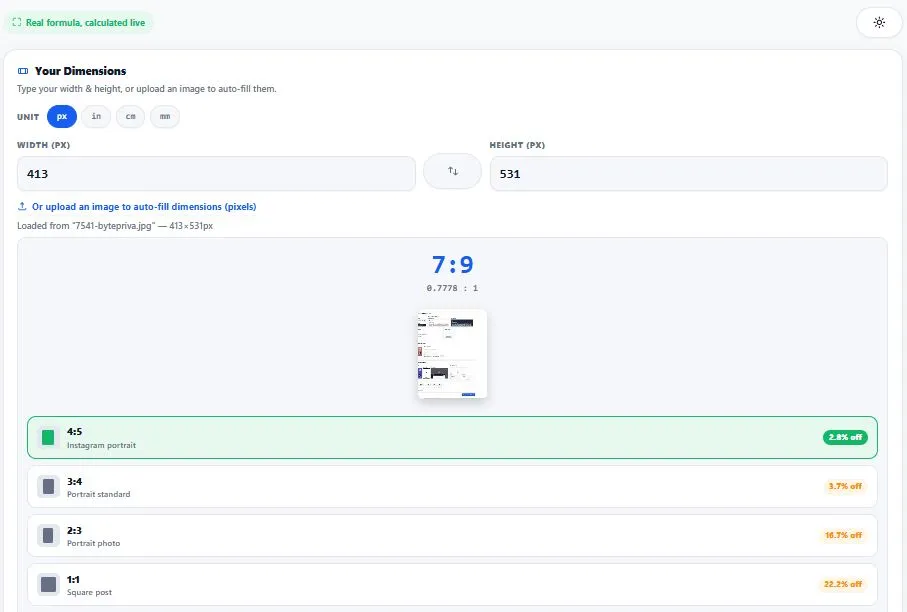
This aspect ratio calculator shows you an image's exact shape, not just its size. Enter your width and height below, or upload the image itself, and you'll instantly see its exact, simplified ratio, a live preview cropped to that shape, and which standard ratio — 16:9, 4:5, 1:1, and others — it's closest to, down to the exact percentage.
Your Dimensions
Type your width & height, or upload an image to auto-fill them.
How Aspect Ratio Is Calculated (The Formula)
An aspect ratio is just a width-to-height comparison written in its simplest possible form, and there's one reliable way to get there: find the greatest common divisor (GCD) of the width and height, then divide both numbers by it. For a 1920×1080 image, the GCD of 1920 and 1080 is 120 — divide both by 120 and you get 16:9. This is the exact method used above; it isn't rounded or estimated, so a slightly unusual size like 1918×1080 correctly comes out as 959:540 instead of being forced into 16:9 when it isn't quite that shape.
Table:
| Ratio | Decimal | Common Use |
|---|---|---|
| 1:1 | 1.0000 | Square social posts |
| 4:5 | 0.8000 | Instagram portrait |
| 4:3 | 1.3333 | Classic photos & monitors |
| 3:2 | 1.5000 | DSLR camera photos |
| 16:9 | 1.7778 | Widescreen video, YouTube |
| 9:16 | 0.5625 | Reels, Stories, Shorts |
| 21:9 | 2.3333 | Ultrawide monitors, cinema |
Who This Calculator Is Built For
This aspect ratio calculator is built for anyone who needs to know an image's exact shape before resizing, uploading, or designing around it. Web designers and developers use it to confirm an image will fit a layout without CSS stretching it. Social media managers check whether a photo already matches Instagram's 4:5 or a Reel's 9:16 before it gets auto-cropped by the platform.
Photographers and print designers compare a camera's native 3:2 output against the ratio a client's frame or template actually needs. Video editors use the closest-match list to identify whether raw footage is already 16:9, 21:9, or something in between before it's dropped into a timeline. In every case, the goal is the same — know the real ratio before you resize, not after.
Aspect Ratio vs. Resolution — The Difference Everyone Gets Wrong
These two terms get mixed up constantly, but they describe completely different things. Aspect ratio is a proportion — the shape of the image, like 16:9 or 4:5 — and it stays exactly the same whether the image is 100 pixels wide or 10,000.
Resolution, on the other hand, is the actual pixel count (like 1920×1080), which determines file size and print quality but says nothing about shape on its own. Two images can share the same 16:9 ratio while one is a tiny 640×360 thumbnail and the other a 4K 3840×2160 file — same shape, very different quality. This is exactly why most photo and video editors keep an aspect-ratio "lock" separate from the resolution setting, so you can resize an image without ever letting it stretch or squish.
Tips for Results
Use the image's real pixel dimensions, not its file size in KB/MB. File size and pixel dimensions are unrelated — a compressed 200 KB file can still be 4000×3000 pixels.
Upload the image instead of typing dimensions from memory. Camera and screenshot dimensions are often slightly different from what you'd expect (e.g. a "1080p" screen recording is sometimes 1920×1080 and sometimes 1918×1078 depending on the software) — the upload option reads the exact number.
Don't round your ratio before checking the closest match. If you manually simplify 1920×1080 to "roughly 2:1" before entering it, you'll get a wrong match. Enter the real numbers and let the tool do the simplification.
Frequently Asked Questions
How do you calculate aspect ratio?
Divide the width and height by their greatest common divisor (GCD) until neither number can be divided further. For a 1920×1080 image, the GCD is 120, so 1920÷120 = 16 and 1080÷120 = 9, giving an aspect ratio of 16:9. This calculator does that math automatically the moment you enter your dimensions.
What's the difference between 16:9 and 4:3?
16:9 is a wider, "widescreen" shape (used by modern TVs, monitors, and YouTube), while 4:3 is more square and was the standard for older televisions and early digital cameras. As a decimal, 16:9 equals about 1.78:1, while 4:3 equals about 1.33:1 — meaning a 16:9 frame is noticeably wider relative to its height than a 4:3 frame.
What's the difference between aspect ratio and resolution?
Aspect ratio is the shape of an image (a proportion, like 16:9), while resolution is the actual number of pixels it contains (like 1920×1080). Two images can share the same aspect ratio while having completely different resolutions and file sizes — ratio describes shape, resolution describes detail and size.
Is this aspect ratio calculator free, and does it upload my images anywhere?
Yes, it's completely free with no sign-up. When you upload an image to auto-fill the dimensions, the file is only read locally in your browser to measure its width and height — it is never uploaded to any server.
Quick Summary
An aspect ratio calculator takes an image's width and height and reduces them to their simplest proportion using the greatest common divisor — for example, 1920×1080 simplifies to 16:9. This calculator does that instantly, either from numbers you type in or dimensions read directly from an uploaded image, and ranks how close your result is to every standard ratio in use today, from 1:1 squares to 21:9 ultrawide, each with its exact percentage difference. Whether you're prepping a photo for Instagram, checking footage before editing, or just confirming a design won't stretch, the goal is always the same: know the exact shape before you resize.
Disclaimer
BytePriva strives for accuracy, but calculations can occasionally contain errors — please double-check important results yourself before relying on them for professional, commercial, or print work. The aspect ratio math above (GCD-based simplification) is standard and has been manually verified, but by using this tool, you agree that you're responsible for confirming your own dimensions before final use — BytePriva and its team cannot be held liable for any loss or issue arising from reliance on these results. Images uploaded to auto-fill dimensions are processed entirely in your browser and are never stored or sent anywhere.