This free pdf spread splitter turns double-page book scans into clean, single-page files by splitting each two-page spread right down the middle. Many scanned books, manga, and magazines are saved as one wide page showing two facing pages side by side, which makes them awkward to read on a phone, tablet, or e-reader.
Simply upload your PDF, adjust the split position if the spine isn't perfectly centered, and choose left-to-right or right-to-left reading order to match how the original book is meant to be read. Cover and title pages can be excluded from splitting so they stay intact as single pages. Because the split is applied using the page's own vector content rather than converting it into an image, text and images keep their original sharpness with no quality loss, and everything happens entirely inside your browser without any upload.
Click to upload or drag & drop a PDF
Nothing is uploaded — processed entirely in your browser
Upload a PDF to see the split preview
Upload a PDF to begin.
0 / 0 pages
🔒 100% private — your PDF never leaves your device.
Table of Contents
How This PDF Spread Splitter Works
Splitting a scanned book into single pages takes just a few adjustable steps. Here's how it works:
- Upload your PDF — click the upload area or drag and drop any PDF file from your device.
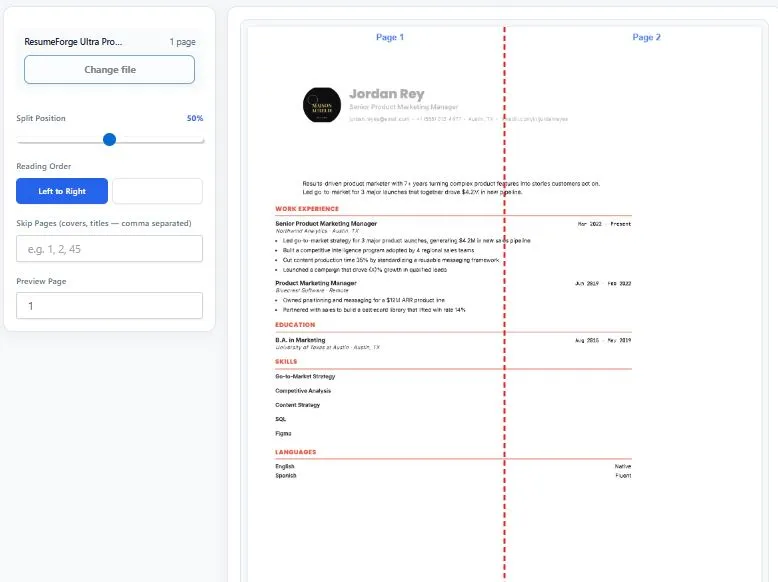
- Check the split position — the default cuts each page exactly in half, but you can fine-tune it with the slider if your scan's spine isn't perfectly centered.
- Set reading order and skip pages — choose left-to-right or right-to-left order, and list any cover or title pages that should stay as single pages instead of being split.
- Split and download — click the button to generate your finished PDF with every spread divided into clean, single pages.
Why Use This PDF Spread Splitter
Manually cropping a scanned book into single pages, one spread at a time, is slow and easy to get wrong — especially across a hundred-page document where a single misaligned crop leaves you with a lopsided page. This tool splits every spread in one pass using an adjustable split line, so a scan with a slightly off-center spine still comes out clean instead of forcing you to redo the whole file.
Reading order matters just as much as the split itself. Books in Arabic, Hebrew, and other right-to-left scripts, along with manga, are read starting from the right-hand page, so a splitter that ignores this leaves every page out of sequence. This tool's reading-order setting flips the output order to match, so the final file reads correctly in any standard PDF viewer without manual reordering afterward.
Front and back covers can also be excluded from splitting, since they're usually a single design rather than a spread. Because the split is applied to the page's own vector content instead of flattening it into an image, text and image quality stay exactly as sharp as the source file, and the entire process runs in your browser with nothing ever uploaded.
Who This PDF Spread Splitter Is Built For
- Digital archivists and librarians — converting scanned books, journals, or archival documents from two-page-per-scan format into standard single-page PDFs.
- Manga and comic readers — splitting scans into properly ordered single pages using right-to-left reading order for a natural reading experience.
- Students and researchers — turning double-page scanned textbooks or theses into single pages that are easier to read, annotate, and search on any device.
- Publishers and self-publishers — preparing print-scanned manuscripts or proofs for digital distribution as clean, single-page files.
- Anyone with A3-to-A4 or similar double-page scans — converting any document scanned two pages at a time back into its original single-page layout.
Tips for Getting Accurate Results
- Check the preview before splitting — use the Preview Page selector to check a few different spreads, since the exact center can shift slightly across a long scanned document.
- Adjust the split slider if the spine isn't centered — many scans have the binding slightly off-center; nudging the slider a few percent usually fixes this for the whole document.
- List cover and title pages in Skip Pages — these are typically single full-page designs, not spreads, so splitting them would cut the artwork in half.
- Use Right to Left for manga and RTL-language books — this flips the output order so pages read correctly instead of appearing reversed.
- Password-protected PDFs won't load — remove the password with a separate PDF unlock tool first, then upload it here.
FAQs
What does a pdf spread splitter actually do?
It takes a PDF where each page contains two facing book pages scanned side by side, and splits every page down the middle to create a clean, single-page PDF instead of a double-page layout.
Is this tool free to use?
Yes, this tool is completely free with no signup required. You can upload a PDF, split the spreads, and download the result without creating an account or paying anything.
What if the spine isn't exactly in the middle of the page?
Use the split position slider to move the cut line left or right until it lines up correctly. The live preview shows exactly where each page will be divided before you generate the file.
Is my PDF uploaded to a server?
No. This tool processes your PDF entirely inside your browser. Your file is never sent to a server, which keeps your document private with no practical file size limit.
Can I keep the cover pages from being split?
Yes. List any cover, title, or other single-page images in the Skip Pages field, and those pages will be kept exactly as they are instead of being divided in half.
What is the Right to Left option for?
It's for manga, Arabic, Hebrew, and other right-to-left books where the right-hand page comes first. Enabling it flips the output order so the split pages read in the correct sequence.
Will splitting reduce my PDF's quality?
No. The tool splits using the page's own vector content rather than converting pages into images, so text and graphics keep their original sharpness with no quality loss.
Can I use this on a password-protected PDF?
Not directly. You'll need to remove the password using a separate PDF unlock tool first, since password-protected files can't be read by the browser for processing.
Quick Summary
This free pdf spread splitter turns double-page book scans into clean, single-page files by splitting each spread down an adjustable center line. Simply upload your PDF, fine-tune the split position and reading order, exclude covers if needed, then split and download instantly. Left-to-right and right-to-left reading orders are both supported, making it useful for manga and RTL-language books as well as standard scans. Because the split uses the page's own vector content, text and images stay exactly as sharp as the original, and everything runs locally in your browser with nothing ever uploaded.
Disclaimer
This PDF spread splitter is provided for free, as-is, and processes your document entirely within your own browser — no files are ever uploaded to or stored on any server. Results depend on how consistently your document's spreads are aligned, and pages with unusual layouts, foldouts, or inconsistent scanning may need manual review after splitting. BytePriva is not responsible for any loss, damage, or other issues that may result from using this tool, and it is provided with no warranty of any kind. For important or archival documents, always review the split pages carefully before deleting the original file.