This free PDF chapter splitter lets you split a PDF into chapters automatically. It reads the bookmarks already inside your PDF or book and creates a separate PDF for each chapter, with no re-scanning and no quality loss.
Every chapter title and page range is fully editable, and you can add or remove chapters manually, which also makes the tool useful for PDFs that have no bookmarks at all. When you're ready, click once to generate individual chapter PDFs, automatically packaged into a ZIP file if there's more than one. Everything runs entirely inside your browser, so your document is never uploaded anywhere.
Click to upload or drag & drop a PDF
Nothing is uploaded — processed entirely in your browser
No bookmarks were found in this PDF. Add chapters manually below using the page ranges you want.
Upload a PDF to begin.
0 / 0 chapters
🔒 100% private — your PDF never leaves your device.
Related Tools
Table of Contents
How to Split a PDF into Chapters
Splitting a PDF into chapters takes just a few steps, with automatic bookmark detection doing most of the work. Here's how it works:
- Upload your PDF — click the upload area or drag and drop any PDF file from your device.
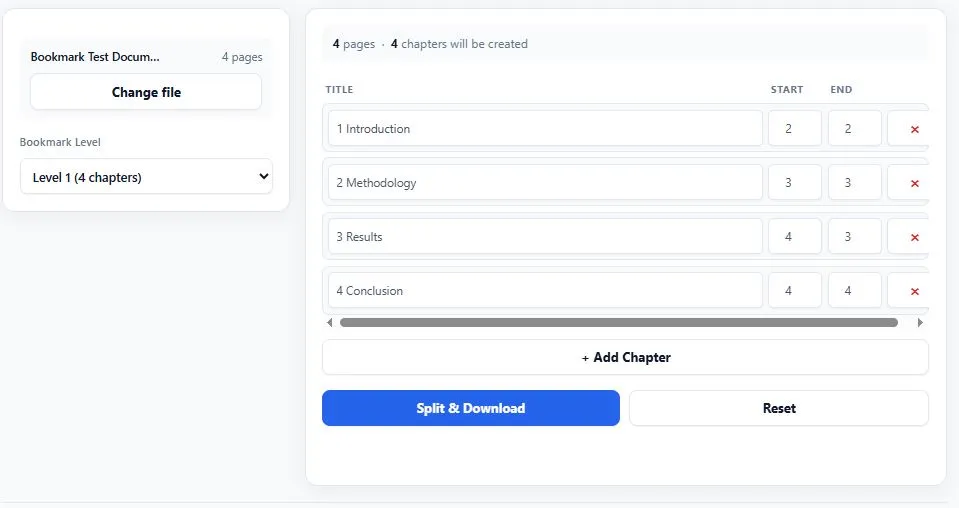
- Bookmarks are detected instantly — the tool reads the PDF's outline and lists every chapter it finds, with titles and page ranges filled in automatically.
- Adjust if needed — pick a different bookmark level, edit any chapter title or page range, or add chapters manually if no bookmarks were found.
- Split and download — click the button to generate a separate PDF for each chapter, delivered as one file or a ZIP if there's more than one.
Why Use This PDF Chapter Splitter
Manually working out where each chapter starts and ends in a long PDF is slow and error-prone, especially in documents with a hundred pages or more. Bookmarks — technically called the "document outline" in the official PDF specification, ISO 32000 — already store this structure for most books, reports, and manuals exported from Word, InDesign, or Google Docs. This tool reads that structure directly and turns it into ready-to-edit chapter boundaries in seconds, instead of asking you to scroll through the whole document counting pages.
It also handles the cases most simple splitters don't. Nested bookmarks are grouped by level, so you can choose to split by main chapters only or drill into sub-sections. Every detected chapter stays fully editable, so a slightly off boundary takes one click to fix rather than starting over. And if your PDF has no bookmarks at all, the same interface lets you build chapters manually from page ranges, so the tool stays useful either way.
Because splitting happens entirely in your browser using the page's own content rather than flattening it into images, chapter files keep the original file's full text and image quality, and nothing is ever uploaded to a server.
Split a Book PDF into Chapters
Need to split a book PDF into chapters for easier reading, studying, or sharing? This tool works especially well with textbooks, novels, ebooks, manuals, and reports. Most of these files already contain a table of contents stored as bookmarks, so the PDF chapters are detected in seconds, with no manual page counting.
If your book PDF has no bookmarks, for example because it was scanned or exported without an outline, you can still split it. Add each chapter by typing its page range from the printed table of contents, and the tool creates the separate PDF files for you. Your original file is never changed, and the text and images in each chapter stay exactly as sharp as the source.
Who This PDF Chapter Splitter Is Built For
- Students and researchers — split a textbook, thesis, or academic paper into chapters for focused reading, annotation, or reference.
- Authors and publishers — break a manuscript or draft into individual chapters for review, editing, or beta reader feedback.
- Business and legal teams — divide long contracts, reports, or proposals into sections so only the relevant part gets shared with each recipient.
- Technical writers and support teams — split a large manual or documentation PDF into standalone chapters for different product modules or teams.
- Anyone organizing long PDFs — books, manuals, or reports that are easier to manage, search, and share once broken into logical parts.
Tips for Getting Accurate Results
- Check the detected page ranges before splitting — bookmarks occasionally point a page or two off from where a chapter visually starts; the editable list lets you fix this in seconds.
- Try a different bookmark level if the chapter count looks wrong — some PDFs store both chapters and sub-sections as bookmarks; switching levels usually gives a cleaner top-level split.
- No bookmarks detected doesn't mean the tool won't work — manually add chapters using page ranges from the table of contents or by scrolling through the document once.
- Password-protected PDFs won't load — remove the password with a separate PDF unlock tool first, then upload it here.
- Large or heavily bookmarked PDFs may take a moment to scan — this happens locally in your browser, so processing time depends on your device rather than an upload connection.
FAQs
What does a pdf chapter splitter actually do?
It reads the bookmarks or outline embedded in a PDF and automatically splits the document into a separate PDF file for each detected chapter or section, using the bookmark titles and page positions to define the boundaries.
Is this tool free to use?
Yes, this tool is completely free with no signup required. You can upload a PDF, detect or add chapters, and download the split files without creating an account or paying anything.
Does my PDF need bookmarks for this to work?
No. If bookmarks are found, they're used automatically. If not, you can manually add chapters using your own page ranges, so the tool still works on PDFs without a table of contents.
Is my PDF uploaded to a server?
No. This tool processes your PDF entirely inside your browser. Your file is never sent to a server, which keeps your document private with no practical file size limit.
What happens if my PDF has nested bookmarks?
Nested bookmarks are grouped by level, and you can choose which level to split at — for example, top-level chapters only, or a deeper level for sub-sections within each chapter.
Can I edit the chapter titles or page ranges before splitting?
Yes. Every detected chapter's title and page range can be edited directly, and you can add or remove chapters manually before generating the final files.
How are the split files downloaded?
If your PDF splits into a single chapter, you get one PDF file directly. If there are multiple chapters, all the files are packaged together into a single ZIP download.
Can I use this on a password-protected PDF?
Not directly. You'll need to remove the password using a separate PDF unlock tool first, since password-protected files can't be read by the browser for analysis.
How do I split a book PDF into chapters?
Upload the book PDF to the tool, and it automatically detects chapters from the file’s bookmarks. Review the list, edit any title or page range if needed, then click Split & Download. If the book has no bookmarks, add chapters manually using the page numbers from its table of contents.
Can I split a PDF into chapters without re-scanning it?
Yes. The tool works directly on your existing PDF. It copies the original pages into new files, so nothing is re-scanned, re-compressed, or converted to images. If your PDF is a scan with no bookmarks, you only need to enter the chapter page ranges yourself.
Is there a tutorial for splitting a PDF by chapter?
Yes, and it takes under a minute: upload your PDF, review the detected chapters, then click Split & Download. The “How to Split a PDF into Chapters” section above walks through each step.
Quick Summary
This free PDF chapter splitter automatically splits a PDF into chapters using the bookmarks already inside the file. Upload your PDF or book, review or adjust the detected chapters, then split and download instantly, as a single PDF or a ZIP when there are multiple chapters. It also works on PDFs without bookmarks by letting you add chapters manually from page ranges. Because everything runs locally in your browser, your document is never uploaded anywhere, and text and image quality stay exactly as sharp as the original.
Disclaimer
This PDF chapter splitter is provided for free, as-is, and processes your document entirely within your own browser — no files are ever uploaded to or stored on any server. Bookmark detection depends on the outline structure already embedded in your PDF, and results can vary if that structure is incomplete, inconsistent, or missing entirely; always review the detected chapters and page ranges before downloading.
BytePriva is not responsible for any loss, damage, or other issues that may result from using this tool, and it is provided with no warranty of any kind. For important or official documents, verify the split files carefully and consult a professional before relying on them for critical use.