If you need to password protect multiple PDFs, the real decision is how many passwords to use. Pick one shared password when every file goes to the same person or team. Pick a different password for each file when each PDF goes to someone else, so a leaked password opens only one document.
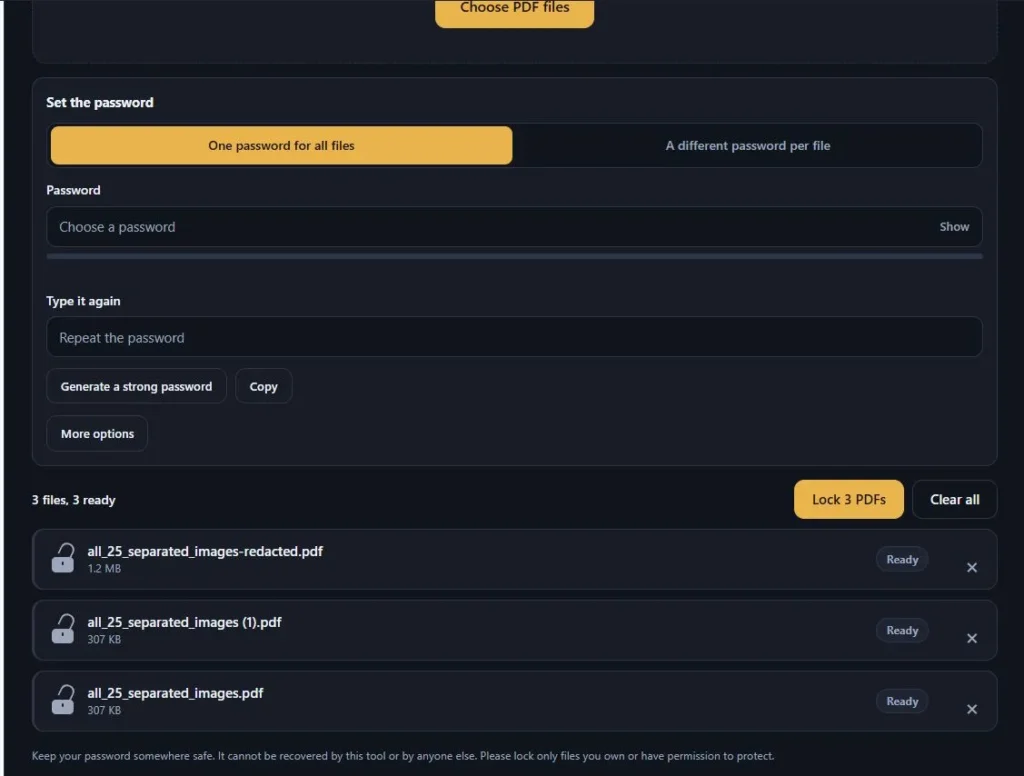
This tool does both. Add your files, choose a mode, and it locks them with AES-256 encryption on your own device, so nothing is uploaded. In separate mode, every file gets its own password box with a Generate button for a strong random one, and you can save a password list afterwards. Locked files download one by one or as a single ZIP. One thing to remember: nobody can recover a lost PDF password, so keep your originals and your passwords somewhere safe.
Related Tools
Table of Contents
One Password or a Different Password for Each PDF?
Ask one question first: who is allowed to see which file? If everyone who can open one PDF is also allowed to open all the others, a single password is enough. If not, each file needs its own. The tool supports both, so the choice is about your situation, not about what the software can do.
- One shared password, when the files belong together. A contract pack for one client, a folder of family documents, or project files that a small team needs in full all fit here. It is simple to share and you type it only once for the whole batch. The trade-off is that one leaked password opens every file in that batch, so keep the group small and the password strong.
- A different password for each PDF, when the readers differ. Payslips, statements or invoices that go to different people are the classic case, and so are documents with different levels of confidentiality. A leak then exposes one file instead of all of them. The cost is bookkeeping, and the tool helps with it: every file gets its own Generate button for a strong random password.
- One password per group, when you have several sets. Lock the first group with one password, change the password, then add the next group and lock it too. The files you already locked stay exactly as they are. This suits sending one set of documents to each client or department.
Not sure you can keep track of many passwords? Start with one password per group. When you use separate passwords, you can save a password list after locking, but that file is plain text and not encrypted, so keep it away from the PDFs and delete it once you have passed the passwords on.
Worked Example: Three Invoices, Three Passwords
Here is a real run of the tool, so you know what to expect before you try it yourself. We used three small sample invoices, one for each of three imaginary clients, and gave every file its own password. These are demo files, not real client data.
- Add the files. Drop the three PDFs onto the box or press Choose PDF files. Each file appears as a card marked Ready.
- Pick the mode. Select A different password per file. Every card now shows its own password box.
- Generate the passwords. Press Generate on each card. The tool fills in a random 16-character password made of letters, numbers and symbols. Use Show to read it and Hide to cover it again.
- Press Lock. The button reads Lock 3 PDFs. In our run, all three cards turned to Locked in about 0.2 seconds on a desktop browser. Bigger files take longer.
- Download and save. Download each file, or use Download all as ZIP, then press Save password list to get a text file that pairs each locked file with its password.
| File | Before | After locking | Encryption |
|---|---|---|---|
| invoice-client-a.pdf | 1.9 KB | 3.0 KB | AES-256 |
| invoice-client-b.pdf | 1.8 KB | 3.0 KB | AES-256 |
| invoice-client-c.pdf | 1.9 KB | 3.0 KB | AES-256 |
- Each file opens with its own password. We tested every locked file with a separate PDF tool, not just with ours.
- The wrong passwords fail. Using the other two files' passwords, or no password at all, was refused every time.
- The ZIP and the list are complete. The ZIP held all three locked files, and the password list had one line per file.
- Nothing left the device. The browser made no outside requests during the whole run.
The size jump looks large in percent only because these samples are tiny. The extra data is a small fixed amount, so bigger files barely change: a 400-page test file went from 337 KB to 346 KB.
Passwords That Work: How to Create, Share and Remember Them
A PDF lock is only as strong as its password and the way you hand that password over. A strong password for a PDF follows the same rules as any other, and a few habits around sharing it matter just as much.
- Make it long and random. The CISA guidance on strong passwords asks for at least 16 characters, built either from random letters, numbers and symbols or from a passphrase of five to seven unrelated words. The Generate button creates a random 16-character password with capitals, lower case, numbers and symbols. The strength meter is only a rough guide, so length still matters most.
- Do not reuse it. CISA recommends a different password for every account, and the same logic works for files. When each PDF has its own password, one leak opens one document, not your whole folder.
- Send the password by a different route than the file. If both travel in the same email, anyone who gets that email gets both. A phone call, a text message or a secure messaging app is safer. A separate email is better than the same email, but it is the weakest of these options.
- Treat the password list as temporary. The saved list is a plain text file. CISA advises using a password manager instead of keeping passwords in a file on your computer, so pass the passwords on, store them in a manager if you need them later, and delete the list.
- Keep the originals until you are sure. The tool never changes your original files, and nobody can recover a lost PDF password. Hold on to the unlocked originals until the recipients have confirmed they can open the locked copies.
What PDF Encryption Protects, and What It Does Not
Locking a PDF is real encryption, not a cosmetic switch. Here is what that means in practice, so you know what the lock covers and where it stops.
- The open password locks the contents. In our check, the title, bookmark names and link addresses were readable in the raw bytes of the plain PDF, but none of them appeared anywhere in the locked copy. Without the password, a PDF reader cannot open the file at all.
- AES-256 PDF encryption is the default. Adobe's documentation says Acrobat X and later use 256-bit AES, while Acrobat 7 uses 128-bit AES and cannot open a PDF encrypted for Acrobat X and later. If a recipient might use very old software, pick AES-128 under More options. It accepts only basic letters, numbers and symbols, up to 32 characters.
- Permissions are a request, not a lock. You can switch off printing, copying text, editing, notes and page changes, but PDF software decides whether to respect those limits, and tools that remove them exist, including our own PDF Password Remover. Use permissions to show your intent and rely on the open password for real protection. Screen-reader access always stays on.
- The owner password is optional. It controls who can change the permissions later. If you leave it empty, the tool uses your open password for both.
- The file name and size stay visible. Locking hides what is inside, not what the file is called, so name files neutrally, for example invoice-1042.pdf rather than a name that gives the secret away.
- Your browser does the encryption. The AES step runs on your device using your browser's built-in cryptography, which is why the page needs a secure HTTPS connection.
Before You Send Your Locked PDFs, and What to Do If Something Goes Wrong
Two minutes of checking now saves a lot of back and forth later. Run through the first list before you send anything, and keep the second one handy if the tool shows a message you did not expect.
Before you send:
- Open each locked file with its password. Do it in the same kind of PDF reader your recipient will use, such as their usual desktop reader or a phone app. We tested our files with several independent PDF tools, but only a quick check in the real reader tells you for sure.
- Try a wrong password once. The file must refuse it. If it opens anyway, the lock did not apply.
- Look through the pages. Confirm the page count and that nothing looks different from the original.
- Check the file name. The name stays visible even when the contents are locked, so keep it neutral.
- Download everything before you close the tab. The locked files exist only in this page. Nothing is saved on a server or in your browser, so a refresh clears them.
- Keep the originals. The tool never changes your files, and a lost password cannot be recovered.
If something goes wrong:
- "This PDF already has a password or restrictions." The tool locks plain PDFs only. Remove the existing password first with the unlocker, then lock the file again.
- "AES-128 passwords can use only basic letters, numbers and symbols." Older PDF software reads accented or non-English characters differently, which could lock the owner out. Either simplify the password or switch to AES-256, which accepts any language.
- "The two passwords do not match." Retype the second box, or use Show to compare what you typed.
- A note about a digital signature. Locking rewrites the file, so an existing signature stops being valid in the locked copy. If the signature matters, keep the signed original too.
- "This file is larger than 150 MB." Files over that size are refused so your browser does not run out of memory. Lock very large files one at a time on a computer, or split them first.
- A message about a secure connection. AES needs your browser's built-in cryptography, which only works on an HTTPS page. Reload the page using its https address.
- The lock button is greyed out. It turns on once at least one file is ready. Files that are already locked or show an error do not count.
Frequently Asked Questions About Locking PDFs With a Password
How do I add a password to a PDF for free?
Drop your PDF into the tool, type a password twice or press Generate a strong password, then press Lock PDF and Download locked PDF. There is no account to create, and the file is locked on your own device, so it is never uploaded.
Can I use a different password for each PDF?
Yes. Choose A different password per file, and every file gets its own password box with a Generate button. After locking, Save password list gives you a text file that pairs each locked file with its password, and Download all as ZIP bundles the locked files together.
Is a password-protected PDF really secure?
The lock uses AES-256 by default, so the weak point is usually the password, not the encryption. A long, random password protects a file far better than a short or familiar one, and permission limits such as no printing are a request that software may ignore. The open password is the part that truly protects your file.
Will the locked PDF open on any device?
It should open in any PDF reader that supports standard AES encryption. We checked our files with qpdf, pikepdf, Poppler and our own PDF Password Remover. Adobe says Acrobat 7 cannot open a PDF encrypted for Acrobat X and later, so choose AES-128 for very old software, and test a file in your recipient's reader before you send many.
Does locking change my PDF?
Not the content. In our tests, page content, bookmarks and links came out identical after unlocking, and your original file is never touched. The locked copy is a little larger because it carries the encryption data, and a digital signature, if the file had one, stops being valid.
What if I forget the password?
It cannot be recovered, by this tool or by anyone else. That is why the original file stays untouched. If you still have the unlocked original, simply lock it again with a new password. If you saved a password list or used a password manager, check there first.
Quick Summary
You can password protect multiple PDFs in one go by choosing between one shared password and a separate password for every file. Add the files, set the passwords, and the tool locks them with AES-256 encryption on your device, then lets you download each file or a single ZIP. Use the strength meter and the Generate button for long, random passwords, send each password by a different route than the file, and keep your originals. Check one locked file in your recipient's reader before sending the rest, because a lost password cannot be recovered.
Disclaimer
We test this tool carefully, but no software is perfect, so open a locked file with its password and check it before you send it or delete the original. A lost password cannot be recovered by this tool or by anyone else. Please lock only files you own or have permission to protect. Your files and passwords are processed in your browser and are never uploaded.