This bulk image cropper resizes hundreds of images to one exact target size at once, with two different ways to handle images that don't match your target's shape. Crop to Fill scales the image to completely cover the frame, cropping off any overflow — no empty space, but some edges may be trimmed. Fit Inside scales the whole image to fit within the frame untouched, filling any leftover space with a background color of your choice, or leaving it fully transparent (PNG only). Upload your images, pick a size and mode, and download everything as a ZIP — nothing ever leaves your browser.
Drop images here or click to upload
Any number of files — crop them all to one size at once
The image fills the entire frame — any overflow outside the target size is cropped off. No empty space, but some edges may be cut.
Transparent requires PNG output — select it below to enable this option.
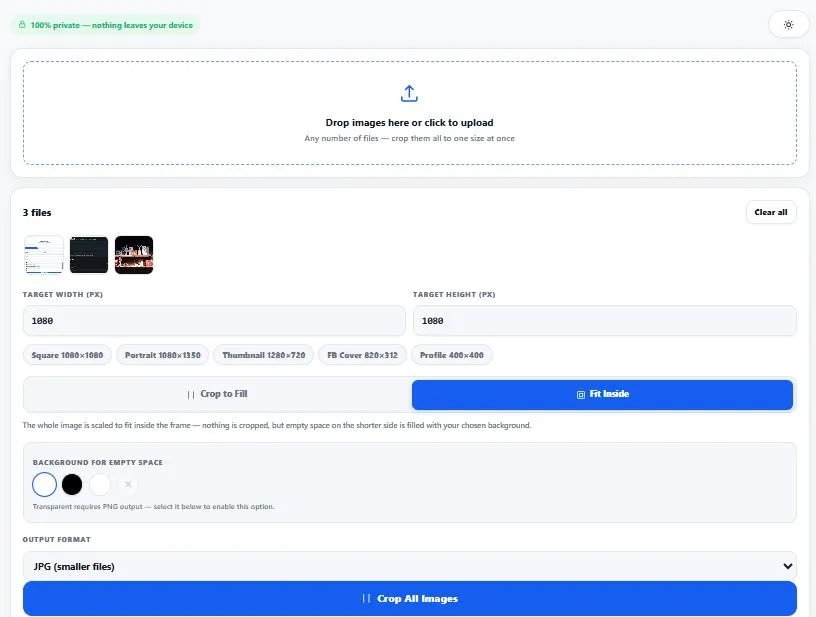
Table of Contents
How This Bulk Image Cropper Works
Every image you drop into this bulk image cropper goes through one of two well-established scaling techniques — the same two methods used by CSS's own object-fit property (cover and contain), just applied across your whole batch at once instead of one image at a time. Crop to Fill scales your image up until it's large enough to completely cover the target frame, centers it, and lets the canvas boundary clip whatever spills outside — this guarantees zero empty space, at the cost of trimming some edges.
Fit Inside does the opposite: it scales your image down until the whole thing fits inside the frame without any cropping, then fills whatever space is left over on the shorter side with a background of your choice. Both calculations happen instantly, image by image, entirely on your own device.
| Mode | What Happens | Best For |
|---|---|---|
| Crop to Fill | Image scales up to cover the frame; overflow is cropped off | Thumbnails, profile photos, social grids — where filling the frame matters more than showing every pixel |
| Fit Inside | Image scales down to fit inside the frame; leftover space is filled | Logos, screenshots, product shots — where nothing can be cropped or cut off |
Why Use This Bulk Image Cropper
Every feature below is something this bulk image cropper actually does, right now, in your browser:
- Two genuinely different crop modes — Crop to Fill for a clean, fully-covered frame, or Fit Inside when nothing can be cut off, not just one fixed behavior forced on every image.
- Real transparent background support — when your output format is PNG, Fit Inside can leave empty space fully transparent, not just white or black.
- Custom background color — pick any color with a live picker for the space around a fit-inside image.
- Quick-fill size presets — one-click chips for common sizes (square posts, portrait, thumbnails, cover photos, profile pictures) so you don't need to look up exact pixel dimensions.
- Batch processing, any number of files — drop in one image or a hundred; each one is cropped individually so a single bad file never stops the rest.
- Per-file results with final size — see exactly what dimensions and file size each cropped image came out as.
- Download one file, or all of them as a ZIP — a single cropped image downloads directly; multiple files bundle into one ZIP automatically.
- Clear pass/fail per file — if a specific image can't be processed, it's marked "Failed" clearly instead of silently vanishing from your results.
- Everything runs in your browser — your images are only read locally to crop them and are never uploaded to any server.
- Light and dark mode — toggle to match your screen preference, saved for your next visit.
Who This Bulk Image Cropper Is Built For
This bulk image cropper is built for anyone who needs a whole folder of images to match one exact size, fast. Online sellers crop dozens of product photos to a consistent square size for a marketplace, using Fit Inside so no product edge ever gets cut off. Social media managers batch-crop a week's worth of posts to a platform's exact grid size using Crop to Fill, for a clean, fully-covered feed.
Web designers resize a folder of client photos to a fixed thumbnail size before uploading them to a CMS. Anyone preparing a photo album or slideshow standardizes mismatched phone and camera photos to one uniform size, with transparent or colored padding filling in whatever doesn't quite match. In every case, this bulk image cropper does in seconds what would otherwise mean opening each image individually in an editor.
Tips for Best Results
- Choose Crop to Fill when the frame's shape matters more than showing every pixel. Profile pictures, thumbnails, and social grids almost always look better fully covered than surrounded by empty space.
- Choose Fit Inside when nothing in the image can be cropped. Logos, screenshots, infographics, and product shots with important content near the edges should never risk losing part of the image to a crop.
- Use PNG output if you need a truly transparent background. JPG has no concept of transparency at all — this bulk image cropper will only offer the transparent option when PNG is selected, since offering it for JPG would be misleading.
- Match your target size to where the image will actually be used. The quick-fill chips cover the most common cases, but a custom width and height built for your exact platform or template will always look more precise.
- Check a few individual results before downloading the full ZIP. Especially with Crop to Fill, glance at one or two output thumbnails to confirm the cropped framing looks right for your specific images.
- Transparent output only works with PNG, and that's a hard limit, not a bug. JPG simply has no way to store a transparent pixel — this is true for every tool, not just this one. If you select JPG as your output format, the transparent option in Fit Inside mode automatically becomes unavailable, and a solid background color is used instead. To get real transparency around your image, choose PNG as the output format before running Fit Inside mode.
Cover vs. Contain — The Technical Difference Behind Cropping
The two modes in this bulk image cropper aren't a custom invention — they're the same two fundamental image-scaling behaviors used across modern web design, just applied to a batch of files instead of a single CSS element. Crop to Fill matches what's known as "cover" scaling, and Fit Inside matches "contain" scaling. For the official technical definition of how these two behaviors work at the browser level, see MDN's documentation on the CSS object-fit property.
Frequently Asked Questions
What's the difference between the two crop modes in this bulk image cropper?
Crop to Fill scales your image up so it completely covers the target size, cropping off whatever spills outside the frame — there's never any empty space. Fit Inside scales your image down so the entire thing fits inside the frame without cropping, filling any leftover space with a background of your choice instead.
Can this bulk image cropper give me a transparent background?
Yes — but only in Fit Inside mode with PNG selected as the output format. JPG doesn't support transparency in any tool, so the transparent option is only available when PNG is chosen; selecting JPG will use a solid background color instead.
Will Crop to Fill cut off important parts of my image?
It can, since it's designed to fill the frame completely by cropping any overflow — the image is centered before cropping, so the edges are typically what gets trimmed first. If your image has important details near the edges, Fit Inside is the safer choice since nothing gets cropped in that mode.
How many images can I crop at once with this tool?
There's no hard limit — each image is processed individually with simple canvas math, so large batches (hundreds of files) run smoothly without crashing. Very large batches may take a little longer to zip up for download, which is expected.
Does this bulk image cropper reduce image quality?
Cropped images are drawn at full resolution with minimal compression (JPG output uses 95% quality by default; PNG output is lossless), so quality loss is negligible for most use cases. The main visible change comes from the crop itself — either cropped edges (Fill mode) or added background space (Fit mode) — not from compression.
Can I set a custom crop size instead of using the presets?
Yes — the quick-fill chips are just shortcuts for common sizes; you can type any custom width and height directly into the fields, and every image in your batch will be cropped to that exact size.
Do I need to install any software to bulk crop images?
No — this bulk image cropper runs entirely in your web browser using the HTML canvas, a built-in browser technology. There's nothing to download or install, and it works the same way on Windows, Mac, Linux, or mobile.
Is this bulk image cropper free, and does it upload my images anywhere?
Yes, it's completely free with no sign-up required. Every image is read and cropped locally in your browser — nothing is ever uploaded to a server, which is also why there's no limit on file count or how often you can use it.
Quick Summary
A bulk image cropper resizes an entire batch of images to one exact target size at once, using either a "fill" approach (scale up, crop the overflow) or a "fit" approach (scale down, pad the leftover space). This tool does both, instantly, with real transparent-background support in Fit Inside mode when PNG is selected, and automatic per-file error handling so one bad image never stops the rest of the batch.
Whether you're prepping product photos, social media grids, or a mismatched folder of phone photos for a uniform size, the same two options apply every time: cover the frame and accept some cropping, or fit everything in and accept some padding — this bulk image cropper makes that choice explicit instead of guessing for you.
Disclaimer
BytePriva strives for accuracy, but cropping results can occasionally look different than expected on unusual image shapes — please review the individual results yourself before relying on them for professional, commercial, or print work. This tool uses standard, well-established browser technology (the HTML canvas) to crop and resize images, but by using it, you agree that you're responsible for checking your own cropped files before final use — cropping is, by nature, a visual decision that can't always be fully automated. Your images are processed entirely in your browser and are never uploaded, stored, or sent anywhere.