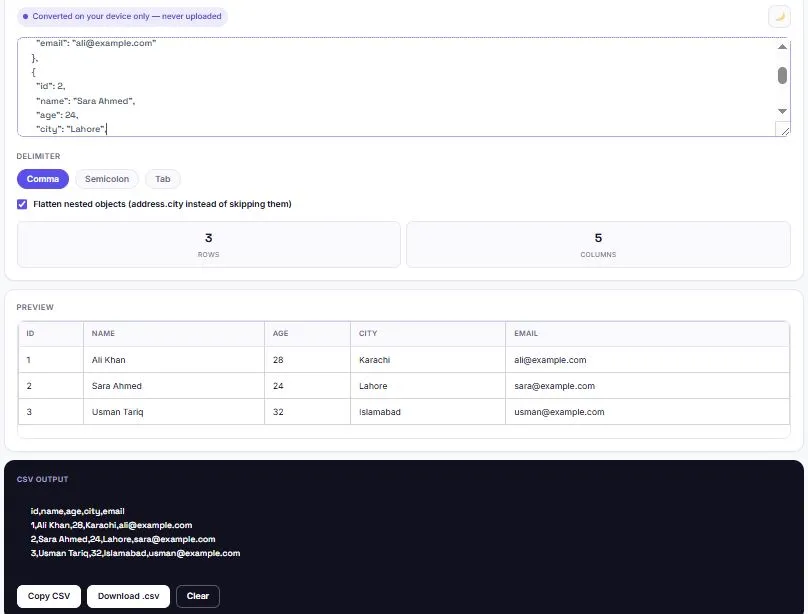
A JSON to CSV converter transforms structured JSON data — the format most APIs return — into a flat, spreadsheet-friendly CSV file that opens cleanly in Excel or Google Sheets. Most converters break down the moment JSON gets complicated: nested objects get skipped entirely, and an array where one object has an extra field either crashes the conversion or silently drops data. This free JSON to CSV converter flattens nested objects automatically, fills in missing values as blank cells instead of failing, and shows a live table preview before you download anything. Everything runs in your browser, with nothing ever uploaded or stored.
Paste JSON above to convert it to CSV.
Works with a single JSON object, an array of objects, nested objects, and arrays with different keys in each item — missing values are automatically left blank in the CSV.
Table of Contents
What This Converter Handles That Basic Tools Don't
| Situation | Basic Converters | This Tool |
|---|---|---|
| Nested objects (address.city) | Often skipped or shown as [object Object] | Automatically flattened into address.city |
| Objects with different keys | Frequently crash or misalign columns | Missing fields become blank cells automatically |
| Arrays inside a field (tags: […]) | Usually dropped | Joined into a single readable cell |
| Special characters (commas, quotes) | Sometimes break the CSV structure | Properly escaped per CSV standards |
| Non-English characters in Excel | Often show as garbled symbols | UTF-8 encoding applied so names and text display correctly |
How Nested JSON Gets Flattened
JSON naturally supports objects inside objects, like a customer record with a nested address field. CSV, on the other hand, only understands flat rows and columns — there's no built-in way to represent a nested structure. This tool solves that by "flattening" nested objects into dot-separated column names, so the structure isn't lost, just reshaped to fit a spreadsheet.
| Original JSON | Flattened CSV Column |
|---|---|
| {"address": {"city": "Lahore"}} | address.city |
| {"orders": [{"id": 1}, {"id": 2}]} | orders[0].id, orders[1].id |
This behavior can be turned off using the "Flatten nested objects" checkbox, which is useful in the rare case where a nested field should be preserved as raw JSON text inside a single cell instead of being split into multiple columns.
What Happens When Objects Have Different Keys
Real-world JSON arrays are rarely perfectly uniform — one record might have an "email" field while another doesn't. This is where most basic converters either crash, skip the field entirely, or misalign every column after it. This tool scans every object in the array first, builds a complete list of every key that appears anywhere, and uses that as the CSV header. Any object missing a particular key simply gets a blank cell in that column, keeping every row properly aligned no matter how inconsistent the source data is.
Choosing the Right Delimiter
CSV doesn't always mean comma-separated in practice — the right delimiter depends on where the file is going:
| Delimiter | Best For | Why |
|---|---|---|
| Comma | Excel and Google Sheets (US/UK locale) | The standard default in most English-language spreadsheet software |
| Semicolon | Excel in many European locales | Countries that use a comma as a decimal separator (like 3,14) use semicolons to avoid conflicts |
| Tab | Importing into databases or scripts | Avoids ambiguity entirely when values might contain commas |
Is Your CSV Actually "Standard"? The RFC 4180 Rules Most People Don't Know
CSV looks simple enough to define casually, but there's actually an official specification behind it — RFC 4180, published by the Internet Engineering Task Force in 2005 and still the reference standard every CSV parser is measured against today. It defines exactly how fields should be separated, when a value needs to be wrapped in double quotes, and how to escape a quote character that appears inside a field.
Most people never read it, but every "why won't this CSV import correctly" problem usually traces back to one of its rules being broken somewhere upstream. This tool follows RFC 4180's quoting and escaping rules automatically, so a value containing a comma, a quote, or a line break gets wrapped and escaped correctly instead of silently corrupting the row after it.
Opening Your CSV in Excel Without Broken Characters
A common frustration with CSV files is opening them in Excel only to see names or text turn into garbled symbols — often happening with non-English characters like accented letters or Urdu script. This typically happens because Excel doesn't correctly detect the file's character encoding by default.
This tool solves that by adding a UTF-8 byte order mark, or BOM, to the start of every downloaded CSV file. It's an invisible marker that tells Excel exactly which encoding to use before it even opens the file, so special characters display correctly the first time — without needing to manually change an import setting in Excel afterward.
How to Use This Tool
- Paste your JSON — either a single object or an array of objects — into the box at the top.
- Choose a delimiter based on where the CSV will be used.
- Toggle "Flatten nested objects" on or off depending on whether nested fields should be split into columns.
- Review the live table preview to confirm the data looks correct.
- Copy the CSV text, or download it as a .csv file ready to open in Excel or Google Sheets.
Who Uses a JSON to CSV Converter?
- Developers — converting API responses into a format teammates or clients can review without needing to read raw JSON.
- Data analysts — pulling structured data from an API or database export into a spreadsheet for sorting, filtering, and charting.
- QA and testers — reviewing test data or API output in a readable table format instead of nested brackets.
- Marketers and business teams — turning exported analytics or CRM data into something they can open directly in Excel.
- Students and researchers — converting datasets from public APIs into a format usable in spreadsheet-based analysis.
FAQs
Is this JSON to CSV converter free to use?
Yes. There's no account, no sign-up, and no limit on how much JSON you can convert.
Does this tool handle nested JSON objects?
Yes. Nested objects are automatically flattened into dot-separated column names, such as address.city, instead of being skipped or shown as broken text.
What happens if some objects in my array have extra or missing fields?
The tool scans every object first to build a complete column list, then fills any missing field with a blank cell — so columns stay aligned no matter how inconsistent the data is.
Why does my CSV look garbled when I open it in Excel?
This usually happens with non-English characters when Excel misreads the file's encoding. This tool automatically adds UTF-8 encoding to every downloaded file to prevent that.
Can I convert a single JSON object, not just an array?
Yes. A single object is automatically treated as one row, with each key becoming a column.
Which delimiter should I use?
Comma works for most English-language spreadsheet software. Semicolon is better for many European Excel locales, and tab is useful when importing into scripts or databases.
Is my JSON data uploaded or stored anywhere?
No. All conversion happens locally in your browser using JavaScript. Nothing you paste is sent to a server, logged, or saved.
Can I see the result before downloading it?
Yes. A live table preview shows exactly how the data will look, so you can confirm it's correct before copying or downloading the CSV file.
Quick Summary:
This free JSON to CSV converter flattens nested objects into dot-separated columns, handles arrays where objects have different keys without breaking, and adds UTF-8 encoding so special characters display correctly in Excel. A live table preview shows the result before you download. Everything runs in your browser, and nothing is ever uploaded.
Disclaimer:
BytePriva's JSON to CSV Converter is a free browser-based tool provided for general data conversion. All processing happens locally in your browser — no data you paste is ever uploaded, transmitted, or stored. Use of this tool is at your own discretion.
Real-world JSON is rarely as clean as a tutorial example — nested fields, inconsistent keys, and special characters are the norm, not the exception. This tool is built around handling that messiness correctly the first time, instead of leaving you to manually patch a broken CSV afterward.