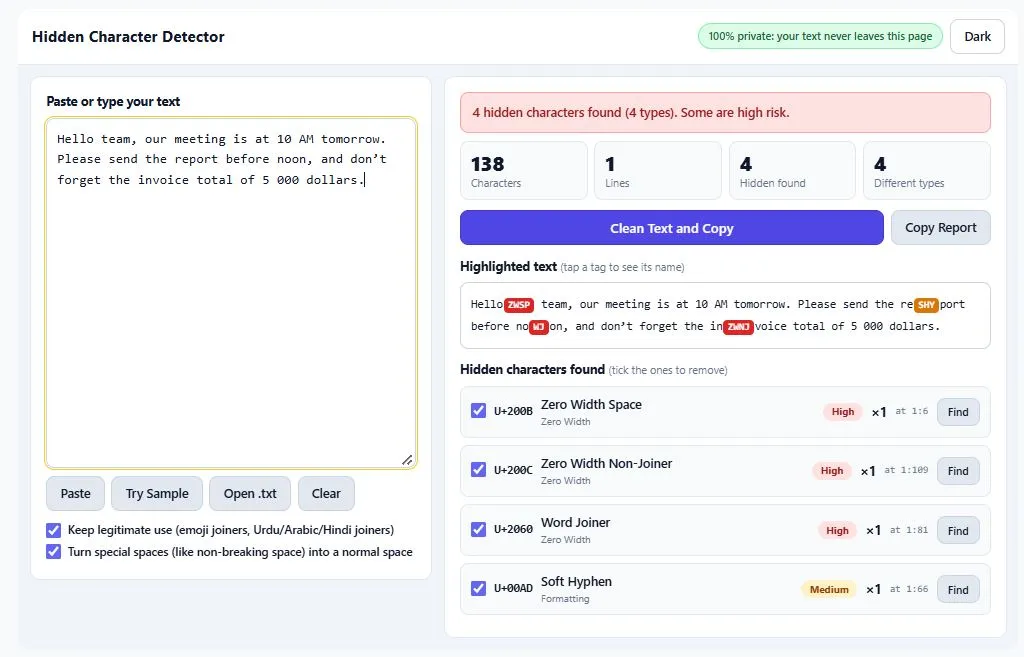
Want to detect hidden characters in text? Paste it into the tool above and every invisible character is highlighted with its name and Unicode code, such as U+200B for a zero-width space. Hidden characters take up little or no room on screen, yet they can break a spreadsheet lookup, trigger an "invalid character" error in code, stop a copied password from working, or make a filename look like something it is not. This free invisible character detector runs entirely in your browser, so your text is never uploaded. When you are ready, one click cleans the text and copies it to your clipboard.
Related Tools
Table of Contents
The Short Version
- A hidden character is a Unicode character that shows little or nothing on screen but is still part of your text.
- The most common ones are the zero-width space (U+200B), the non-breaking space (U+00A0), the byte order mark (U+FEFF), the soft hyphen (U+00AD) and right-to-left controls.
- Not every hidden character is junk. Emoji joiners and the joiners used in Persian, Urdu, Arabic and Hindi writing are legitimate, so this tool protects them by default.
- Your text is processed in your browser tab. Nothing is uploaded, saved or sent anywhere.
What Are Hidden Characters in Text?
Every character on your screen, from a letter to an emoji, has a numeric identity in the Unicode standard, written as a code point like U+0041 for the letter A. Most code points draw something. A smaller group does not: they control how text breaks across lines, how letters join, which direction text runs, or simply add a space of an unusual width. Those are hidden Unicode characters, and they are invisible because they were never meant to be seen, only obeyed by software.
This is different from the spaces, tabs and line breaks you type every day. Normal whitespace is expected, so the tool leaves it alone. What it looks for are the characters that behave like whitespace or formatting but do not look like it, the ones that make two strings appear identical while computers treat them as different.
Common Hidden Characters and What They Do
These are the characters people run into most often when they detect hidden characters in text.
| Character | Code | What it does |
|---|---|---|
| Zero-width space | U+200B | Allows a line break at that point and has no width |
| Zero-width non-joiner | U+200C | Stops two letters from joining; used in Persian and Urdu writing |
| Zero-width joiner | U+200D | Joins characters; builds emoji such as the family emoji |
| Word joiner | U+2060 | Prevents a line break at that point |
| Non-breaking space | U+00A0 | Looks like a normal space but blocks line breaks |
| Narrow no-break space | U+202F | A thinner space that also blocks line breaks |
| Soft hyphen | U+00AD | A hyphen that only appears if the word wraps |
| Byte order mark | U+FEFF | Marks a file's encoding at the very start; invisible anywhere else |
| Right-to-left override | U+202E | Reverses how the following text is displayed |
| Tag characters | U+E0000 to U+E007F | Invisible characters that can mirror ASCII letters |
The list does not stop there. The tool also flags control characters, filler characters such as the Hangul filler (U+3164), variation selectors, private-use characters, noncharacters and lone surrogates that signal broken encoding. If a character is invisible and not ordinary whitespace, the goal is for you to see it.
Why You Should Detect Hidden Characters in Text Before Using It
Hidden characters are harmless until the moment software reads them literally. Here is where that goes wrong.
They break matching and data
A customer name with a non-breaking space inside it will not match the same name typed with a normal space. A lookup fails, a duplicate slips into a database, a filter returns nothing, and the cause is impossible to see because both strings look the same.
They cause code and configuration errors
Snippets copied from web pages, chats and documents can carry invisible characters into source files and config files. The result is an "unexpected character" or "invalid token" error pointing at a line that looks perfectly fine. A quick scan finds the culprit in seconds.
They change URLs, filenames and keywords
A slug, a keyword list or a filename that contains a zero-width character is not the string you typed, even though it looks identical. That can mean a link that does not resolve, a search that finds nothing, or a keyword that does not match in a spreadsheet.
They can be used to mislead
Some hidden characters are used on purpose. A right-to-left override can make a filename display in a different order than it is actually written, and invisible tag characters can carry readable text that people never see. In 2021, researchers showed that Unicode bidirectional control characters can make source code display differently from the order a compiler reads it, an attack known as Trojan Source. The issue is recorded as the CVE-2021-42574 entry in the U.S. National Vulnerability Database. You do not need to be a developer to benefit from the lesson: text that looks right is not always text that is right.
How to Detect Hidden Characters in Text, Step by Step
- Add your text. Paste it into the input box, type it, or use Open .txt to load a plain text file. Try Sample loads an example if you want to see how the tool behaves first.
- Read the result banner. It tells you immediately whether the text is clean, and shows total characters, lines, hidden characters found and how many different types were detected.
- Check the highlighted text. Each hidden character appears as a colored tag such as ZWSP or NBSP. Hover or tap a tag to see its full name and U+ code.
- Review the findings list. Every type is listed with its risk level, how many times it appears and the line and column of its first occurrences. Press Find to jump to it in the highlighted text.
- Choose what to remove. All types are ticked by default. Untick any you want to keep.
- Press Clean Text and Copy. The cleaned text appears below and is copied to your clipboard. You can also copy it again, download it as a .txt file, or send it back to the input box.
What This Hidden Character Detector Can Do
Most checkers show you a wall of symbols. This one is built to help you decide what to do next.
- Names and codes for everything. Each hidden character is shown with its official name and U+ code, so you know what it is rather than guessing.
- Risk levels. Characters are rated High, Medium or Low. Zero-width characters, direction controls and control codes are rated High. Special spaces such as the non-breaking space are rated Low because they are usually formatting rather than a threat.
- Exact positions. You get line and column numbers for where each type first appears, which saves hunting through long documents.
- Selective cleaning. Tick only the types you want gone and leave the rest untouched.
- Hidden message reveal. If invisible tag characters spell out readable text, the tool decodes and shows it.
- Copy report. One button copies a plain text summary of everything found, handy for sharing with a colleague or attaching to a bug report.
- Built for long text. The full text is always scanned. The highlighted preview covers the first 300,000 characters, and files up to 10 MB can be opened.
- Works on any screen. The layout adapts to phones, tablets and desktops, with a light and a dark theme.
How to Remove Hidden Characters from Text Without Breaking It
Deleting everything invisible sounds simple, but it can damage text that was written correctly. That is why the cleaning step has two safeguards, both switched on by default.
Legitimate joiners are kept. The zero-width joiner holds emoji sequences together, so removing it splits a family emoji into separate faces. The zero-width non-joiner and joiner are also part of correct spelling in Persian, Urdu, Arabic and several Indic scripts. When the setting is on, the tool leaves these in place when they sit where they belong, and tells you how many it kept.
Special spaces become normal spaces. If a non-breaking space is simply deleted, the two words on either side glue together. By default the tool replaces it with an ordinary space, so your sentence reads exactly as before.
A few habits make the process safer. Keep a copy of the original text until you have checked the result. If a program complains about a file, look for a byte order mark at the start. And if a character is unfamiliar, read its name in the findings list before you remove it. When you want to remove hidden characters from text entirely, including joiners, switch off the protection option and clean again.
Where Hidden Characters Come From
In most cases the source is ordinary: text copied from web pages, PDFs, word processors, spreadsheets, chat apps and content management systems. Software inserts non-breaking spaces to keep numbers and units together, soft hyphens to control line breaks, and joiners to display scripts and emoji correctly. Keyboards and input methods for several languages add direction marks on purpose.
Sometimes they are added deliberately, for example to disguise a filename, to slip text past a simple filter, or to hide a message. Finding a hidden character tells you something is in the text. It does not tell you who put it there or why, and it is not proof of copying or of how the text was written.
Who Needs an Invisible Text Checker?
Writers and editors use it before publishing, so pasted drafts do not carry odd spacing or invisible markers into a content management system.
Website owners and SEO teams use it on titles, slugs, keyword lists and redirects, where a single invisible character can make a string different from what everyone sees.
Developers use it when a build fails on a line that looks correct, or when reviewing code and config pasted from outside sources.
Data and spreadsheet users use it before imports, lookups and de-duplication, where mismatched strings quietly corrupt results.
Support, moderation and security reviewers use it to inspect suspicious names, filenames and messages that do not look right.
Multilingual writers use it to check Arabic, Hebrew, Persian and Hindi text, where direction marks and joiners are common and sometimes misplaced.
Privacy: Your Text Stays in Your Browser
The scan and the cleaning run as JavaScript inside your own browser tab. There is no upload step, no account and no stored history, and nothing you paste is saved. Once the page has loaded, checking text does not need an internet connection. That matters when the text is a draft, a contract, a customer list or code you are not ready to share.
Frequently Asked Questions
How do I detect hidden characters in text?
Paste the text into a hidden character detector. The tool reads every character, compares it with known invisible and formatting characters, and highlights each match with its name and Unicode code. You can then clean the text in one click.
What is a zero-width space and how can I find one?
A zero-width space is the character U+200B. It allows a line break but takes up no width, so you cannot see it. The only reliable way to find one is to scan the text with a tool that reveals invisible characters, because normal editors do not show it.
Can I see hidden characters in Word or Google Docs?
Only some. Showing formatting marks reveals spaces, tabs and paragraph breaks, and many editors mark a non-breaking space with a special symbol, but many other invisible Unicode characters get no visible mark at all. Pasting the text into this tool is the quicker way to see all of them.
Is it safe to remove all hidden characters?
Usually, but not always. Joiners are needed for emoji sequences and for correct spelling in some scripts, and removing a non-breaking space without replacing it can merge two words. The default settings handle both cases, and you can untick any type before cleaning.
Does this tool upload or store my text?
No. Scanning and cleaning happen in your browser, and the tool does not send your text to a server or keep it after you close or refresh the page.
Do hidden characters mean the text was written by AI?
No. Hidden characters come from many places, including word processors, websites, PDFs and keyboards. Finding one says nothing reliable about who or what wrote the text.
Can hidden characters be used in attacks?
In some situations, yes. Direction controls have been used to disguise filenames and to make source code display differently from what is executed, as in the Trojan Source research above. A scan will not replace a security review, but it makes these characters visible so you can question them.
Conclusion
The text you cannot see is often the reason something fails. To detect hidden characters in text, paste it into the tool, read the highlighted result, and clean only what you decide to remove. With names, codes, positions, risk levels and protection for legitimate characters, you get the whole picture rather than a blind delete. It is free, private and works on phones, tablets and desktops.
Disclaimer:
This tool is provided for informational and editing purposes. It identifies characters by their Unicode properties and does not detect look-alike letters (homoglyphs) or other visible tricks, so it is not a substitute for a professional security review.