How to verify PDF redaction is a question worth asking before you press send. A black box on a page looks final, but a box can sit on top of text that is still in the file. The good news is that you can check this yourself in a few minutes, with free tools and no special skills.
Short answer
Run four quick tests on the final file, not the version on your screen: copy and paste the page, search for the hidden word, look at the document properties, and zoom in on the result. If the sensitive text shows up in any of them, the redaction did not work. Passing the tests is a good sign, but it is not a guarantee, so for high-stakes files ask a qualified professional to check too.
Last reviewed: October 2026. The guidance quoted here comes from the sources listed at the end, so check the current versions before you rely on it.
Why a Black Box Is Not Proof
Redaction is meant to remove information, not just hide it. In its test of redaction in Adobe Acrobat Pro DC 2017, the Australian Cyber Security Centre found that covering text with an image did not remove it: the underlying text could still be extracted. Its conclusion was that obscuring information in a PDF using an image is not an effective way to redact it. You can read the full report in the sources section below.
So the question to ask is not "can I see the text?" but "is the text still in the file?" The tests below answer that second question.
The Four Tests at a Glance
| Test | What you do | Looks like a pass |
|---|---|---|
| 1. Copy and paste | Select the page, copy it, paste into a plain text editor | The redacted words do not appear |
| 2. Search | Search the PDF for a word you redacted | No matches |
| 3. Properties | Open Document Properties and read the fields | No names, titles or notes you meant to remove |
| 4. Zoom | Open the final file and zoom in on each redacted area | Nothing readable under or around the cover |
Test 1: Copy and Paste
This is the classic check, and it is recommended in guidance hosted on the Seventh Circuit court website (ca7.uscourts.gov). It says a redacted document should be cut and pasted into another document, and that if the redaction succeeded, no redacted text should be transferred. You can read it in its redaction methodology suggestions.
- Open the final PDF, the exact file you plan to share.
- Select all the text on the page, or drag across the redacted area.
- Copy it, then paste it into a plain text editor such as Notepad or TextEdit.
- Read what came out. Look for names, numbers or sentences that should be gone.
If nothing at all pastes, that can mean the page is an image with no text layer. That is expected for a scanned page or a flattened one, so move on to Test 4.
Test 2: Search for the Hidden Word
Press Ctrl+F (or Cmd+F on a Mac) in your PDF viewer and search for a word or number you redacted. Try a few: a name, an account number, a street name. If the viewer finds a match, the text is still in the file, even if a box covers it on screen. The Australian Cyber Security Centre used text extraction in the same way, to confirm that redacted text no longer appeared.
Remember to also search for different spellings, such as a surname on its own, because a partial redaction can leave the other half behind.
Test 3: Look at the Document Properties
A PDF can carry details that are not on the page, such as an author name, a title or the program that produced it. The Australian Cyber Security Centre checked metadata through the document properties in Acrobat Reader. In your viewer, open File and then Properties (the exact wording differs between programs) and read every field.
Ask yourself whether anything there should not be public, for example a person's name in the Author field or an internal project name in the Title.
Test 4: Zoom In on the Final File
Open the file you will actually send and zoom in on every redacted area, page by page. Check the edges of each box for letters that peek out, and look at nearby text that may repeat the same information, such as a name in a header, a footer or a caption. Do this on the exported file itself, not on the editing preview.
Also use a second viewer if you can. Open the PDF in a different program from the one you used to make it, and repeat Tests 1 and 2 there.
What These Tests Cannot Prove
Be honest with yourself about the limits. The Australian Cyber Security Centre report also found that, for files created with CutePDF or LibreOffice Writer, remnants in embedded font data survived redaction and sanitisation, and that these remnants can reveal redacted text. Its recommendation for the highest assurance was to limit document creation to Adobe Acrobat, Adobe Acrobat Distiller or Microsoft Word, and to redact and sanitise in Acrobat Pro DC 2017. That report was last updated in October 2021 and tested one specific version of the software.
This means the four tests catch the common mistakes, but they do not prove the file is safe against a determined expert. For a legal, financial, medical or similarly sensitive document, ask a qualified professional to review the final file.
A Simple Habit: Keep the Original and Test the Copy
- Keep your original in a safe place, and only share the redacted copy.
- Give the redacted file a new name, such as "invoice-REDACTED", so you never send the wrong one.
- Test after every change. If you edit the file again, run the four tests again.
- Use solid covers for anything that must stay unreadable. Blur and pixelate soften an area rather than block it.
Questions People Ask About How to Verify PDF Redaction
How can I tell if a PDF was redacted properly?
Test the final file. Copy and paste the page into a plain text editor, search for the redacted words, read the document properties, and zoom in on each redacted area. If the sensitive text appears in any of these, the redaction failed.
Is drawing a black rectangle on a PDF enough?
Not by itself. The Australian Cyber Security Centre found in its test that covering text with an image left the underlying text extractable. Remove the text from the file, then test the result.
What if nothing pastes when I copy the page?
The page may be an image with no text layer, such as a scan. That is not a failure. In that case the visual check in Test 4 matters most, so zoom in carefully.
Does the metadata matter?
It can. Fields such as author or title may contain names or project details. The Australian Cyber Security Centre checked metadata in its tests, so it is worth reading the properties before you share a file.
Should I trust my redaction tool without testing?
It is better to test anyway. Tools differ, files differ, and a short check costs only a few minutes. For important documents, add a second person or a professional review.
Can I undo a redaction after sharing?
You cannot take back a file that has already been sent. That is why it is worth testing before you share and keeping the original safe.
Summary
To verify PDF redaction, check that the sensitive text is gone from the file and not only hidden on the page. Copy and paste, search, read the properties and zoom in on the final file. Keep your original, test the copy you will share, and ask a professional to review anything high-stakes.
This guide is for general information only and is not legal, security or professional advice. The tests described here catch common mistakes but cannot guarantee that a file is free of hidden information. Please review your final file carefully, and for legal, financial, medical or other high-stakes documents, ask a qualified professional to check it before you share it. Links to other websites are provided for reference only, and BytePriva is not responsible for their content. Read our full disclaimer.
Sources and Further Reading
- Australian Cyber Security Centre: An Examination of the Redaction Functionality of Adobe Acrobat Pro DC 2017 (first published July 2018, last updated October 2021). Test results on image overlays, metadata and font remnants.
- Seventh Circuit redaction methodology suggestions. The cut-and-paste check for redacted documents (hosted on ca7.uscourts.gov).
Redact a PDF or Image in Your Browser
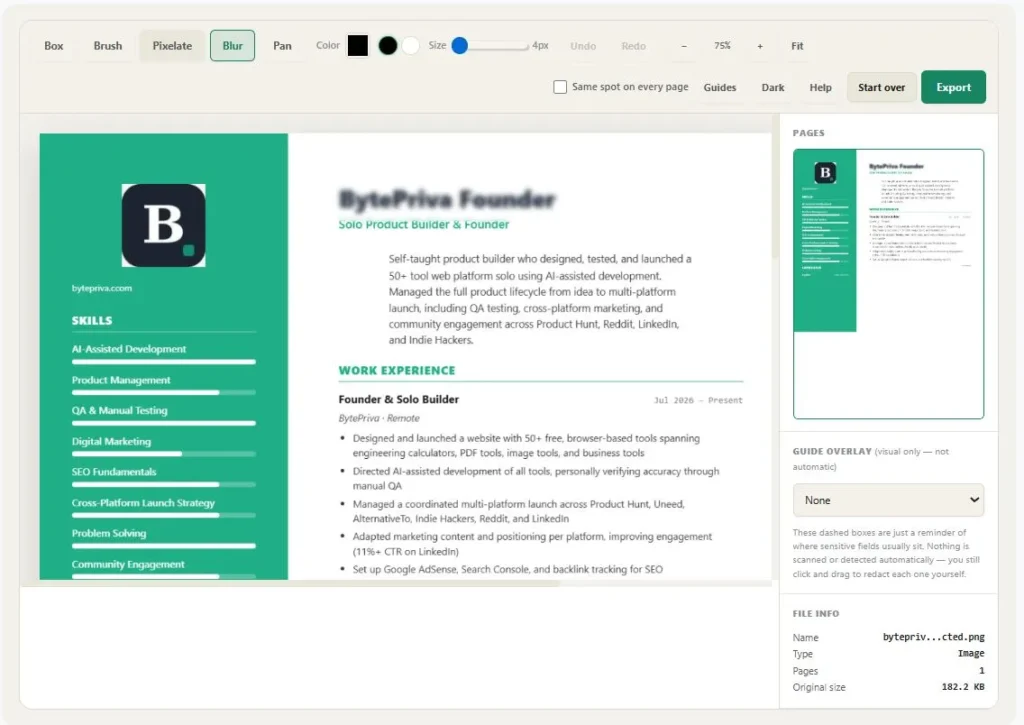
If you need to cover parts of a PDF or an image, you can also try BytePriva's Redact PDF and Image tool. It lets you cover areas with a box, brush, pixelate or blur, and you choose the export format. Whichever tool you use, treat the result as a draft until you have run the tests above on the exported file.
Redactions in this tool are drawn by you by hand, so check every page. Keep a copy of the original, and when nothing may be readable, a solid cover is the safer choice than blur or pixelate. For important documents, ask a qualified professional to review the final file before sharing.
Tool link: https://bytepriva.com/redact-pdf-and-image-online/