Does an online tool upload your files? It is a fair question before you drop a contract, a bank statement or a family photo into a website. Many tools say they work "in your browser", but you do not have to take their word for it. In this guide you will learn a simple way to look for yourself, what the result can and cannot tell you, and how to stay careful with sensitive files.
Short answer
Some online tools send your file to a server and some work only on your device, and a website's own claim is not proof either way. You can check with your browser's Network panel: open it, use the tool with a harmless sample file, and see whether new requests appear. A clean result is a good sign, not a guarantee, so keep highly sensitive files out of any tool you do not fully trust.
Last reviewed: October 2026. Browser menus and shortcuts can change, so check your browser's help if a step looks different.
Three Levels of Evidence
When you decide whether to trust a tool, it helps to know how strong your evidence is.
| Level | Evidence | How strong is it? |
|---|---|---|
| 1 | What the website says ("no upload", "100% private") | A claim. It is useful to read, but you cannot confirm it just by reading. |
| 2 | What you can observe in your own browser | Better. You see what your browser actually sends while you test. |
| 3 | Not giving the tool a sensitive file at all | The safest choice, because nothing can leak that you never shared. |
This guide helps you reach Level 2 and then decide whether Level 3 is the right call for your file.
The Network Panel Test, Step by Step
Every modern browser has developer tools that can list the requests a page makes. The steps below use Google Chrome, and they follow Google's own guide, Inspect network activity. Other browsers have similar tools, but the menus are different.
- Pick a harmless sample file. Use a dummy PDF or a photo with nothing private in it. Never test with a real sensitive file.
- Open the tool's page in a new tab, but do not choose a file yet.
- Open developer tools. In Chrome, press Ctrl+Shift+J on Windows or Linux, or Cmd+Option+J on a Mac. The Console opens first, so click the Network tab.
- Reload the page while the panel is open. Google's guide says the panel only logs network activity while it is open, and that reloading the page logs its activity. You will see a list of rows, one for each resource the page loads.
- Note what is on the list. Each row shows details such as Status, Type and Time. You can right-click the table header to add a Domain column, which shows where each request went.
- Now choose your sample file and run the tool. Keep the panel open the whole time.
- Look at what changed. Did new rows appear when you picked the file or pressed the main button? Click each new row and read the Headers, Preview and Response tabs to see what it is.
How to Read What You See
| What you see | What it may mean |
|---|---|
| No new rows after you choose the file and run the tool | This fits a tool that works on your device. It is a good sign, but see the limits below. |
| New rows to the same website's domain when you press the main button | Click them and look. It might be your file, or it might be a small status message. Check the details before you decide. |
| Rows to other domains, such as fonts, scripts or analytics | Pages often load these for reasons that have nothing to do with your file. Look at the type and name of each one. |
| You cannot tell what a row is | Treat that as "not sure" and keep sensitive files out of the tool. |
An Extra Hint: Try It Offline
Here is a second, simple check. Load the tool's page fully, then switch off your internet connection, and run the tool with your sample file. If it still produces the result, that step did not need the network. If it fails, that does not prove an upload, because some pages need the internet to finish loading their own parts. Use this as a hint, not as proof.
What These Checks Cannot Tell You
- They show what your browser sent while you were watching. A page could behave differently at another time or with another file.
- They cannot show what happens on a company's servers if a file is sent.
- Browser extensions and other open tabs can also make requests, which can make the list harder to read. A fresh window with few extensions makes it clearer.
- Reading the details of a request takes some practice. If you are unsure, do not guess.
Smart Habits for Any Online Tool
- Work on a copy of your file and keep the original safe.
- Read the privacy policy and look for plain answers: is my file sent to a server, is it stored, and when is it deleted?
- Remove what you do not need. If only page 3 matters, share only page 3.
- Be extra careful with IDs, medical records, financial papers and legal documents. If a company or employer has rules for these files, follow them.
- When in doubt, use software on your own device that you already trust.
Questions People Ask: Does an Online Tool Upload Your Files?
How can I check if a website uploads my file?
Open your browser's developer tools, go to the Network tab, then use the tool with a harmless sample file. Watch for new requests and click them to see what they are. A clean result is a good sign, not a guarantee.
Is "no upload" on a website enough proof?
No. It is a claim. It helps to read it, but your own check or simply not sharing the file gives stronger protection.
Do I need technical skills for the Network test?
You only need to open the panel and watch whether new rows appear. Reading the details of each request takes more practice, so if you are unsure, treat the result as "not sure".
Why do I see requests even when nothing is uploaded?
Pages load fonts, scripts and sometimes analytics, and these show up as rows. Look at each row's type and domain to see what it is.
Should I test with my real document?
No. Test with a sample file that has nothing private in it. Only use a real file after you are comfortable with the tool.
What is the safest option for very sensitive files?
Not sharing them with an online tool at all. Use software on your own device that you already trust, and follow any rules your employer or organization has.
Summary
To find out whether an online tool uploads your files, do not rely on the claim alone. Open the Network panel, test with a harmless sample file, watch for new requests, and read the limits honestly. For highly sensitive files, the safest choice is to keep them out of tools you do not fully trust.
This guide is for general information only and is not security or legal advice. The checks described here can help you form a view, but they cannot guarantee how any website handles your data. Please follow the privacy rules of your employer or organization, and keep highly sensitive files out of any tool you do not fully trust. Links to other websites are provided for reference only, and BytePriva is not responsible for their content. Read our full disclaimer.
Sources and Further Reading
- Chrome for Developers: Inspect network activity. How to open the Network panel and read the list of requests.
Run the Test Yourself
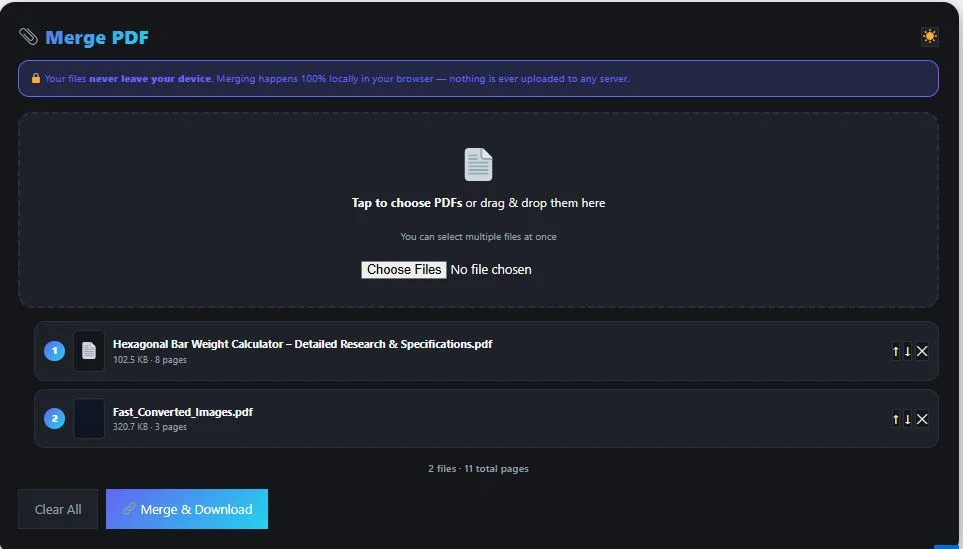
You can practice the steps above on any tool. BytePriva's Merge PDF tool is one you can try, and its own page invites you to check the browser's network activity panel yourself. Please do not just take our word for it: use two harmless sample PDFs, follow the steps above, and see what you find.
Tool link: https://bytepriva.com/merge-pdf/