Bates numbering without Acrobat is easier than it sounds. The goal is simple: every page in a set of documents gets its own unique, sequential label, so anyone can point to "page ABC000045" and everyone looks at the same page. You do not need one particular program for that. You need a clear plan, a tool that can stamp the numbers, and a quick check at the end.
Short answer
Decide your prefix, your starting number and how many digits you need. Put your files in the final order, stamp them in one run so the numbers continue across files, then check the first page, the last page and the total count. If you are producing documents for a legal matter, follow the instructions of your attorney, court or firm for the exact format.
Last reviewed: October 2026. Rules and formats differ between courts and organizations, so confirm the format you must use before you stamp.
What a Bates Number Is Made Of
A Bates number is a label printed on each page. It usually has up to three parts: a prefix, a number with a fixed number of digits, and an optional suffix.
ABC 000045 -C
Prefix (for example a case or company code), number with leading zeros, optional suffix
The leading zeros keep every label the same length, which makes lists sort in the right order. The prefix and suffix are your choice. Many people use a short code for the matter or the company, but any short, clear text works.
Why Pages Get Labeled at All
When documents are handed over in a legal matter, the other side needs to be able to find what they received. In the United States, Federal Rule of Civil Procedure 34 says a party must produce documents as they are kept in the usual course of business, or must organize and label them to correspond to the categories in the request. You can read the rule text on the Cornell Legal Information Institute website.
The rule does not mention Bates numbers by name, and requirements vary by court and by case. Page numbering is simply a clear and common way to label pages, so treat this guide as a how-to for the stamping itself, not as legal advice on what your case requires.
Step 1: Choose Your Numbering Scheme
Make three choices before you stamp anything.
- Prefix. A short code, for example ABC. Keep it consistent across the whole set.
- Starting number. Usually 1 for a new set. If you are adding to an earlier set, start right after its last number.
- Number of digits. Pick enough digits for the biggest set you may ever add to this series. The table shows how far each choice goes if you start at 1.
| Digits | Example of page 1 | Highest page number |
|---|---|---|
| 4 | ABC0001 | 9,999 |
| 5 | ABC00001 | 99,999 |
| 6 | ABC000001 | 999,999 |
| 7 | ABC0000001 | 9,999,999 |
| 8 | ABC00000001 | 99,999,999 |
If you are unsure, choose more digits. Extra leading zeros cost nothing, but running out of digits halfway through a series is a problem.
Step 2: Put the Files in Their Final Order
Numbers are handed out in the order the files and pages come. If you change the order after stamping, the numbers no longer match the sequence, and you would need to stamp again from clean copies. So settle the order first.
Here is an example with three files. The file names and page counts are made up for teaching.
| Order | File (example) | Pages | Labels, prefix ABC and 6 digits |
|---|---|---|---|
| 1 | Contract.pdf | 12 | ABC000001 to ABC000012 |
| 2 | Emails.pdf | 48 | ABC000013 to ABC000060 |
| 3 | Invoices.pdf | 130 | ABC000061 to ABC000190 |
| Total | 190 | ABC000001 to ABC000190 |
Notice the pattern: each file starts at one more than the last page of the previous file, and the last label always equals the starting number plus the total pages, minus 1. If you later add a new batch to this series, it would start at ABC000191.
Step 3: Stamp the Pages
You can do this in a PDF editor, or in a browser-based tool. Whatever you use, look for these abilities:
- a prefix, and ideally a suffix
- a start number you can set
- a fixed number of digits with leading zeros
- numbering that continues across several files in one run
- a choice of where the number goes on the page
Always work on copies of your files and keep the unstamped originals safe. Test the settings on one short file first, so you can see the label size and position before you do the whole set.
Step 4: Check the Result
A short check takes a few minutes and catches most problems.
| Check | What to look for |
|---|---|
| First page of each file | The label is the number you expected |
| Last page of each file | The label matches your table |
| Page count | Last number minus first number plus 1 equals the pages in the file |
| Position | The label does not cover any text, signature or stamp |
| Readability | The label is clear when printed or zoomed in |
| Order | Files appear in the order you planned, with no gaps or repeats |
It also helps to keep a simple list of each file with its page count and its first and last label, like the example table above. If anyone asks later which pages came from which file, you will have the answer ready.
Common Mistakes to Avoid
- Stamping before the order is final. Changing the order later breaks the sequence.
- Stamping files one by one by hand and starting each at 1, which creates duplicate labels.
- Too few digits for the set you may grow into.
- Placing the label over content such as a signature or a table.
- Losing the unstamped originals. Keep a clean copy of everything.
Questions People Ask About Bates Numbering Without Acrobat
Do I need Adobe Acrobat to add Bates numbers?
No single program is required. What matters is the result: every page has a unique, sequential label in the format your matter needs. Choose any tool that can stamp a prefix and a running number on each page, and check the result.
What is a Bates number?
It is a unique label placed on each page of a set of documents, usually a prefix followed by a number with leading zeros, such as ABC000045.
How many digits should I use?
Use enough for the largest set you may ever add to the series. Six digits allow up to 999,999 pages if you start at 1, and extra leading zeros cost nothing.
Can I add to a set I already numbered?
Yes. Start the new batch at one more than the last number you used, and keep the same prefix and digit count.
Does Rule 34 require Bates numbers?
The text of Federal Rule of Civil Procedure 34 does not mention Bates numbers. It says documents must be produced as kept in the usual course of business, or organized and labeled to correspond to the categories in the request. Check what your court, case or attorney requires.
What if I find a mistake after stamping?
Go back to your clean copies, fix the order or settings, and stamp again. Do not stamp over an already stamped file, because the old labels would stay on the page.
Summary
Bates numbering without Acrobat comes down to a plan: choose a prefix, a starting number and enough digits, fix the file order, stamp everything in one run, and check the first and last labels and the page count. Keep your originals and a simple list of ranges.
This guide is for general information only and is not legal advice. Requirements for numbering and producing documents vary by court, case and organization, so please follow the instructions of your attorney, court or firm, and review your final files before you use them. Links to other websites are provided for reference only, and BytePriva is not responsible for their content. Read our full disclaimer.
Sources and Further Reading
- Federal Rule of Civil Procedure 34, Cornell Legal Information Institute. Rule text on producing documents, including the "organize and label" wording.
A Free Browser Option to Try
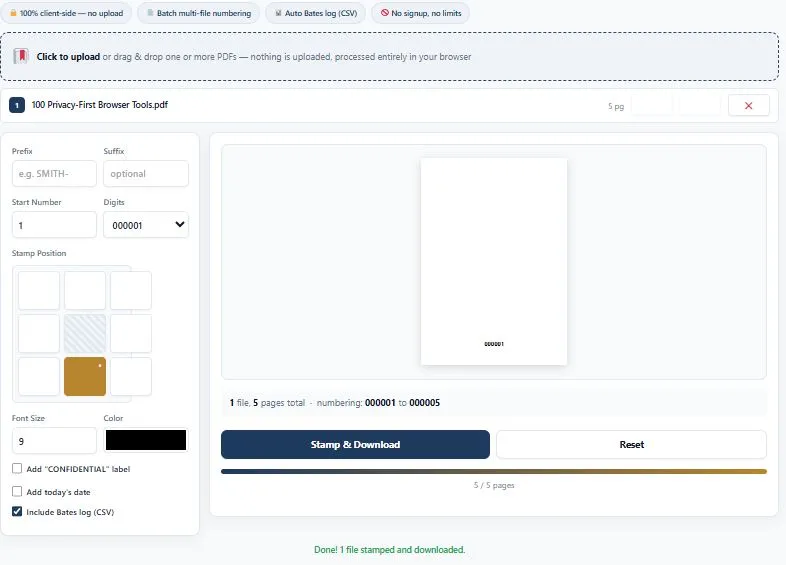
If you would like a browser-based option, you can try BytePriva's Bates Stamping Tool. It has fields for a prefix, a suffix, a start number and the number of digits, and you can arrange several PDFs in order. It can also add an optional CONFIDENTIAL label, today's date and a CSV list of page ranges.
As with any tool, try it on one short file first and check the result against the steps above before you use it on a full set.
Tool link: https://bytepriva.com/bates-stamping-tool/