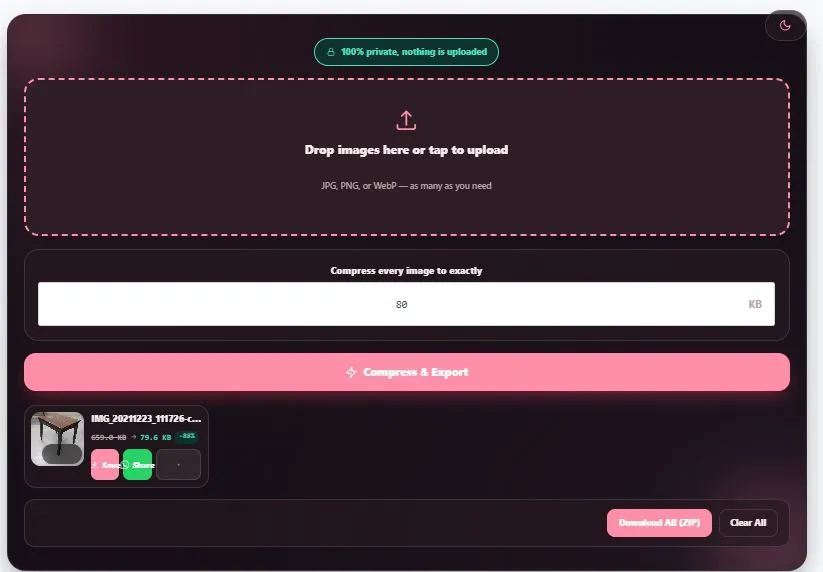
Compress image to KB instantly with this free tool — no signups, no waiting, no server involved. Upload your photo, type the exact file size you need (like 50 KB or 100 KB), and click Compress & Export — the tool automatically finds the highest possible quality that still fits under your target, so you lose as little quality as the size limit allows.
It's a pure compressor, not a converter — a JPG stays a JPG, a PNG stays a PNG, a WebP stays a WebP, nothing gets changed to a different format. Drop in multiple images at once, compress them all together to the same target size, and download everything as a single ZIP. Nothing is ever uploaded to our server — the entire process runs inside your own browser using your device's built-in image engine (the same canvas.toBlob() technology browsers use natively), so it works even on a slow connection and your photos never leave your control.
Quick answer: To compress an image to a specific size, type the KB your form asks for (for example 50 KB), upload the photo and click Compress & Export. The tool finds the highest quality that still fits at or under your target, and your JPG, PNG or WebP stays in the same format.
- Works with: JPG, PNG and WebP
- Common targets: 20 KB, 50 KB, 100 KB, 200 KB
- Batch: Compress many photos to the same size and download one ZIP
- Cost: Free, no sign-up
Drop images here or tap to upload
JPG, PNG, or WebP — as many as you need
Result is as close as possible to this size, never above it. Images already smaller are kept as they are.
Related Tools
How to Compress Image to KB
- Upload your image — click the upload area or drag and drop your JPG, PNG, or WebP file directly onto it.
- Type your target file size — enter the exact KB your form, portal, or website requires (common targets are 20 KB, 50 KB, 100 KB, and 200 KB).
- Click "Compress & Export" — the tool works entirely inside your browser, finding the highest quality setting that still fits your target size.
- Download or share — save the compressed image directly, or share it straight to WhatsApp on mobile.
If you're uploading several images at once, each one is compressed to the same target size individually, and you can download them all together as a single ZIP file when you're done.
Common Image Size Targets: 20 KB, 50 KB, 100 KB and 200 KB
Forms and portals often ask for a maximum file size. Here is what each common target usually means in practice. Always follow the exact rules on your own form.
| Target size | Often used for | What to expect |
|---|---|---|
| 20 KB | Signatures, small ID images | Works best on simple images. Detailed photos can lose visible quality. |
| 50 KB | Passport-style photos and signatures on application forms | Good for small, plain photos. Keep the background simple. |
| 100 KB | Photos on job and college portals | A good balance of size and clarity for most photos. |
| 200 KB | Larger photos and scanned IDs | Keeps more detail, so text and faces stay clearer. |
| 500 KB to 1 MB | Email, websites and blogs | Light compression with very little visible change. |
This works using the same underlying browser technology — canvas.toBlob() — that all modern browsers support natively.
Who This Image Compressor Is Built For
Whether you need to compress image to KB for a form, a website, or just to save space, here's who finds this tool most useful:
- Job and college applicants filling out online forms that reject photos over a specific KB limit — set the exact number the form asks for and get it right on the first try.
- People uploading to government or exam portals where the upload system is strict about file size and gives no useful error message when you're over the limit.
- Website owners and bloggers who need smaller image files to keep their pages loading fast, without wanting to change the image format.
- Anyone sending photos over email or messaging apps with attachment size limits, who needs a quick way to shrink a file without losing more quality than necessary.
- People compressing many photos at once — drop in a batch, set one target size, and export everything together as a ZIP instead of doing it one by one.
Before You Upload: Check Size, Dimensions and Format
When a form rejects your photo, the file size is not always the reason. Check these three things on your form:
- File size. The maximum (and sometimes a minimum) in KB. This is what this tool changes.
- Dimensions. Many forms also ask for a pixel size, such as width × height. If yours does, resize first with the Bulk Image Cropper, then compress.
- Format. Many forms accept only JPG. If your photo is WebP, use the WebP to JPG converter. If it is an iPhone HEIC photo, use the HEIC to JPG converter first.
How to Check an Image’s Size in KB
- Windows: right-click the file, choose Properties and read “Size”.
- Mac: select the file and press Cmd + I, then read “Size”.
- Android: open the file in your Files app and tap Details.
- iPhone: open the file in the Files app and tap Get Info.
Remember that 1 MB is about 1,000 KB (1,024 KB on many systems).
Tips for Getting Accurate Results From This Image Compressor
Here are a few things to know before you compress image to KB targets, especially very small ones:
- Set a realistic target for the image type. A detailed, high-resolution photo asked to hit a very small KB target (like 10 KB) will lose more visible quality than the same target applied to a simpler image — the tool always finds the best quality it can within your number, but very aggressive targets have physical limits.
- PNG behaves differently than JPG. PNG is a lossless format, so it can't be "quality-reduced" the way a JPG can — to hit a small target KB, the tool adjusts PNG files more conservatively than JPG or WebP files of the same size.
- The same target applies to every image in a batch. If you upload several photos together, each one is compressed to your one target KB individually — if you need different sizes for different images, run them in separate batches.
- Check the result before using it for something official. The compressed file will be at or under your target size, but always open and review it before submitting it to a form, portal, or application.
Compress, Resize and Convert: What’s the Difference?
- Compress makes the file smaller in KB, usually by lowering quality a little. This tool does that.
- Resize changes the pixel dimensions, such as 600 × 800. A smaller image also has a smaller file size.
- Convert changes the format, such as WebP to JPG.
If your form lists a size in KB, compress. If it lists pixels, resize. If it lists a format, convert. Many forms ask for more than one.
How to Compress an Image to KB on Android or iPhone
- Open this page in your phone’s browser.
- Tap the upload area and choose your photo.
- Type the target size in KB.
- Tap Compress & Export.
- Save the file, or share it straight to WhatsApp.
Tips for Form Photos and Signatures
- Use even lighting and a plain, light background. Plain images compress to small sizes with less visible damage.
- Crop neatly, but don’t cut too tight around the face or signature.
- For signatures, sign in dark ink on white paper and photograph it straight on.
- Compress a copy and keep your original. Compressing the same file again and again lowers the quality each time.
- If the result looks too soft, try a slightly higher target if the form allows it, such as 90 KB instead of 50 KB.
FAQs
How do I compress an image to an exact KB size?
To compress image to KB, upload your image, type your target file size in KB into the input box, and click "Compress & Export." This tool automatically finds the highest quality setting that still fits under your target — you don't need to guess or try multiple times.
Does this tool upload my photos anywhere?
No. The entire compression process runs inside your own browser using your device's built-in image engine. Your photos are never sent to a server, which also means it works even on a slow internet connection.
Will my image change format, like JPG to PNG?
No — this is a pure compressor, not a converter. Whatever format you upload (JPG, PNG, or WebP) is the same format you get back, just smaller in file size.
Can I compress multiple images at once?
Yes. Upload as many images as you need, set one target KB, and click Compress & Export — this lets you compress image to KB in bulk, and you can download them all together as a ZIP file.
How can I compress a photo to 50 KB for an online form?
Upload your photo, type 50 in the target box and click Compress & Export. The tool returns a file at or under 50 KB. Check the form for dimensions and format as well, and review the result before you submit it.
How do I compress a photo to 100 KB on my phone?
Open this page in your phone’s browser, upload the photo, type 100 and tap Compress & Export. You can then save it or share it to WhatsApp.
Why did the form reject my compressed image?
The file size may be fine but the dimensions, the format or a minimum size may not match. Check your form for all three. If the form has a minimum size and your file is below it, set a slightly higher target and compress the original again.
What is the difference between compressing and resizing an image?
Compressing reduces the file size in KB. Resizing changes the width and height in pixels. A form may ask for one or both.
Does compressing an image reduce its quality?
For JPG and WebP, yes, a little, because the tool lowers quality to fit your target. It looks for the highest quality that still fits, so you lose as little as the size limit allows. Very small targets on large or detailed photos show more loss.
How do I compress a signature to 20 KB?
Photograph the signature on plain white paper, crop it neatly, type 20 as the target and compress. Simple images like signatures usually reach small sizes without much visible damage.
How do I check the size of an image in KB?
On Windows, right-click the file and open Properties. On Mac, press Cmd + I. On Android, open the file in your Files app and tap Details. On iPhone, tap Get Info in the Files app.
Quick Summary
This tool lets you compress image to KB with an exact target — just upload, type your target file size, and click Compress & Export. It always finds the highest quality setting that fits your target, keeps the original format (no JPG-to-PNG conversion), and works entirely inside your browser so nothing is ever uploaded. Compress one image or a large batch at once, and download everything together as a ZIP when you're done.
Disclaimer
This tool to compress image to KB by BytePriva is provided free to help reduce photo file sizes for forms, portals, websites, and everyday sharing. The tool works entirely within your browser and does not upload, store, or have any access to the images you process — compression happens locally on your own device.
Actual results can vary depending on the content, resolution, and format of the original image, especially when a very small target size is requested on a large or detailed photo. BytePriva makes no warranty regarding suitability for any specific official, legal, or application purpose, and accepts no liability for issues arising from using a compressed image for a form, portal, or submission that has its own specific requirements.
Always review the compressed result and confirm it meets the exact requirements of whatever form, portal, or platform you're submitting it to before relying on it.