PDF to Word no upload means exactly what it says: your file is converted on your own device and never sent to a server. That is how this tool works. Your browser opens the PDF, pulls out the text, rebuilds it as a .docx file, and hands the result straight back to you. Nothing is sent to us, there is no account to create, and there is no watermark and no daily limit. It suits the documents people hesitate to upload: contracts, CVs, medical letters, bank statements, school forms.
Below the tool you will find a plain-English look at what happens to a file when you convert it online, how to check any converter for yourself, and what to expect from the Word file you get back.
Short answer: Yes, you can convert PDF to Word without uploading it. Add your PDF below, wait a few seconds, and download the .docx. The conversion runs inside your browser tab, so the file never leaves your phone or computer. It works best on text-based PDFs, meaning files where you can select the words.
Table of Contents
Is It Safe to Convert PDF to Word Online?
It depends on how the converter is built, and most people never find out. Many online converters work in four steps: your file travels across the internet to their server, software on that server converts it, the result is stored briefly, and you download it. Reputable services say they delete files after a set time, and many do. The point is not that they are dishonest. The point is that, for a while, a copy of your document exists on a machine you do not control, possibly in another country, under a privacy policy you probably did not read.
For a lecture handout, that hardly matters. For a signed contract, a tax form or a medical report, it is worth a second thought. Before you use any converter, it helps to ask three questions: where does my file go, how long is it kept, and who can access it? A browser-based converter removes the question entirely. The file is opened and converted on your device, so there is no upload to delete later.
How a Browser Can Convert a PDF to Word on Its Own
It sounds like it should need a powerful server, but the heavy lifting is smaller than you would think. A PDF does not store paragraphs the way a Word file does. According to Microsoft's own explanation of how PDF conversion works, a PDF stores where each piece of text sits on the page, but not the relationships between them, so most PDFs carry no real paragraph, column or table structure. Every converter, whether it runs on a server or in your browser, has to guess that structure back from the positions.
This tool does it in three moves. First, your browser reads the PDF page by page and collects every piece of text with its position and size. Second, it groups pieces that sit on the same line, then groups lines that sit close together into paragraphs, and treats noticeably larger text as a heading. Third, it writes the result as a .docx file, which is simply a zip package of XML files that Word, Google Docs and LibreOffice can all open. None of these steps needs a server, which is why nothing has to be uploaded.
PDF to Word No Upload: How It Works in 3 Steps
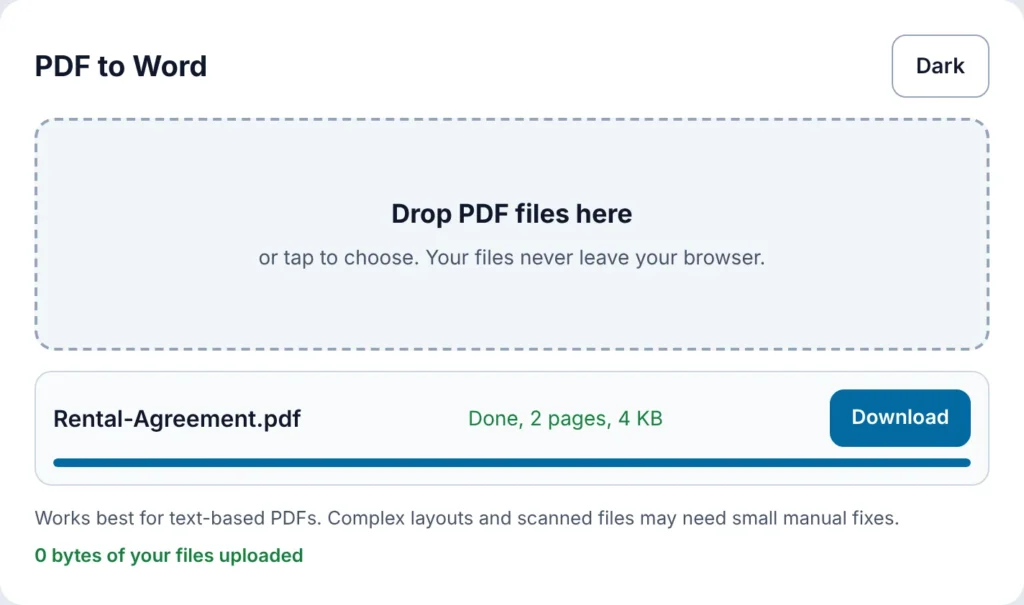
1. Add your PDF. Drag one or more files onto the box above, or tap it to choose them from your device. If a file is password protected, you will be asked for the password.
2. Let it run. A progress line shows "Page 3 of 12" while the file is read. You can cancel at any time, and when you add several files they are converted one after another.
3. Download the .docx. When the row says Done, tap Download to save the PDF to DOCX result. It opens in Microsoft Word, Google Docs, LibreOffice and most other editors.
Can You Convert PDF to Word Without Losing Formatting?
Honestly, no converter can promise that, because the formatting was never stored in a form Word understands. What you can do is choose files that convert well and know what to expect from the rest. This tool rebuilds headings, paragraphs, lists, centred titles and page breaks. Here is what to expect from common kinds of PDF:
| Type of PDF | What to expect |
|---|---|
| Letters, essays, reports | Very good. Text, headings and paragraphs come through cleanly. |
| Contracts and legal documents | Good. Numbered clauses stay as separate paragraphs. Check numbering after conversion. |
| CVs and resumes | Fair. Text is complete, but multi-column designs may need rearranging. |
| Invoices and statements | Fair. Columns arrive separated by tabs, which you can turn into a table in Word. |
| Magazines, brochures, flyers | Limited. Images and decorative layouts are not carried over. |
| Scanned documents | Not supported. A scan is a picture, so there is no text to extract. |
How to Check That a Converter Really Isn't Uploading Your File
You should not have to take anyone's word for it, including ours. Your browser can show you exactly what a page sends. It takes about a minute:
- Open this page, then open your browser's developer tools. Press F12 on Windows, Linux or Chromebook, or Cmd + Option + I on a Mac.
- Click the Network tab, then click the small clear icon so the list starts empty.
- Add a PDF to the tool and let it convert.
- Look through the new entries. You will see the converter's own code loading, which is expected. What you should not see is a request that sends your file out, such as a POST request with a size close to your PDF.
- Try the same test on any other converter you use. The difference is easy to spot.
What to Do After Converting: A 5-Minute Cleanup
A converted file is a good first draft, not a finished one. These small fixes make it feel like a document you wrote yourself:
- Turn tab-separated columns into a table. Select the lines, then choose Insert > Table > Convert Text to Table in Word.
- Apply real heading styles. Large bold lines are rebuilt as headings visually. Setting them to Heading 1 or Heading 2 gives you a working navigation pane.
- Check numbers, names and dates. A quick read catches the rare slip before the file goes to anyone else.
- Keep the original PDF open beside it. Use it as your reference for layout while you tidy up.
- Set one font for the whole file. Select all and choose the font you want, so the document looks consistent.
How to Convert PDF to Word on Phone (Android and iPhone)
The tool is built for small screens, so you can convert PDF to Word on phone with the same three steps. Tap the box, choose the PDF from your files, and wait for the progress line to finish. The .docx is usually saved to your Downloads folder, and from there you can open it in the Word app, Google Docs or another editor. Very large PDFs convert faster on a laptop than on an older phone, because the work happens on your own device.
When a Browser Converter Is the Wrong Choice
Two situations are better handled elsewhere. If your PDF is a scan or a photo of a document, it contains no text, so you need OCR software that reads the picture first. If your PDF is a designed layout, such as a brochure or a magazine page, a converter will give you the text but not the design, and you will usually be better off asking whoever made it for the original file. Knowing this up front saves you from judging a tool on something it was never meant to do.
Frequently Asked Questions
Can you convert PDF to Word without uploading it?
Yes. This converter runs entirely in your browser, so your PDF stays on your device from start to finish. You can check it yourself with the Network tab method described above.
Is it safe to convert PDF to Word online?
It depends on the converter. Upload-based tools store a copy of your file on a server for some time, which may be fine for ordinary documents but not for private ones. A browser-based tool avoids the issue because the file is never sent anywhere.
Is this free PDF to Word converter really free?
Yes. There is no payment, no watermark and no daily limit. Because the conversion happens on your own device, very large files depend on your device's memory, not on a cap we set.
Do I need to sign up?
No. There is no account, no login and no email. Open the page, add your PDF and download the result.
Will my formatting be kept?
Partly. Headings, paragraphs, lists, centred titles and page breaks are rebuilt. Images, true Word tables and bold or italic styling are not carried over, and columns arrive separated by tabs. No converter can guarantee a perfect match, because PDFs do not store document structure.
Can it convert a scanned PDF?
No. A scan is a picture of text, so there is nothing to extract. If you cannot select words in the PDF, it is a scan. The tool tells you this instead of giving you an empty file.
Does it work with password-protected PDFs?
Yes. If a file is locked, the tool asks for the password and uses it in your browser to open the file. The password is not sent to us.
Does BytePriva see my PDF?
No. Your file is processed in your browser and is not uploaded to our servers. Like most websites, this page loads its PDF-reading code from a public library host and may show ads from third parties, but your file is not part of those requests.
Quick Summary
PDF to Word no upload works because the conversion runs inside your browser, so your file never leaves your device. The tool is free, needs no signup, adds no watermark and has no daily limit. It rebuilds headings, paragraphs, lists and page breaks into an editable .docx file, and works best on text-based PDFs. It does not read scans, images or true Word tables, so use it for text-heavy documents and keep your original PDF for reference.
A quick note: Converted files may not match your original layout exactly, so give the Word file a quick look before you share or submit it. Your files are processed in your browser and are not uploaded by this tool.