To rearrange PDF pages in browser, open the tool, drop your PDF, drag the page thumbnails into the order you want, then click Download PDF. The tool runs in your browser, so there is nothing to install.
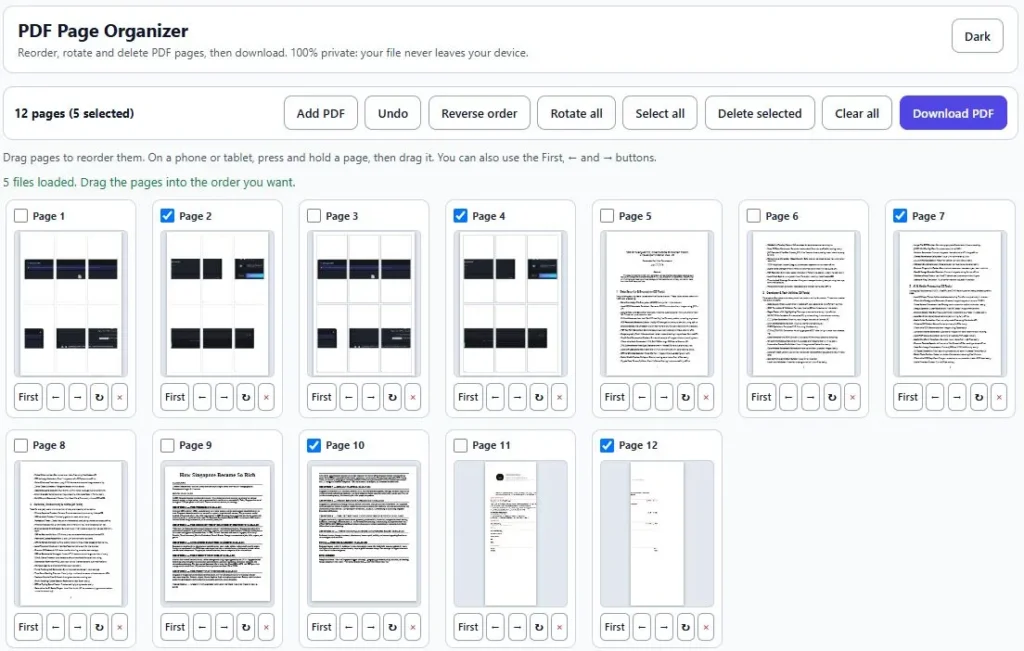
This free PDF page organizer lets you reorder, rotate and delete pages, or merge several PDFs into one, with no account needed. Every page appears as a thumbnail, so you can see exactly what you are moving. On a computer, drag pages with your mouse. On a phone or tablet, press and hold a page, then drag it, or use the First, ← and → buttons. The tool is browser-based, so the pages are rearranged right in your browser tab.
Related PDF Tools
Table of Contents
How to Reorder PDF Pages in 4 Simple Steps
You do not need to install anything. Follow these steps on a computer, phone or tablet.
1. Add your PDF. Drop your file onto the page, or click it and choose the PDF from your device. Every page shows up as a thumbnail. To combine files, click Add PDF and choose more.
2. Drag pages into order. Drag a page to its new spot. On a phone or tablet, press and hold the page, then drag it. To bring a page to the front in one tap, use First. The ← and → buttons move a page one place.
3. Fix the rest. Use ↻ to rotate a page and × to delete it. You can also tick several pages and press Delete selected, or use Reverse order to flip the whole document. Made a mistake? Undo brings it back.
4. Download your PDF. Click Download PDF. Your new file is built in your browser and saved as yourfilename-organized.pdf, with no watermark.
Browser Tool or Desktop Software: Which One Fits?
Both can organize PDF pages, so the right pick depends on the job. A browser-based tool such as this one is built for quick fixes: open the page, add the file, set the order and download. Desktop PDF software suits heavier work, like editing text or filling forms.
| Browser-based tool (this page) | Desktop PDF software | |
|---|---|---|
| Install | Nothing to install | An installer is needed |
| Best for | Quick jobs such as reordering, rotating or deleting pages | Heavier editing such as changing text or filling forms |
| Cost | Free | Varies by program |
| Limits | Very large files depend on your device's memory | Varies by program |
The page draws its page previews with the open-source PDF.js library, which is supported by Mozilla, and builds the new file with an open-source library called pdf-lib. Password-protected PDFs are not supported.
Common PDF Page Order Problems and the Quick Fix
Most page-order problems come from scanning or combining files. Here are the ones people run into most, and the button that fixes each.A page needs to go to the front: a cover sheet or appendix landed at the end? Press First on its thumbnail and it jumps to position one.
The scanner fed the pages backwards: press Reverse order to flip the whole document in one click, the fastest way to reverse PDF page order.
Some pages are sideways: press ↻ on one page, or Rotate all to turn every page 90 degrees. Tap again for 180 or 270.
Two files need to become one: press Add PDF and choose the second file, so you can merge two PDFs and drag pages between them. The download is named merged-organized.pdf.
Blank or duplicate pages are in the way: tick the pages and press Delete selected, or press × on a single page. Undo brings back a wrong delete.
One honest limit: the tool does not read your pages or sort them automatically. You decide the order, and the page numbers printed on the pages stay exactly as they were.
FAQs
Can I rearrange PDF pages in browser without installing software?
Yes, the tool is browser-based, so there is nothing to install. Open the page, add your PDF, arrange the pages and download the result.
Does it work on a phone or tablet?
Yes, it runs in your phone or tablet browser, so there is nothing to install. On a touch screen, press and hold a page, then drag it. You can also use the First, ← and → buttons under each page.
Is there a limit on pages or file size?
The tool sets no page limit. The only real limit is your device, because the whole file is held in your browser's memory. On a very large PDF, a phone may be slower than a computer.
Can I use it on a password-protected PDF?
No, password-protected PDFs are not supported. Remove the password in the app that created the file, then add it here. If a file will not open, protection or damage is the usual reason.
Will rearranging change the quality of my PDF?
Pages are copied into the new file, not redrawn. Rearranging only changes their order and rotation. Document-level extras such as bookmarks may not carry over, so check them in the new file if you rely on them.
The Short Version
To rearrange PDF pages in browser, add your file, drag the thumbnails into order, and download the new PDF. You can also rotate, delete, reverse or merge pages along the way. It is free, needs no sign-up and runs in your browser, so there is nothing to install. Password-protected PDFs are not supported, and very large files depend on your device's memory.
A Quick Note
This tool is made for everyday document jobs like fixing scan order or moving an appendix. It creates a new PDF and leaves your original file as it is, but it is a good habit to keep a copy and glance through the new PDF before you send or submit it. Save your download somewhere you can find it.