To remove password from PDF no sign up, drop your locked file into the tool above, type the password if it asks for one, and download the unlocked copy. It takes 3 clicks or fewer, with no account and no email. Everything runs inside your browser tab, so your file is never uploaded to a server, which matters when the PDF is a bank statement, payslip or medical report.
The tool handles two kinds of locks: the open password you type every time, and the print, copy and edit restrictions that many PDFs carry even though they open freely. On files you own or have permission to change, the tool can also clear basic usage settings. You can add several files at once and save them together as one ZIP. One honest limit: if a PDF needs a password to open, you have to know it, because this tool does not guess or crack passwords. Use it only on files you own or have permission to change.
Related Tools
Table of Contents
Two Kinds of PDF Locks, and How to Unlock PDF Files of Each Type
Not every locked PDF is locked the same way. A PDF can carry an open password, a set of usage restrictions, or both, and which one you have decides what you need to do. Here is how to tell them apart.
Open password: the PDF asks before it opens
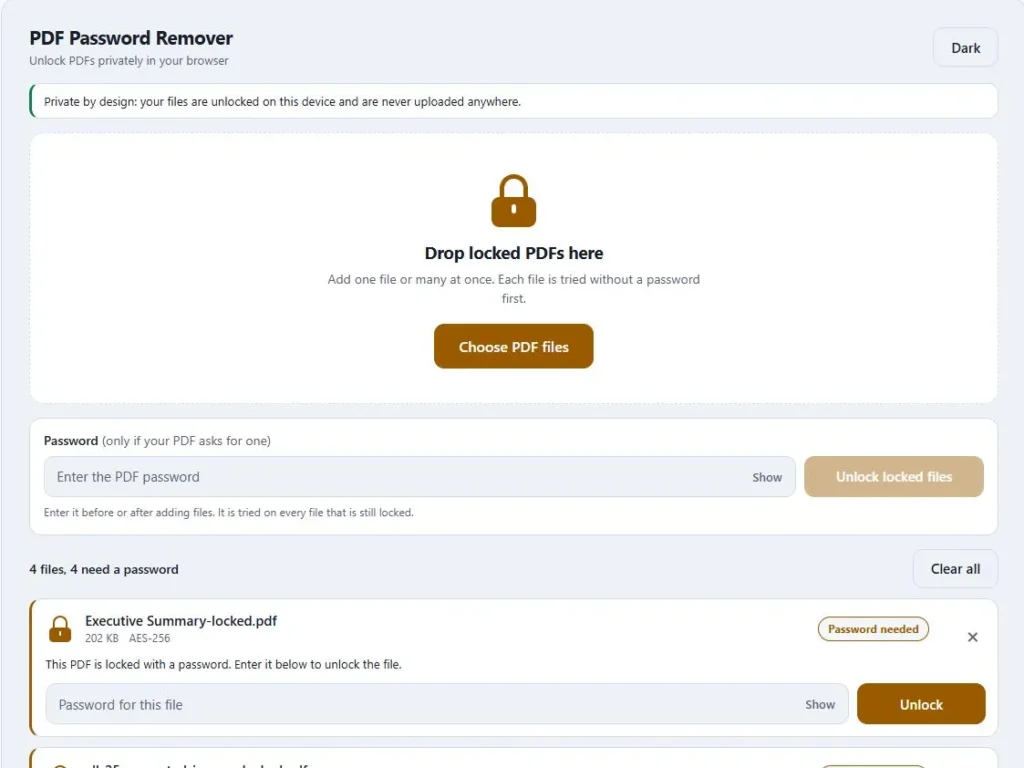
This is the lock most people mean. A Document Open password, also called a user password, has to be typed before the file shows anything. Drop the file into the tool and it shows a Password needed label with a password box. Type the password, press Unlock, and you get a copy that opens without one. The check happens on your device, and if the password is wrong, the tool says so and lets you try again.
Permissions password: the PDF opens, but some things are blocked
A permissions password, also called a master password, does not stop anyone from opening the file. It only limits what they can do afterwards, such as printing, editing or copying text, as Adobe's password security guide explains. If you own the file or have permission from its owner, the tool can clear these settings, and a note lists what was changed. If someone else set those limits on purpose, please ask them first.
Not sure which one you have?
Open the file. If it asks for a password before showing a single page, it has an open password. If it opens fine but printing or copying is blocked, it has restrictions. Some files have both, and in that case the tool accepts either password.
How to Remove Password From PDF Online in 3 Steps
You do not need to install anything or create an account. The whole job happens on this page, and nothing leaves your device. Here is the process from start to finish.
Add your locked PDF
Drag the file onto the box, or press Choose PDF files and pick it from your device. The tool tries to open it without a password first, because many files only carry usage restrictions and need none. You can add more than one file at a time.
Type the password only if the tool asks for it
If the card says Password needed, type the password in the box on that card and press Unlock or the Enter key. Use Show to check what you typed, since passwords are case-sensitive. If several files share one password, enter it once in the Password box at the top instead. If the card already says Unlocked, skip this step.
Download the unlocked copy
Press Download unlocked PDF. The new file keeps your original name with -unlocked added at the end, and your original file stays untouched. Open the copy to confirm that it no longer asks for a password.
What the status labels mean
- Waiting: the file is in line while another one finishes.
- Working: the file is being unlocked on your device.
- Password needed: the file has an open password, so type it in.
- Unlocked: the new copy is ready to download.
- Not locked: the PDF has no password or restrictions, so there is nothing to remove.
- Error: the file could not be processed, for example because it is damaged or uses a protection type this tool does not support.
What Happens to Your File, and What This Tool Cannot Do
You can unlock a password-protected PDF file for free here, so it is fair to ask where your file goes while it happens. The short answer is nowhere. Here is the longer one, including the limits.
Your file stays in your browser
When you add a PDF, your browser reads it into memory and the code on this page rewrites it right there. No file is sent to a server, and the passwords you type are used only to unlock the file on your device. You can check this yourself: open your browser's developer tools, watch the Network tab while you unlock a file, and you will see that no request carries your PDF. The only thing the tool remembers is your light or dark theme choice.
What stays the same in the unlocked copy
The unlocked copy is a clean rewrite of the original with the encryption taken out. Page content, bookmarks, links and document information are usually kept, but please open the copy and check it before deleting the original. Your original file is never changed, so you always keep it as a backup.
Limits you should know about
- You need the right password. If a PDF asks for a password to open, this tool cannot guess it or get around it. A forgotten password cannot be recovered here.
- Digital signatures stop being valid. A signed PDF changes when it is rewritten, so the signature in the unlocked copy no longer verifies. The tool shows a warning when it spots one.
- Certificate-based and DRM protection is not supported. The tool handles standard password protection: RC4 40-bit and 128-bit, AES-128 and AES-256. Files locked to a certificate or a special reader will show an error.
- File size is capped at 150 MB. Your browser has to hold the whole file in memory, so very large files are better handled one at a time on a desktop.
- Badly damaged files may not open. The tool can often repair a PDF whose index is broken, but a file that is truncated or corrupted beyond that may show an error.
One last note: unlock only files that belong to you or that you have permission to change. Removing protection from a document someone else controls can go against their rules and, in some places, against the law.
Browser Tool vs Upload Sites vs Print to PDF: Which Way Fits?
There are three common ways to take a password off a PDF, and each suits a different situation. Upload-based sites send your file to a server, so check each site's own privacy policy to see how long files are kept. The Print to PDF trick in a browser stays on your device, but it creates a new file instead of unlocking the original. This tool unlocks the file itself, inside your browser tab.
| This tool | Upload sites | Browser Print to PDF | |
|---|---|---|---|
| Where your file goes | Stays in your browser | Uploaded to a server | Stays on your device |
| PDFs with printing limits | Settings can be cleared on files you own | Depends on the service | Only works if printing is allowed |
| Bookmarks and links | Kept in our tests | Depends on the service | Can be lost |
| Several files at once | Yes, with one ZIP download | Depends on the service | One file at a time |
Which one should you pick? For one simple file that has no restrictions, Print to PDF is a fine quick fix. If you are comfortable with uploads, an online service can do the job. If the file is private, has print or copy restrictions, or you have several files to do, this tool is built for that. Services change over time, so check a site's current page before relying on any detail in the table.
Unlock a Password-Protected PDF on Your Phone, or Many Files at Once
On a phone or tablet
The tool works in a mobile browser with the same three steps as on a computer. The layout is built for small screens, with large buttons, full-width fields and a Show button so you can check what you typed on a tiny keyboard. We tested the page at phone, tablet and desktop widths. Your file is saved the way your browser normally saves downloads. Phones have less memory than computers, so if a very large PDF fails, the tool tells you the file is too big for your device. In that case, try it on a computer instead.
Unlock many PDFs in one go
Add as many files as you like, and each one gets its own card. The tool works through them one after another, so your browser does not freeze. If they all share the same password, type it once in the Password box at the top and press Unlock locked files. If they have different passwords, enter each one on its own card. When two or more files are ready, Download all as ZIP puts them in a single download, and each file keeps its original name with -unlocked at the end.
Forgot the password on your phone?
A forgotten open password cannot be recovered** by this tool. If you did not create the file, ask the person or company that sent it for the password or a fresh copy. If you created it yourself, recreate the PDF from the original document. Before you give up, check the email or message that came with the file, because the password is often sent separately. And if the PDF opens fine but will not let you print or copy, it only has restrictions, and the tool can remove those without any password.
Frequently Asked Questions About Removing a PDF Password
Can I remove a password from a PDF with no sign up, online and for free?
Yes. You can remove a password from a PDF with no sign up, online and for free. There is no account to make and no email to enter. Add your file, type the password if the tool asks for one, and download the unlocked copy. You can also unlock multiple PDFs at once and save them together as one ZIP.
Is my PDF uploaded anywhere when I unlock it?
No. You can unlock a PDF without uploading it. The file is read and rewritten inside your browser tab, so it never reaches a server. You can confirm this by watching the Network tab in your browser's developer tools while you unlock a file. The tool only remembers your light or dark theme choice.
Can I unlock a PDF if I forgot the password?
No. A forgotten open password cannot be recovered, by this tool or by anyone else, and this tool does not guess or crack passwords. The best option is to ask the person who created the file for the password or a fresh copy, or to recreate the PDF from the original document if you made it yourself.
Can I change print and copy settings on a PDF I own?
If the PDF opens normally but limits printing, copying or editing, it carries usage settings. On files you own or have permission to change, the tool can clear these settings. If the file asks for a password before it opens, you need to type that password first.
Are there PDFs this tool cannot unlock?
Yes. It cannot open files protected with a certificate or DRM, files over 150 MB, or PDFs that are badly damaged. A PDF with a digital signature can be unlocked, but the signature no longer verifies in the new copy. A PDF that is not locked at all shows Not locked, because there is nothing to remove.
Quick Summary
The short version of how to remove password from PDF no sign up: add your file to the tool and type the password if it asks for one. Files with only print or copy limits can have those settings cleared if you own them and several PDFs can be done at once and saved as one ZIP. Your files is not uploaded, and your original stays untouched. Two honest limits apply: you need the right password, because nothing here guesses or recovers one, and a digital signature stops being valid in the unlocked copy.
Disclaimer
We test this tool carefully, but no software is perfect, so open the unlocked copy and check it before you delete the original. It works only with the correct password and cannot recover a forgotten one. Please unlock only files you own or have permission to change. Your files are processed in your browser and are never uploaded.