If you want to crop PDF margins for Kindle, the reason is easy to see the first time you open a PDF on a small screen: the text looks tiny, and a wide strip of empty white space sits around it. Cropping that white space lets the text fill more of the screen, so you zoom less and read more comfortably. This guide shows the simple math, when cropping helps, and how to do it without cutting off anything important.
Short answer
A PDF keeps the page shape it was made with, margins included. If you crop the empty margins and the page is fitted to the screen width, the text can be shown larger. On an A4 page with 25 mm side margins, cropping all the way to the text makes the text about 31% wider on the same screen. Always keep your original file and check a few pages of the cropped copy before you rely on it.
Last reviewed: October 2026. The numbers in this guide are simple page geometry that I calculated, so they hold for any device, but how your Kindle fits and zooms a page can differ by model and app.
Why PDFs Look Small on a Kindle
A PDF is built as a fixed page. The PDF Association explains that the page-description model known as PDF was developed on the premise of a fixed layout, and that much smaller screens, and screens of many sizes, present a variety of challenges. You can read it in PDF in the Mobile World (2016).
In plain words, the PDF does not rearrange itself to suit your screen. It shows the whole page, and the printed margins come along with it. On a small screen, those empty margins use up space that the text could use.
An A4 page (210 mm wide) with 25 mm side margins
Margins, 25 mm each (23.8% of the width together) Text area, 160 mm (76.2%)
How Much Bigger Can the Text Get?
If the page is fitted to the screen width, the gain is easy to calculate. Divide the page width by the text width. Here are some examples for an A4 page, 210 mm wide, with equal margins on the left and right. The table assumes you crop exactly to the text, which in practice you should not do (see the safety gap tip below).
| Side margin (each) | Text width | Share of page that is text | Text can be shown wider by about |
|---|---|---|---|
| 15 mm | 180 mm | 85.7% | 17% |
| 20 mm | 170 mm | 81.0% | 24% |
| 25 mm | 160 mm | 76.2% | 31% |
| 30 mm | 150 mm | 71.4% | 40% |
For a US Letter page that is 8.5 inches wide, the same idea gives these examples: with 0.75 inch side margins the text can be about 21% wider, with 1 inch about 31%, and with 1.25 inch about 42%. The wider your margins, the more you gain.
When Cropping Helps, and When to Be Careful
| Your PDF | Cropping margins |
|---|---|
| Single column of text with wide margins | Usually a good fit. This is where the math above applies. |
| Pages with headers, footers or page numbers | Check them. A tight crop can cut them off, so keep them inside the crop box. |
| Chapter title pages or pages with a different layout | Check them. One crop for the whole file may not suit every page. |
| Scanned books | Check for shadows, page edges and tilted pages, which can look like content. |
| Light-colored images near the edge | Check them. An automatic tool may treat a pale image as empty space. |
| Two-column layouts or tables | Cropping margins still helps, but the text may stay small. Zooming into a column may still be needed. |
A Safe Routine for Cropping
- Keep the original. Work on a copy and do not delete the first file until you have read some of the new one on your device.
- Look for the widest content. Find the page where the text, a table or a figure reaches furthest toward the edge. The crop must still include that page.
- Leave a small safety gap. Do not crop right to the edge of the text. A few millimeters of white space helps the text feel comfortable and protects against small errors.
- Check the first, middle and last pages of the cropped file, plus any chapter title pages, tables and figures.
- Read on the real device. Open the cropped PDF on your Kindle or in the Kindle app, because the screen is the final test.
If Something Looks Wrong
| Problem | What to try |
|---|---|
| Text is cut off at the edge | Make the crop less tight on that side, then check again. |
| Page numbers or footers are missing | Leave more space at the bottom or top. |
| The crop is too loose on some pages | One crop for all pages is set by the widest page. A smaller change may be needed. |
| A scanned page has a dark edge | Crop a little more on that side, but check that the text is still complete. |
| Nothing changes on screen | Open the new file, not the old one, and check that the device is showing the cropped copy. |
Questions People Ask About Cropping PDF Margins for Kindle
Why crop PDF margins for Kindle?
A PDF keeps its printed page shape, so empty margins use screen space. Cropping them lets the text fill more of the screen when the page is fitted to the width.
How much bigger will the text be?
If the page is fitted to the screen width, divide the page width by the text width. For an A4 page with 25 mm side margins, the text can be about 31% wider. Your device may fit pages differently, so treat this as an estimate.
Should I crop right up to the text?
It is safer to leave a small gap of a few millimeters. It protects page numbers and the edges of letters, and it makes reading more comfortable.
Will cropping fix a scanned book?
It can reduce the empty edges, but scans often have shadows, tilt or uneven margins. Check the result page by page before you rely on it.
Can I crop each page differently?
That depends on the tool. Some tools apply one crop to every page, so the widest page decides how tight the crop can be. If your pages vary a lot, check the odd ones carefully.
Do I lose the original if I crop?
Not if you work on a copy and keep the first file. Delete the original only after you have read some of the cropped version on your device.
Summary
To crop PDF margins for Kindle, remove the empty white space around the text so the page fills the screen better. Wider margins give a bigger gain, but keep a small safety gap, protect headers and page numbers, keep the original, and read a few pages on your device.
This guide is for general information only. The numbers are simple page geometry, and how a device fits and zooms a PDF can differ between models and apps. Please keep your original file and check the cropped copy on your own device before you rely on it. Links to other websites are provided for reference only, and BytePriva is not responsible for their content. Read our full disclaimer.
Sources and Further Reading
- PDF Association: PDF in the Mobile World (May 2016). Why PDF's fixed layout is a challenge on smaller screens.
A Free Browser Option to Try
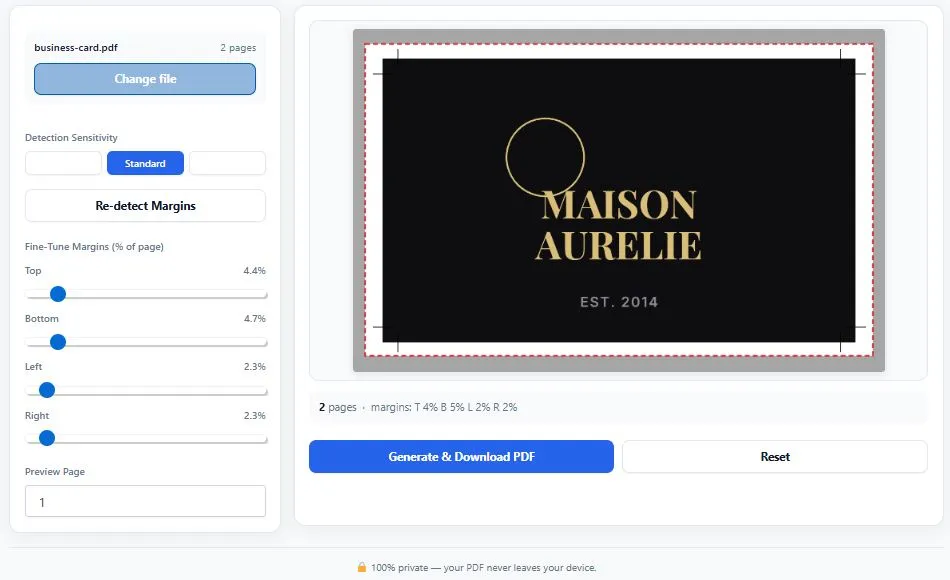
If you would like a browser-based option, you can try BytePriva's PDF Margin Cropper for Kindle. It has sliders for the top, bottom, left and right margins, a page preview, and a button to detect the margins again. It applies one crop to every page.
As with any tool, preview the first, middle and last pages and read the result on your device before you delete the original.
Tool link: https://bytepriva.com/pdf-margin-cropper-for-kindle/