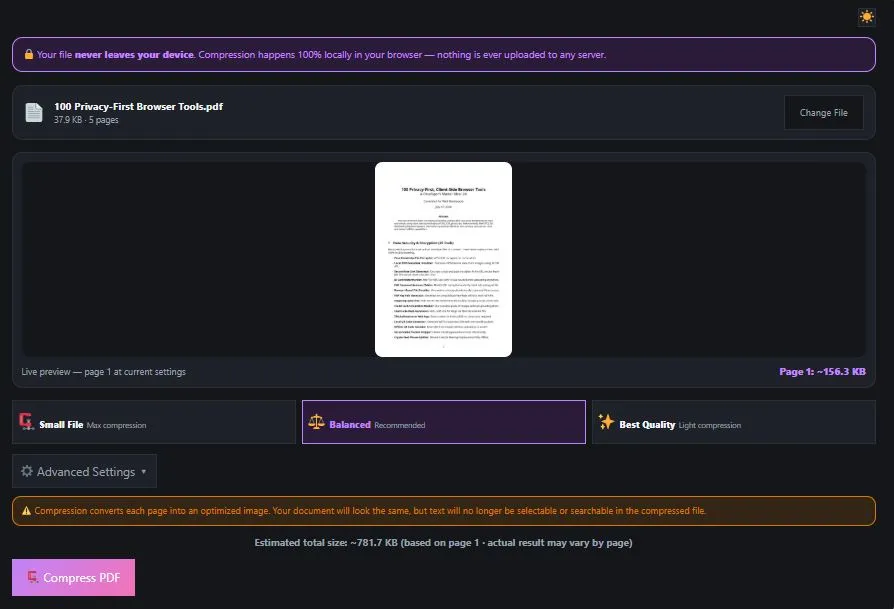
Compress PDF to 100KB or any target size with BytePriva's free, browser-based tool — no software to install and no file ever leaves your device. Unlike most compressors that make you guess and check, this tool shows a live preview of page 1 with the real, measured file size as you adjust the quality and resolution sliders, so you can dial in your target size before committing to the full compression.
Choose from three quick presets — Small File, Balanced, or Best Quality — or fine-tune manually using Advanced Settings. Once you're happy with the preview, click compress, and every page is optimized directly in your browser. The result: a smaller PDF with a clear before-and-after size comparison, achieved without ever uploading your document to a server.
Tap to choose a PDF or drag & drop it here
One file at a time
⚠️ Compression converts each page into an optimized image. Your document will look the same, but text will no longer be selectable or searchable in the compressed file.
Table of Contents
How to Compress PDF to 100KB
- Upload your PDF — Tap the upload box or drag and drop your PDF file into the tool.
- Watch the live preview — As soon as your file loads, page 1 renders with a real file size estimate shown right below it, based on your current settings.
- Choose a preset or fine-tune manually — Try "Small File" for maximum compression, or open Advanced Settings to adjust the quality and resolution sliders yourself. The preview updates instantly so you can see your target size before committing.
- Click "Compress PDF" — Once you're happy with the preview, the tool compresses every page, then shows you the original size, final size, and percentage reduction before you download.
Why Use This PDF Compressor
Most online PDF compressors require uploading your file to a remote server before anything happens. This means your document — even if temporarily — sits on someone else's computer while it's being processed, which is a real concern if it contains financial records, contracts, or other sensitive content.
This tool avoids that entirely by running inside your own browser. Every page is re-rendered and compressed locally using the JPEG compression standard — the same well-established, industry-wide format used across the web for decades. Your file is never transmitted to any server at any point in the process.
The live preview also sets this tool apart from typical compressors. Instead of blindly applying a "medium" setting and hoping for the best, you can watch the real, measured file size update as you adjust the sliders — so you know roughly what to expect before running the full compression.
Who This Compressor Is Built For
- Job applicants — shrinking a scanned resume or portfolio PDF to fit under an application portal's strict upload size limit, often set at 100KB or similar.
- Students — reducing assignment or thesis file sizes to meet university submission portal restrictions without losing readability.
- Email senders — compressing large PDF attachments to fit under Gmail's 25MB or Outlook's 20MB limits before sending.
- Small business owners — shrinking scanned invoices, receipts, or contracts for faster upload to accounting software or cloud storage.
- Anyone with a slow or limited internet connection — since compression happens locally, there's no waiting for a large file to upload to a server before processing even begins.
Tips for Getting Accurate Results
- Use the live preview before committing — adjust the quality and resolution sliders and watch the "Page 1" size update in real time until it's close to your target before clicking compress.
- Start with "Small File" if you need a strict size limit — you can always increase quality afterward if the result looks too degraded, since the preview lets you check first.
- Remember the estimate is based on page 1 only — pages with more images or complex graphics may compress differently than a mostly-text page, so the final total may vary from the estimate.
- Text becomes non-selectable after compression — if you need to keep your PDF's text searchable or copyable, this tool isn't the right choice; it's best suited for documents where visual appearance matters more than text extraction.
- Lower resolution helps more than lower quality for scanned documents — if your PDF is made of scanned pages, reducing DPI often shrinks the file more effectively than lowering JPEG quality alone.
FAQs
Is this PDF compressor free to use?
Yes, this tool is completely free to use with no limit on the number of files or compressions.
Does this tool upload my PDF to a server?
No. The entire compression process happens locally in your browser using JavaScript. Your file is never uploaded to any server at any point.
Can compressing actually make my PDF file bigger instead of smaller?
Yes, this can happen if your original PDF is already small or mostly text-based with few images. Since this tool works by converting each page into an optimized image, a very lightweight text-only PDF may end up larger after compression. If your file is already small, compression may not be necessary.
Will my compressed PDF still have selectable text?
No. This tool converts each page into an image to achieve compression, so text in the compressed file will no longer be selectable, searchable, or copyable.
How do I know what file size I'll get before compressing?
The live preview shows the real, measured file size of page 1 at your current settings, updating as you move the sliders. This gives you a close estimate before running the full compression.
What's the difference between the three presets?
"Small File" applies the strongest compression for the smallest size, "Balanced" offers a middle ground suited to most documents, and "Best Quality" applies lighter compression to preserve more visual detail.
Can I manually control the compression settings?
Yes. Opening Advanced Settings reveals a quality slider and a resolution slider, letting you fine-tune both independently instead of relying on the presets alone.
Does this tool work on mobile phones?
Yes. The compressor is fully optimized for phones and tablets, not just desktop computers, and works the same way across all device sizes.
Quick Summary
This free tool lets you compress PDF to 100KB or any target size entirely inside your browser, with no software installation and no file upload to any server. A live preview shows the real, measured file size of page 1 as you adjust quality and resolution settings, so you can dial in your target before running the full compression.
Choose from three presets — Small File, Balanced, or Best Quality — or fine-tune manually with Advanced Settings, then download a compressed PDF along with a clear before-and-after size comparison. Because everything runs locally using your browser's own rendering engine, your documents stay completely private throughout the process, making this a fast and transparent way to shrink PDFs for email, uploads, or storage limits.
Disclaimer
This PDF compression tool is provided free of charge. It reduces file size by converting pages into optimized images directly in your browser, and no file or data is ever uploaded to our servers.
Compression results vary depending on your original PDF's content, and in some cases — such as already-small, text-only files — the output may end up larger rather than smaller. Compressed files will no longer have selectable or searchable text. This tool is provided "as is" without any warranty, and we are not liable for any loss, damage, or issue arising from its use.
For documents where text selectability or print-level accuracy is critical, we recommend keeping a copy of your original file and testing the compressed result before relying on it for official or professional use.