Want to print a big wall poster, banner, or classroom chart but only have access to a regular A4 printer? Our free Poster Splitter tool lets you upload any photo or image and automatically splits it into printable A4 tiles, complete with crop marks and page labels — so you can print each page, trim the edges, and glue them together into one giant poster.
It works entirely in your browser, which means your image is never uploaded to a server, making it 100% private and fast. Just set your desired poster size in centimeters or inches, choose your paper size and print quality, and download a ready-to-print PDF in seconds. It's ideal for print shops, teachers, small business owners making shop banners, event organizers, and anyone who needs a large poster without owning a large-format printer.
🖼️ Poster Splitter — Print Any Image as a Giant Poster
Split any photo into A4 tiles, print each page, then glue them together. Runs 100% in your browser.
Click to upload or drag & drop an image
JPG, PNG or WebP · nothing is uploaded
Your poster layout preview will appear here
Upload an image to see the page layout.
0 / 0 pages
🔒 100% private — your image never leaves your device. No uploads, no server processing, no tracking.
Table of Contents
How the Poster Splitter Works
Using this poster splitter is simple, even if you have never printed a large format poster before. Just follow these steps:
- Upload your image — pick any photo or graphic from your computer or phone.
- Set your poster size — enter the final width and height in centimeters or inches.
- Choose paper size and quality — A4 or Letter, and 150, 300, or 600 DPI.
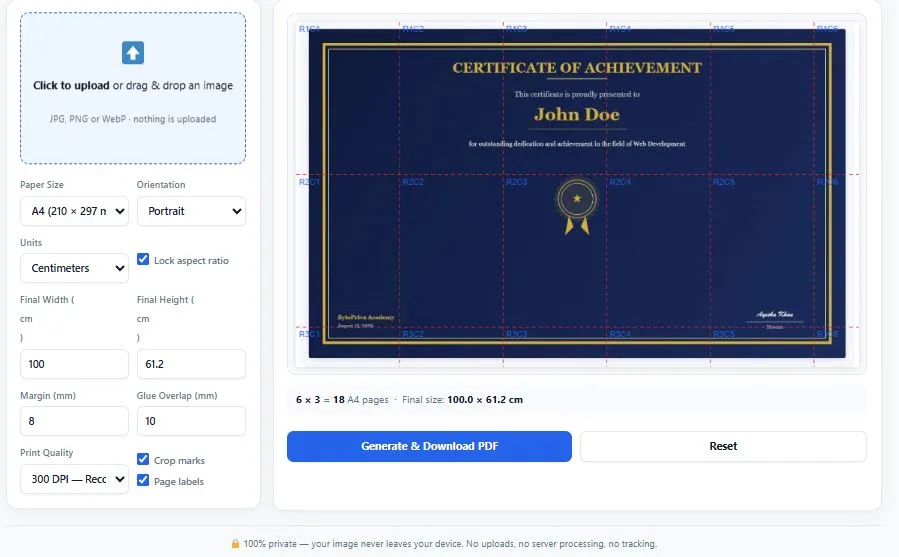
- Preview the grid — see exactly how many pages your poster will split into before generating anything.
- Generate and print — download a ready-to-print PDF with crop marks and page labels already added, so lining up the pages afterward takes minutes instead of guesswork.
Why Print a Poster in Tiles Instead of Buying a Large Printer
Large format printers and plotters are expensive, bulky, and usually unnecessary for a one-off poster, banner, or classroom project. Splitting an image into A4 tiles gives you the same finished result using equipment almost everyone already owns. Here's what you gain by tiling instead of buying specialized hardware:
- No expensive equipment — a standard home or office printer is all you need.
- Complete privacy — the PDF is generated entirely inside your browser, so your photo is never uploaded to a server.
- Instant results — no waiting on uploads or downloads from someone else's system.
- Flexible poster sizing — create anything from a small A3 sign to a large wall banner spanning dozens of pages, with quality automatically balanced for very large sizes.
Who Uses a Poster Splitter Tool
This tool is built for anyone who needs a large printed image but doesn't have access to large format printing equipment. Common users include:
- Print shops and cyber cafes — quickly produce oversized prints for customers without owning industrial plotters.
- Teachers and students — build classroom charts, science fair posters, and study material that needs to be seen from across a room.
- Small business owners — print shop signage, sale banners, and window displays without hiring a designer or paying for large format printing.
- Event planners — create birthday backdrops, wedding photo enlargements, and party decorations.
- Designers and freelancers — deliver poster-sized output to clients who only have access to a normal printer.
Tips for the Best Printed Poster Results
A few small adjustments can make a big difference in how professional your final poster looks. Keep these in mind before you generate your PDF:
- Use 300 DPI or higher — captures more detail from your original image, especially important for posters viewed up close.
- Keep glue overlap at 10mm or more — helps the edges of each page line up cleanly when taping or gluing them together.
- Turn on crop marks — makes trimming each page far more accurate.
- Enable page labels — so you never lose track of which tile goes where once you start assembling a poster made of many pages.
- Start with a high-resolution source image — a blurry or low-resolution photo will look pixelated once blown up to poster size.
Understanding A4 Paper Size Standards
The A4 paper size used by this tool is based on the ISO 216 standard, the internationally recognized specification for paper sizes maintained by the International Organization for Standardization. This standard defines A4 as 210 by 297 millimeters and ensures that A4 paper printed anywhere in the world, on any compatible printer, will be the exact same size. You can read the official ISO 216 specification here.
Frequently Asked Questions
What is a poster splitter and how does it work?
poster splitter is a tool that takes one image and divides it into multiple printable pages, usually A4 or Letter size. You upload a photo, set your desired final poster size, and the tool generates a PDF where each page is one tile of the larger image — ready to print, trim, and glue together into a full-size poster.
Is this poster splitter tool free to use?
Yes, this tool is completely free with no signup required. You can upload an image, generate your poster PDF, and download it without creating an account or paying anything.
Do I need a large format printer to print a poster?
No. That's the entire point of a poster splitter. It breaks your poster down into standard A4 or Letter pages, so you can print it on a normal home or office printer and assemble the pages by hand afterward.
Is my image uploaded to a server?
This tool runs entirely inside your web browser using canvas and PDF generation technology. Your image is never sent to a server, which means it stays completely private and the tool works instantly.
What image formats can I upload?
You can upload JPG, PNG, or WebP image files. For the best print quality, start with a high-resolution image, since a low-resolution photo will look blurry once enlarged to poster size.
What DPI should I choose for printing a poster?
300 DPI is recommended for most posters and gives sharp, print-ready quality. Use 600 DPI only if the poster will be viewed up close, and 150 DPI if you're doing a quick draft print to check sizing before a final print.
How do I line up the pages after printing?
Turn on crop marks and page labels before generating your PDF. Crop marks show you exactly where to trim each page, and page labels (like R1C1, R1C2) tell you which tile goes next to which, making assembly straightforward even for large posters with many pages.
What is the glue overlap setting for?
Glue overlap adds a small amount of shared image content between adjacent pages, usually 10mm or more, so that when you glue or tape the trimmed pages together, the image lines up seamlessly instead of leaving visible gaps at the seams.
Disclaimer
This Poster Splitter tool is provided for free, as-is, with no guarantees of accuracy, print quality, or fitness for any specific purpose. While we've built it to work reliably, printing results can vary depending on your printer, paper, ink levels, and browser. BytePriva is not responsible for any loss, damage, wasted paper or ink, misprints, or other costs that may result from using this tool. By using this tool, you agree to review your poster preview carefully and test with a small or draft print before committing to a full, expensive print run. Use this tool at your own risk and discretion.