BytePiva's merge PDF tool combines multiple PDF files into a single document directly inside your web browser. Unlike most online PDF mergers, no file is ever uploaded to a server — all processing happens locally on your device using client-side JavaScript, so your documents stay completely private. Simply select two or more PDF files, arrange them in the order you want, and click merge to download the combined PDF instantly. It works free, requires no account or software installation, and works on any device, including mobile phones and tablets.
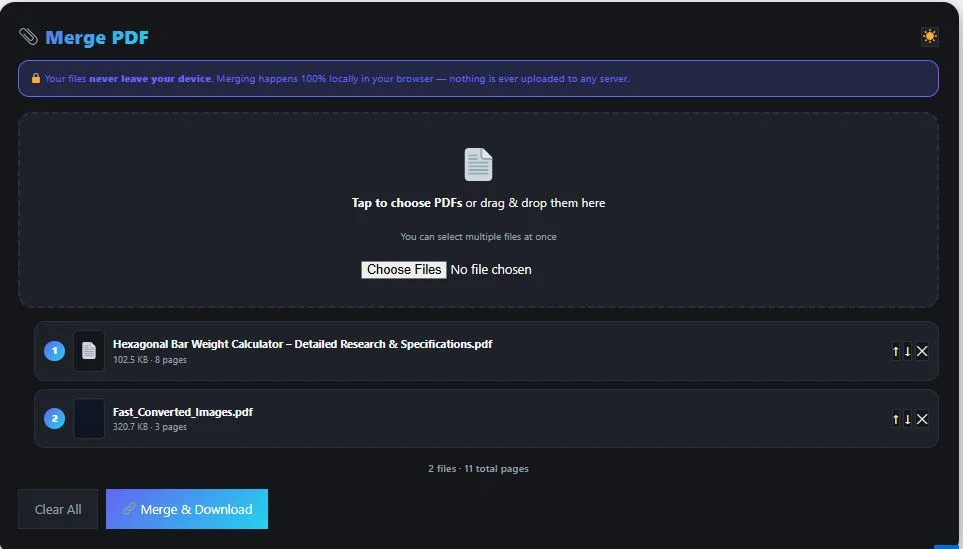
Tap to choose PDFs or drag & drop them here
You can select multiple files at once
Merged successfully!
Table of Contents
How to Use This Tool
Merging PDF files with BytePriva takes less than a minute. Follow these steps:
- Click "Tap to choose PDFs" or drag and drop your files into the upload box.
- Select two or more PDF files from your device's storage.
- Wait a moment while the tool reads each file and shows its page count and a small preview.
- Use the up and down arrows next to each file to arrange them in the exact order you want them merged.
- Remove any file you no longer need by clicking the ✕ button beside it.
- Click "Merge & Download" to combine the files.
- Download your finished PDF — it will contain every page from every file, in the order you set.
The entire process runs inside your browser tab. There is no waiting for an upload to finish and no waiting for a server to process your file and send it back, because that step simply does not happen.
Is It Safe to Merge PDF Files Online?
Yes, and the reason is specific to how this tool is built. Most online PDF tools work by uploading your file to a remote server, processing it there, and sending the result back to you. That approach means your document — even if only briefly — sits on someone else's computer, which is a real concern if the file contains a signed contract, medical record, tax document, or any other sensitive information.
This merge PDF tool avoids that step entirely. It uses a JavaScript library called pdf-lib, which runs inside your browser and can read, combine, and rebuild PDF files without ever sending the data anywhere. When you select your files, they are loaded directly into your browser's memory, merged there, and the finished file is generated and offered to you as a direct download. At no point in that process does the file leave your device. You can verify this yourself by opening your browser's network activity panel while using the tool — no file upload request will appear.
Online PDF Merging vs. Desktop Software
Both approaches can get the job done, but they suit different situations. Here is an honest comparison:
| Factor | Browser-Based Tool (like this one) | Desktop Software |
|---|---|---|
| Installation | None required, works instantly | Must be downloaded and installed |
| Cost | Free | Often free with limits, or paid for full features |
| File privacy | Files stay on your device | Files stay on your device |
| Device compatibility | Works on phone, tablet, or computer | Usually limited to one operating system |
| Speed for small tasks | Instant, no setup | Fast, but requires opening the software first |
| Best for | Occasional or quick merges | Frequent, heavy-duty PDF editing |
If you merge PDFs occasionally, a browser-based tool is usually the faster option since there is nothing to install. If you regularly perform advanced PDF editing — such as redlining, form design, or batch processing hundreds of files — dedicated desktop software may still be worth having alongside a quick tool like this one.
Common Situations Where Merging PDFs Helps
Different people reach for a PDF merge tool for different reasons. Some of the most common cases include:
- Students combining a cover page, essay, and bibliography before submitting an assignment online
- Freelancers merging a proposal, contract, and invoice into one file to send to a client
- HR teams compiling multiple employee documents — ID, offer letter, and signed agreement — into a single personnel file
- Accountants and small business owners merging scanned receipts into one document for monthly expense records
- Legal professionals assembling exhibits or supporting documents into a single filing
- Anyone scanning paper documents with a phone, where each page saves as a separate PDF that needs to become one file
Merge PDF: Frequently Asked Questions
Can I merge PDF files for free?
Yes. This tool is completely free to use, with no limit on how many times you can merge files.
Do I need to install any software to merge PDF files?
No. Everything happens inside your web browser. There is nothing to download or install.
Is my data safe when I merge PDFs with this tool?
Yes. Your files are processed entirely on your own device and are never uploaded to a server at any point.
Does this tool work on mobile phones and tablets?
Yes. The interface is built to work on any screen size, including phones and tablets, not just desktop computers.
Final Thoughts
Merging PDF files doesn't need to involve uploading personal documents to an unfamiliar server. With this tool, the entire process — selecting files, reordering pages, and generating the final document — happens locally in your browser, using the same PDF file format that's been an open ISO standard since 2008. Whether you're combining a school assignment, a set of invoices, or scanned pages from a contract, you can merge your PDFs in a few clicks without giving up control of your files. Explore BytePriva's full collection of free browser-based tools for more privacy-first utilities.
Disclaimer
At BytePriva, we genuinely care about your privacy — that's why all our tools process your files and data locally in your browser, never on our servers. That said, we always recommend double-checking your results before using them for anything important, as we can't guarantee everything will be 100% error-free. By using any tool on this website, you acknowledge that you have read and agree to our Terms & Conditions and Privacy Policy, and that you do so at your own discretion and risk.