A text diff checker compares two versions of the same text and highlights exactly what was added, removed, or changed between them — instead of forcing a manual line-by-line read-through to spot the differences. This free text diff checker goes beyond just flagging which lines changed: when a line is edited rather than fully replaced, it compares that line word by word and highlights only the specific words that changed. It also runs entirely in your browser, which matters more than it sounds — several other diff tools send your text to a server for comparison, while this one never does.
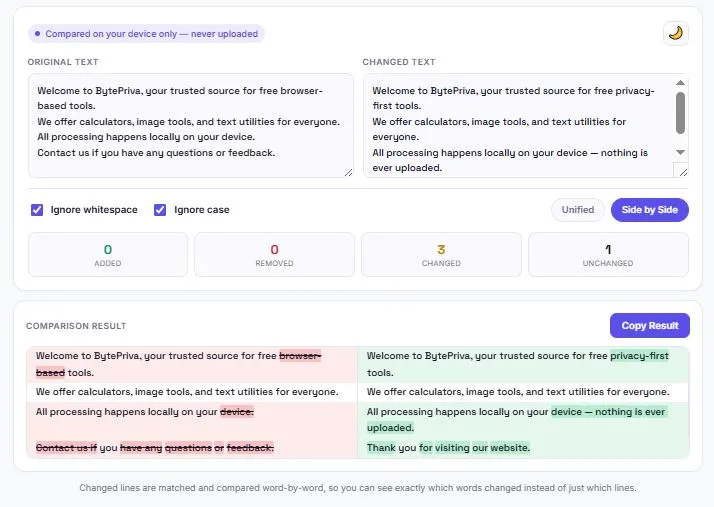
Changed lines are matched and compared word-by-word, so you can see exactly which words changed instead of just which lines.
Table of Contents
Line-Level vs Word-Level Diff — Why the Difference Matters
| Approach | What It Shows | The Problem |
|---|---|---|
| Line-level only | Marks an entire line as changed if even one word differs | Can't tell what actually changed without re-reading the whole line manually |
| Word-level (this tool) | Highlights only the specific word or words that changed within an edited line | Shows the exact edit at a glance, even in a long paragraph |
This tool applies word-level comparison automatically whenever a line is matched with its edited version, so a single-word change like "browser-based" becoming "privacy-first" is highlighted precisely — not buried inside a fully red-and-green line that has to be read closely to understand.
Real-World Uses for a Text Diff Checker
- Reviewing a revised contract or agreement — catching exact wording changes to dates, terms, or numbers between two versions.
- Content editing — comparing a draft against its edited version to see precisely what a writer or editor changed.
- Code and configuration review — spotting exact changes between two versions of a script, config file, or snippet outside of a version control system.
- SEO content updates — documenting what changed in an optimized page versus its original version for tracking purposes.
- Checking your own revisions — comparing an old draft against a new one before publishing, to confirm every intended change was actually made.
Unified View vs Side-by-Side View
| View | Layout | Best For |
|---|---|---|
| Unified | Original and changed lines stacked vertically, removed lines in red above added lines in green | Reading through changes in sequence, and mobile screens |
| Side-by-Side | Two columns, original on the left and changed on the right | Comparing longer documents where seeing both full versions at once is useful |
Both views use the same underlying comparison, so switching between them doesn't change the result — only how it's laid out. Side-by-side automatically stacks into a single column on smaller screens to stay readable on mobile.
Ignore Whitespace and Ignore Case — When to Use Each
| Option | What It Does | Useful When |
|---|---|---|
| Ignore whitespace | Treats extra spaces and inconsistent spacing as identical | Comparing text copied from different sources, like a PDF versus a Word document |
| Ignore case | Treats "Word" and "word" as the same | Checking content changes without capitalization differences creating false positives |
The Privacy Gap in Most Diff Checkers
Comparing two pieces of text often means comparing something sensitive — a contract, unpublished content, or proprietary code — which makes where that text goes just as important as the comparison result itself. Some online diff tools are upfront that text is sent to their server over an encrypted connection for comparison, which may be perfectly fine for casual use but isn't ideal for confidential documents. This tool takes a different approach: the entire comparison runs in JavaScript, directly in your browser, so the text in both boxes never leaves your device at any point.
How the Comparison Algorithm Works
This tool uses a longest common subsequence approach — the same underlying technique used by tools like Git to compute diffs. Rather than comparing line 1 to line 1 and line 2 to line 2 in fixed positions, it first finds the longest sequence of lines that appear unchanged in both texts, in the same order. Everything that doesn't fit into that unchanged sequence is then marked as either removed from the original or added in the new version. This is what allows the tool to correctly detect an inserted or deleted line in the middle of a paragraph, instead of treating every line after it as changed just because the line numbers shifted.
How to Use This Tool
- Paste the original version of your text into the left box.
- Paste the changed version into the right box.
- Turn on "Ignore whitespace" or "Ignore case" if either applies to your comparison.
- Choose Unified or Side-by-Side view, whichever is easier to read for your content.
- Review the highlighted differences, or copy the result to share it elsewhere.
FAQs
Is this text diff checker free to use?
Yes. There's no account, no sign-up, and no limit on how many comparisons you can run.
Does this tool highlight specific words that changed, or just whole lines?
Both. Lines that were fully added or removed are marked as whole lines, but when a line is edited, the tool compares it word by word and highlights only the specific words that changed.
What's the difference between Unified and Side-by-Side view?
Unified stacks the original and changed lines vertically in one column, while Side-by-Side shows the original on the left and the changed version on the right in two columns. Both show the same comparison, just laid out differently.
Is my text uploaded to a server?
No. The entire comparison runs locally in your browser using JavaScript. The text in both boxes is never sent anywhere.
What does "Ignore whitespace" do?
It treats extra spaces, tabs, and inconsistent spacing as identical between the two texts, which is useful when comparing content copied from different sources.
Can I compare text with different capitalization without it showing as a change?
Yes. Enabling "Ignore case" treats uppercase and lowercase versions of the same word as identical.
Can I copy the comparison result?
Yes. The Copy Result button copies the full comparison, including which lines were added, removed, or changed.
Does this tool work on mobile?
Yes. Both input boxes and the comparison result adjust for smaller screens, and Side-by-Side view automatically stacks into a single column on mobile.
Quick Summary:
This free text diff checker compares two texts using the same longest-common-subsequence technique used by tools like Git, highlighting changed words within edited lines instead of marking whole lines as different. It offers Unified and Side-by-Side views, with options to ignore whitespace or case. Unlike some competing tools, it never sends your text to a server — the entire comparison runs in your browser.
Disclaimer:
BytePriva's Text Diff Checker is a free browser-based tool provided for general text comparison. All processing happens locally in your browser — no text you paste is ever uploaded, transmitted, or stored. Use of this tool is at your own discretion.
Manually re-reading two versions of a document to spot every change is slow and easy to get wrong — this tool does that comparison in a fraction of a second, down to the exact word, without your text ever needing to leave your browser.