An HTML to Markdown converter is a free online tool that turns HTML markup — headings, links, lists, tables, code blocks, and more — back into clean, readable Markdown. Paste raw HTML source, or paste rich content copied directly from Word, Google Docs, or a webpage into the dedicated paste zone, and this HTML to Markdown converter detects the formatting automatically and converts it instantly, right in your browser.
How to Use This HTML to Markdown Converter
This HTML to Markdown converter offers two ways to convert content, so use whichever matches what you have.
Paste rich content — copy formatted text from Word, Google Docs, Notion, or any webpage, then paste it directly into the highlighted paste zone at the top. This HTML to Markdown converter reads the formatting automatically (bold, italic, links, lists) and converts it without you needing to touch any HTML.
Paste raw HTML source — if you already have HTML code, paste it into the left panel, and the Markdown output appears live in the right panel as you type.
Either way, click "Copy Markdown" to grab the result, or "Download .md" to save it as a file. Click "Load Example" any time to see a full demo of what this HTML to Markdown converter can handle.
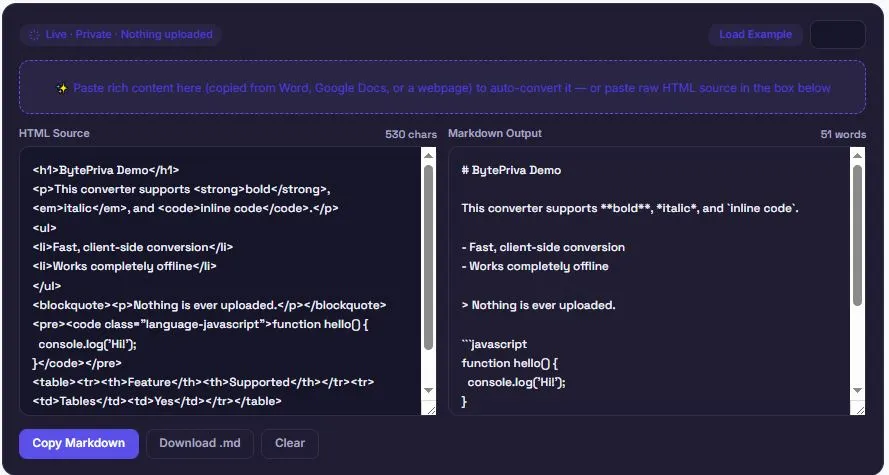
What This HTML to Markdown Converter Supports
This HTML to Markdown converter handles the full range of common HTML elements, converting each into its matching Markdown syntax:
| HTML Element | Markdown Output |
|---|---|
<h1> – <h6> | # through ###### |
<strong> / <b> | **bold** |
<em> / <i> | *italic* |
<del> / <s> | ~~strikethrough~~ |
<code> | `inline code` |
<pre><code> | ```language code block |
<a href=""> | [text](url) |
<img> |  |
<ul> / <ol> (including nested) | - bullets / 1. numbered lists |
| Checkbox list items | - [x] / - [ ] task lists |
<table> | GitHub-Flavored Markdown table syntax |
<blockquote> | > quoted lines |
<hr> | --- |
Nested lists are also detected and correctly indented, which is a common failure point for simpler HTML to Markdown converters.
Why the Paste Zone Handles Word and Google Docs Content Better
Content copied from Word or Google Docs rarely comes as clean HTML — it's usually wrapped in nested <span> and <div> tags with inline CSS styles instead of semantic tags like <strong> or <em>. A converter that only looks for proper HTML tags will miss that formatting entirely, silently dropping bold and italic text.
This HTML to Markdown converter checks for both — semantic tags and common inline style patterns like font-weight: bold or font-style: italic — so formatting copied from real-world sources like Google Docs or Microsoft Word converts correctly instead of getting silently stripped out, which is a common gap in simpler HTML to Markdown converters.
How Nested Lists and Code Blocks Are Handled
Two elements tend to trip up simpler HTML to Markdown converters, and this one handles both deliberately.
Nested lists — a list inside another list item needs to be indented correctly in Markdown, or it renders as a separate, disconnected list instead of a sub-item. This HTML to Markdown converter tracks list depth as it walks through the HTML, adding the right indentation automatically so nested bullets and numbered items stay properly grouped under their parent item.
Code blocks — content inside <pre><code> tags is extracted as literal text rather than being run through the same formatting rules as regular text, so asterisks, underscores, or brackets inside a code sample don't get accidentally converted into bold, italic, or links. If the original code block includes a language-xxx class, that language name carries over into the Markdown output's code fence, preserving syntax highlighting information for wherever the Markdown ends up.
Frequently Asked Questions
Is this HTML to Markdown converter free to use?
Yes. There's no sign-up, no limit on how much you can convert, and no premium tier. Both the paste zone and raw HTML input are free to use.
Does my HTML or pasted content get uploaded anywhere?
No. This HTML to Markdown converter runs entirely in your browser using JavaScript. Nothing you paste or type is ever sent to a server, logged, or stored.
Will nested lists keep their structure after conversion?
Yes. This HTML to Markdown converter tracks list nesting depth and applies the correct indentation, so sub-lists stay properly grouped under their parent list item.
Can I download the converted Markdown as a file?
Yes. Click "Download .md" after converting to save the result as a Markdown file, ready to use in a repository, static site, or documentation project.
Will this work on my phone?
Yes. On smaller screens, the input and output panels stack vertically instead of side by side, and the paste zone works the same way on mobile.
Disclaimer
This HTML to Markdown converter is provided as a free utility for converting HTML markup and rich pasted content into Markdown syntax. While it covers common HTML elements and formatting patterns, complex or unusual HTML structures — such as deeply nested tables, embedded media, or highly customized markup — may not convert perfectly in every case.
BytePriva and its owner(s) make no guarantees regarding the accuracy or completeness of the converted output for any specific use case, and shall not be held liable for any formatting issue, error, or consequence arising from its use. You remain responsible for reviewing the converted Markdown before publishing or relying on it elsewhere.
This tool is safe to use — there is nothing to install, no account required, and no data is uploaded or stored. This disclaimer simply clarifies that final responsibility for how the converted output is used rests with you.