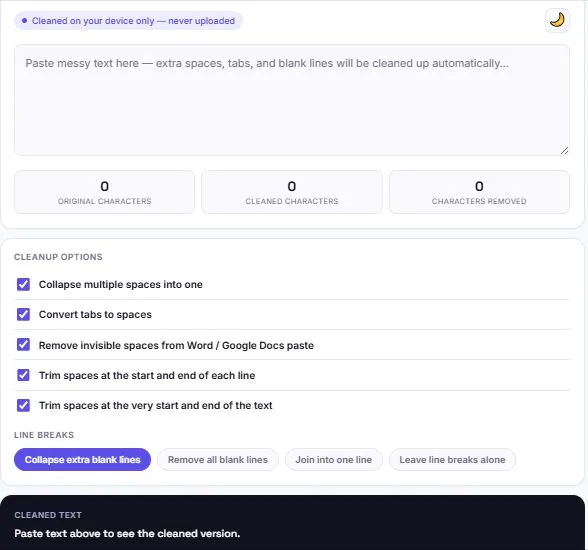
Text copied from a PDF, a Word document, or a webpage often carries hidden problems that aren't visible until it breaks something — doubled spaces, invisible non-breaking spaces, stray tabs, or a stack of blank lines where there should just be one. This free tool removes extra spaces, converts tabs, strips invisible characters left behind by Word and Google Docs, and gives full control over how line breaks are handled — all instantly in your browser, with nothing ever uploaded or stored.
Paste text above to see the cleaned version.
Table of Contents
What This Tool Cleans Up
| Problem | Before | After |
|---|---|---|
| Multiple spaces between words | Hello World | Hello World |
| Tabs mixed into text | Hello[Tab]World | Hello World |
| Invisible spaces from Word/Docs | Hello World (looks normal, isn't) | Hello World (actually clean) |
| Trailing spaces at line ends | Hello␣␣␣ (end of line) | Hello |
| Stacked blank lines | Para 1 (4 blank lines) Para 2 | Para 1 (1 blank line) Para 2 |
The Invisible Space Problem — Why Text From Word Looks Fine But Isn't
Text copied from Microsoft Word or Google Docs often contains a character called a non-breaking space, which looks and behaves like a normal space visually but is technically a different character under the hood. It exists to prevent certain words or numbers from being split across two lines when a document is formatted — useful inside Word, but invisible trouble once that text is pasted somewhere else.
The problem shows up in unexpected ways: a "Find and Replace" search fails to match text that looks identical on screen, a website's text wrapping behaves strangely, or code that expects plain spaces silently breaks. Since a non-breaking space is visually indistinguishable from a regular space, most people never realize it's there until something downstream stops working correctly.
This tool detects and converts non-breaking spaces back into regular spaces automatically, which is why the "Remove invisible spaces from Word / Google Docs paste" option is checked by default.
Choosing How to Handle Line Breaks
Line breaks need different handling depending on the content type, which is why this tool offers four separate modes:
| Mode | What It Does | Best For |
|---|---|---|
| Collapse extra blank lines | Reduces 3+ blank lines down to one | Cleaning up articles and pasted documents |
| Remove all blank lines | Deletes every empty line completely | Preparing lists, code, or data for import |
| Join into one line | Removes all line breaks, joining everything with spaces | Turning a multi-line address or note into a single line |
| Leave line breaks alone | Only cleans spaces and tabs, keeps line structure untouched | Formatted content like poetry or code indentation |
Where Messy Spacing Actually Causes Problems
- Data imports and spreadsheets — extra spaces around values can cause exact-match lookups and formulas to fail silently, even when the text looks identical.
- Website publishing — pasted content with invisible characters can break CSS spacing, wrap text unexpectedly, or display extra blank space that's hard to trace back to its cause.
- Code and configuration files — trailing whitespace or mixed tabs and spaces can cause version control systems to flag every line as changed, even when nothing meaningful was edited.
- Search and Find/Replace — a non-breaking space or double space means a search for exact text silently fails to find a match that looks identical on screen.
- Email and messaging — extra blank lines or inconsistent spacing can make a message look unpolished or cause formatting to break when pasted into a different platform.
- PDF and document exports — leftover whitespace can shift layout, create unwanted blank pages, or push content awkwardly onto a new line.
How to Use This Tool
- Paste your messy text into the box at the top.
- Check or uncheck the cleanup options depending on what you need — all five are enabled by default for the most thorough clean.
- Choose how line breaks should be handled using the four mode buttons.
- Watch the character count update instantly to see exactly how much was removed.
- Copy the cleaned text, or download it as a .txt file if you need to save it.
The default settings work well for most pasted content, but the options exist because not every situation calls for the same cleanup — code, poetry, and formatted addresses often need line breaks preserved exactly as they are.
Common Whitespace Characters Explained
Not all "invisible" characters are the same. Here are the ones this tool handles, and where they typically come from:
| Character | What It Looks Like | Common Source |
|---|---|---|
| Regular space | A normal gap between words | Typed directly by a keyboard |
| Non-breaking space | Looks identical to a regular space | Copied from Word, Google Docs, or a webpage |
| Tab | A wider gap, often used for alignment | Typed with the Tab key, or pasted from spreadsheets |
| Trailing space | An invisible gap at the end of a line | Left behind after editing or deleting text |
| Blank line | An empty line with no visible content | Extra Enter/Return presses, or pasted document spacing |
| Line break (CRLF vs LF) | Invisible — only affects how lines are separated | Windows systems use CRLF, Mac/Linux use LF |
This tool automatically normalizes line-ending differences between Windows (CRLF) and Mac/Linux (LF) before applying any other cleanup, so the results stay consistent no matter which system the original text came from.
Manual Cleanup vs Using a Tool
Fixing messy spacing by hand usually means running Find and Replace multiple times — once for double spaces, once for trailing spaces, and again for blank lines — and even then, a non-breaking space won't get caught because it looks identical to a normal space in most editors. A single pass with this tool applies all of those fixes at once, and the character count makes the difference visible immediately instead of guessing whether the cleanup actually worked.
This matters most with longer documents, where manually scanning for a stray tab or an extra blank line buried in a few thousand words simply isn't practical. The tradeoff worth knowing is that automated cleanup is only as good as the options selected, which is why this tool keeps every option visible and adjustable rather than applying one fixed set of rules to every kind of text. A block of poetry, an email signature, and a CSV export each need different handling, and forcing all three through the same aggressive cleanup can do more damage than the original mess.
FAQs
Is this tool free to use?
Yes. There's no account, no sign-up, and no limit on how much text you can clean.
What's the difference between "Collapse extra blank lines" and "Remove all blank lines"?
Collapse reduces multiple blank lines down to just one, preserving paragraph breaks. Remove all blank lines deletes every empty line completely, which is useful for lists or data rather than readable paragraphs.
What is a non-breaking space, and why does it matter?
It's a character that looks identical to a regular space but behaves differently in code, search, and formatting. It's commonly left behind when copying text from Word or Google Docs, and this tool converts it back to a regular space automatically.
Will this tool remove line breaks I want to keep?
Only if you choose a mode that does so. The "Leave line breaks alone" option only cleans spaces and tabs, keeping your line structure completely untouched.
Does this work with text copied from Word or Google Docs?
Yes — that's specifically what the "Remove invisible spaces from Word / Google Docs paste" option is designed to fix.
Is my text uploaded or stored anywhere?
No. All cleanup happens locally in your browser using JavaScript. Nothing you paste is sent to a server, logged, or saved.
Can I download the cleaned text instead of copying it?
Yes. Use the Download .txt button to save the cleaned result as a plain text file.
Does this tool work in dark mode?
Yes. Use the theme toggle in the top corner to switch between light and dark mode — your preference is remembered for next time.
Quick Summary
This free tool removes extra spaces, converts tabs, strips invisible non-breaking spaces left behind by Word and Google Docs, and gives four options for handling line breaks. It normalizes Windows and Mac line endings automatically and shows a live character count. Everything runs in your browser, and nothing is ever uploaded.
Disclaimer
BytePriva's Remove Extra Spaces tool is a free browser-based utility provided for general text cleanup. All processing happens locally in your browser — no text you paste is ever uploaded, transmitted, or stored. Use of this tool is at your own discretion.
Messy spacing is easy to miss and genuinely annoying to fix by hand, especially the invisible characters that don't show up until something else breaks — this tool handles all of it in one pass instead of a dozen manual find-and-replace attempts.