This png to jpg converter converts your PNG images to JPG at 100% quality by default — every pixel is drawn onto the canvas at full resolution with no extra compression, so the only real change is that transparent areas get filled with a solid background (since JPG doesn't support transparency, a limit no converter can bypass). Drop in one file or a hundred, choose your background color, and convert instantly — everything happens in your browser, with nothing uploaded anywhere.
Drop PNG files here or click to upload
Any number of files — converted at maximum quality by default
Maximum quality — as close to the original PNG as the JPG format allows. Lower this only if you need a smaller file size.
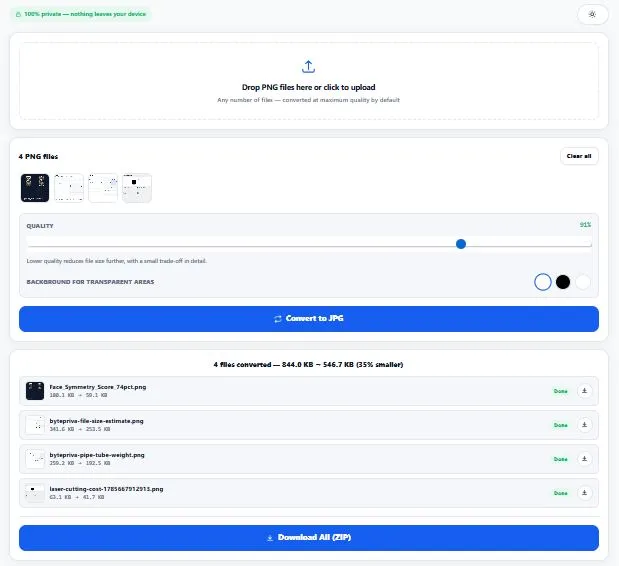
Table of Contents
How This PNG to JPG Converter Works
Converting PNG to JPG isn't a simple file-extension swap — the two formats store pixels completely differently, and there's exactly one meaningful technical difference to handle correctly. PNG supports full transparency (an alpha channel, so parts of the image can be see-through); JPG has no concept of transparency at all — it's simply not part of the format's specification, in any JPG file, from any tool.
So this converter draws your PNG onto a canvas at its exact original pixel dimensions, fills any transparent areas with your chosen background color first, then encodes the result as a JPG at maximum (100%) quality. Every fully opaque pixel in your original image passes through unchanged — the only pixels affected are the ones that were transparent to begin with, because there's no other way to represent "see-through" in a format that doesn't support it.
| PNG | JPG |
|---|---|
| Supports transparency (alpha channel) | No transparency — always fully opaque |
| Lossless — no quality loss ever | Lossy by design, but 100% quality is nearly indistinguishable from the original |
| Larger file sizes, especially for photos | Much smaller file sizes for photos and screenshots |
| Best for logos, icons, graphics with sharp edges | Best for photos, screenshots, and anything for the web |
Why Use This PNG to JPG Converter
Every feature below is something the tool above actually does, right now, in your browser:
- 100% quality by default, no compromise — the quality slider starts at maximum; you only need to lower it if you specifically want a smaller file.
- Choose your own background color — pick white, black, or any custom color for transparent areas, with a live color picker.
- Batch conversion, any number of files — drop in one PNG or a hundred; each one converts individually so a single bad file never stops the rest.
- Per-file results with before/after size — see exactly how much smaller each file became, individually, not just a vague total.
- Download one file, or all of them as a ZIP — a single converted file downloads directly; multiple files bundle into one ZIP automatically.
- Clear pass/fail per file — if a specific PNG can't be converted (corrupted file, unsupported format, etc.), it's marked "Failed" clearly instead of silently vanishing from your results.
- Everything runs in your browser — your PNGs are only read locally to convert them and are never uploaded to any server.
- Light and dark mode — toggle to match your screen preference, saved for your next visit.
Who This PNG to JPG Converter Is Built For
This png to jpg converter is built for anyone who needs smaller image files without losing visible quality. Web designers and developers convert screenshots and mockups to JPG before uploading them, since JPG loads faster and takes up less storage than PNG for photo-like content. Bloggers and content creators batch-convert dozens of screenshots at once instead of doing it one by one in an image editor.
Email marketers and sellers shrink product photos and banners that were saved as PNG by mistake, keeping file sizes reasonable for email and listings. Anyone freeing up storage on their phone or computer converts large PNG photo dumps into much smaller JPGs without a visible quality difference. In every case, the goal is the same — smaller files, full quality, no manual editing software required.
Tips for Best Results
- Keep the quality slider at 100% unless file size is a real concern. JPG at maximum quality is already highly efficient — dropping quality mainly helps when you're optimizing specifically for web page load speed, not for everyday conversions.
- Pick your background color based on where the image will be used. White works for most documents and light-themed websites; black or a custom brand color works better for dark-themed pages or presentations, since that background permanently replaces any transparency.
- Only convert images that actually need transparency removed. If a PNG doesn't have any transparent areas (like most screenshots), the background color setting won't visibly change anything — it only affects pixels that were genuinely see-through.
- Use PNG for logos and icons, not JPG. This converter works perfectly for photos, screenshots, and complex images, but converting a logo or icon with sharp edges and flat colors to JPG can introduce visible compression artifacts around the edges — PNG remains the better format for that kind of graphic.
- Batch large groups in reasonable sizes. Converting hundreds of files at once works, but very large batches take longer since each file is processed individually — the progress bar shows exactly where the conversion stands.
Choosing between PNG and JPG isn't just a personal preference — it's a genuine page-speed decision that search engines factor into rankings. Google's own performance tooling flags oversized images as a top issue for slow-loading pages, and since photos and screenshots saved as PNG are almost always dramatically larger than the same image saved as JPG, converting the right files can meaningfully shrink your page weight. For a deeper technical breakdown of when to use PNG versus JPG versus newer formats, see this image format guide from MDN Web Docs.
This doesn't mean JPG is always the better choice — PNG remains the right format for logos, icons, and graphics with transparency or sharp flat-color edges, since those compress poorly as JPG. The distinction that matters is content type: photographs and screenshots convert well to JPG with almost no visible difference at full quality, while graphics with transparency or crisp edges should generally stay as PNG. This png to jpg converter is built for the first category — the images where the size savings are real and the quality trade-off is effectively invisible.
Frequently Asked Questions
Does converting PNG to JPG reduce image quality?
At maximum (100%) quality, the difference is nearly invisible for photos and screenshots — every opaque pixel is drawn at full resolution with no extra compression applied. The one unavoidable change is that transparent areas get filled with a solid background color, since JPG doesn't support transparency at all, regardless of which tool or software performs the conversion.
Why is my PNG file so much bigger than the same image as JPG?
PNG uses lossless compression, which preserves every pixel exactly but produces larger files, especially for photographs. JPG uses compression specifically designed for photo-like images, which can shrink file size dramatically with minimal visible quality loss — this is why photos and screenshots saved as PNG are often 3-5 times larger than the same image saved as JPG.
What happens to transparent areas when I convert PNG to JPG?
They get filled with a solid background color, since JPG has no way to represent transparency. This converter lets you choose that background color (white, black, or any custom color) before converting, so you can match it to wherever the image will be used.
Should I always convert PNG to JPG?
No — it depends on the image. Photos and screenshots convert well with barely any visible quality change. Logos, icons, and graphics with transparency or sharp flat-color edges should generally stay as PNG, since converting them to JPG can introduce visible compression artifacts around edges and permanently removes any transparency.
Can I convert multiple PNG files to JPG at once?
Yes — this tool supports batch conversion of any number of files. Each file is converted individually, so if one file happens to fail (for example, a corrupted PNG), the rest of the batch still completes normally, and the failed file is clearly marked instead of silently skipped.
Is there a quality setting, or is it automatic?
Quality defaults to 100% (maximum) and can be adjusted with a slider if you specifically want a smaller file size. Lowering it trades a small amount of detail for a smaller file — for most everyday use, keeping it at 100% gives the best result.
Do I need to install any software to convert PNG to JPG?
No — this png to jpg converter runs entirely in your web browser using built-in browser technology (the HTML canvas). There's nothing to download or install, and it works the same way on Windows, Mac, Linux, or mobile.
Is this converter free, and does it upload my images anywhere?
Yes, it's completely free with no sign-up required. Every PNG is read and converted locally in your browser — nothing is ever uploaded to a server, which is also why there's no limit on file count or how often you can use it.
Quick Summary
A png to jpg converter changes an image from PNG's lossless, transparency-supporting format into JPG's smaller, more compressed format — the one unavoidable trade-off being that transparent areas must be filled with a solid background color, since JPG simply doesn't support transparency. This converter does that at 100% quality by default, drawing every pixel at full resolution with no extra compression, so photos and screenshots come out visually near-identical to the original while taking up significantly less space. Whether you're converting one screenshot or a hundred product photos, the same rule applies: PNG for transparency and sharp graphics, JPG for photos and screenshots where smaller file size matters.
Disclaimer
BytePriva strives for accuracy, but conversions can occasionally fail or behave unexpectedly on certain files — please review your converted images yourself before relying on them for professional, commercial, or print work. This tool converts images at maximum quality using standard, well-established browser technology (the HTML canvas), but results can vary slightly depending on the original file — by using this tool, you agree that you're responsible for checking your own converted files before final use. Your images are processed entirely in your browser and are never uploaded, stored, or sent anywhere.