Use this free webp to jpg converter to convert your images with full control over quality — something many converters don't actually give you.
Upload one or more WebP images, adjust the quality slider, and choose a background color to properly handle transparent areas (since JPG doesn't support transparency the way WebP does). Everything happens directly in your browser — your images are never uploaded to a server.
Why this matters: Some converters apply more compression than necessary with no way to adjust it, and many mishandle transparent WebP images by leaving unpredictable black or white areas. This tool gives you control over both.
WebP to JPG Converter
Convert WebP images to JPG with full quality control and proper transparency handling — 100% free, nothing uploaded to a server.
Upload WebP images or drag them here — multiple files supported
Converted entirely in your browser — nothing is ever uploaded to a server.
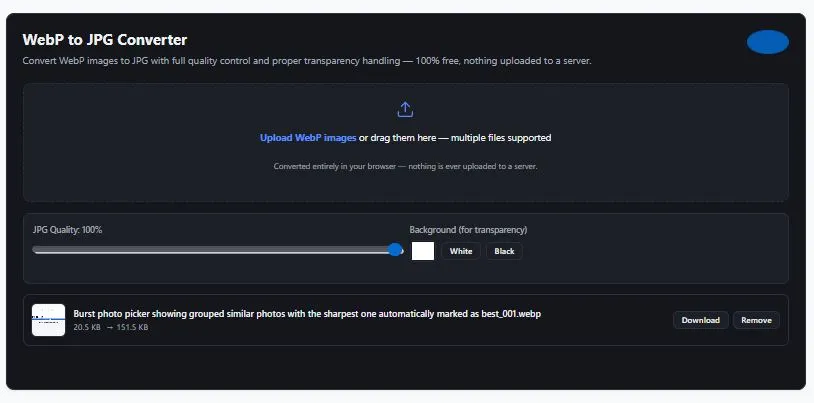
Table of Contents
How This WebP to JPG Converter Works
Converting WebP to JPG involves more than just changing the file extension — the two formats handle transparency differently, and getting the quality setting right matters for both file size and visual clarity.
The conversion process: Your WebP image is decoded directly in your browser, drawn onto a canvas with your chosen background color underneath, then re-encoded as a JPG at your selected quality level. This all happens locally — nothing is sent to a server at any point.
Why the background color matters: WebP supports transparency (alpha channel), but JPG does not. If your WebP image has transparent areas — like a logo with no background — those areas need to be filled with a solid color when converting to JPG. Without this step, transparent areas can turn an unpredictable black, which is a common issue with converters that don't ask you to choose.
For more on WebP compatibility, see MDN's official image format guide, which covers browser support details for WebP and other image formats.
Choosing the Right Quality Setting
Higher quality settings (90-100%) preserve more visual detail but produce larger files. Lower settings (60-80%) reduce file size significantly with a visual quality trade-off that's often unnoticeable for web use. This calculator lets you adjust the quality slider and see your converted file size update in real time, so you can find the right balance for your specific image.
Who This Converter Is Built For
This webp to jpg converter is built for anyone who's run into WebP compatibility issues:
- Web developers & designers — converting WebP assets to JPG for email templates, older systems, or client requirements
- Print & publishing professionals — converting WebP images to JPG for print workflows, which typically expect JPG or TIFF, not WebP
- Bloggers & content creators — converting images downloaded from the web (many are WebP by default now) into a more universally editable format
- Photographers & photo editors — converting WebP exports back to a more widely compatible format for further editing
- Online sellers — preparing product images for marketplaces or platforms that don't accept WebP uploads
- Anyone attaching images to email — since some email clients still don't display WebP images properly
Tips for Best Results
- Start around 85-90% quality for photos — this range typically preserves visual quality well while still reducing file size meaningfully compared to a full-quality export.
- Match your background color to where the image will be used — white works well for most website and document uses, but check your actual use case if the image will sit on a colored or dark background.
- Keep your original WebP files — this tool creates a converted copy; it doesn't modify or delete your original WebP images.
FAQs
How do I convert a WebP image to JPG?
Upload your WebP file to this converter, adjust the quality slider and background color if needed, and download the converted JPG. The conversion happens automatically and updates in real time as you adjust settings.
Why does my converted JPG have a black background where my WebP was transparent?
JPG doesn't support transparency, so transparent areas need to be filled with a solid color during conversion. Some converters default to black without asking. This tool lets you choose the background color yourself — white, black, or a custom color — before converting.
Can I convert multiple WebP files to JPG at once?
Yes. This webp to jpg converter supports batch conversion — upload multiple WebP files, and each one is converted individually with its own download button, plus a "Download All" option.
Is this WebP to JPG converter really free with no limits?
Yes, completely free with no daily conversion limits, no signup, and no watermarks added to your images.
Can this tool convert animated WebP files?
This tool converts static WebP images. Animated WebP files will convert using their first frame only, since JPG does not support animation.
Quick Summary
This free webp to jpg converter gives you full control over quality and transparency handling — two things many converters get wrong. Upload one or more WebP images, adjust the quality slider, choose a background color for any transparent areas, and download your converted JPG files instantly, individually or in batch. Everything happens locally in your browser, so your images are never uploaded to a server, and there are no daily limits or signup requirements. Whether you're preparing images for email, print, older platforms, or marketplaces that don't accept WebP, this converter gives you a reliable, private way to get standard JPG files.
Disclaimer
The WebP to JPG Converter and all information on this page are provided by BytePriva for general informational and utility purposes only. This tool performs image format conversion using standard browser-based image processing; results may vary slightly based on your specific browser and its WebP decoding support.
This tool converts static WebP images; animated WebP files will be converted using their first frame only, as JPG does not support animation. Users are solely responsible for verifying that converted images meet their specific requirements before use in professional, commercial, or client-facing contexts.
BytePriva, its owners, and contributors make no warranties, express or implied, regarding the accuracy, completeness, or reliability of this tool or its results. To the fullest extent permitted by law, BytePriva shall not be held liable for any direct, indirect, incidental, or consequential loss, damage, or cost arising from the use of, or reliance on, this tool.
By using this tool, you acknowledge and agree to these terms.
Note: All image processing for this tool occurs locally within your browser. No images are uploaded, transmitted, or stored on BytePriva's servers.