Use this free DPI calculator to instantly find the print size of any image, or work backwards to find exactly how many pixels you need for a specific print size — for photos, posters, business cards, or any print project.
Upload your image directly (processed entirely in your browser — nothing is sent to a server), or enter pixel dimensions manually. Choose your target DPI and get instant results, along with a color-coded quality check so you know if your image will print sharp or blurry before you send it to print.
Formula used: Print Size (inches) = Pixel Dimension ÷ DPI
Image DPI & Print Size Calculator
Upload an image or enter pixel dimensions to calculate exact print size — or work backwards from your desired print size to find the pixels you need.
Click to upload or drag an image here
Processed entirely in your browser — nothing is uploaded to a server.
— or enter pixel dimensions manually —
Formula used: Print Size (inches) = Pixel Dimension ÷ DPI | Required Pixels = Desired Print Size (inches) × DPI
PPI vs DPI — What's the Difference?
If you've ever felt confused between PPI and DPI, you're not alone — even most print shops use the terms interchangeably.
PPI (Pixels Per Inch) describes your digital image — how many pixels are packed into each inch. This is what your camera or design software actually controls.
DPI (Dots Per Inch) technically refers to how many ink dots a printer physically lays down per inch of paper. It's a printer hardware spec, not an image property.
In everyday use, though, "DPI" has become the common shorthand people search for and printers ask about — so this calculator uses the same math either way: pixels ÷ target density = print size. The distinction matters more in theory than in practice for getting your print sized correctly.
For a deeper technical explanation, see Adobe's official guide on print resolution, which covers how print resolution, printer settings, and viewing distance affect final image quality.
How the DPI Calculator Works
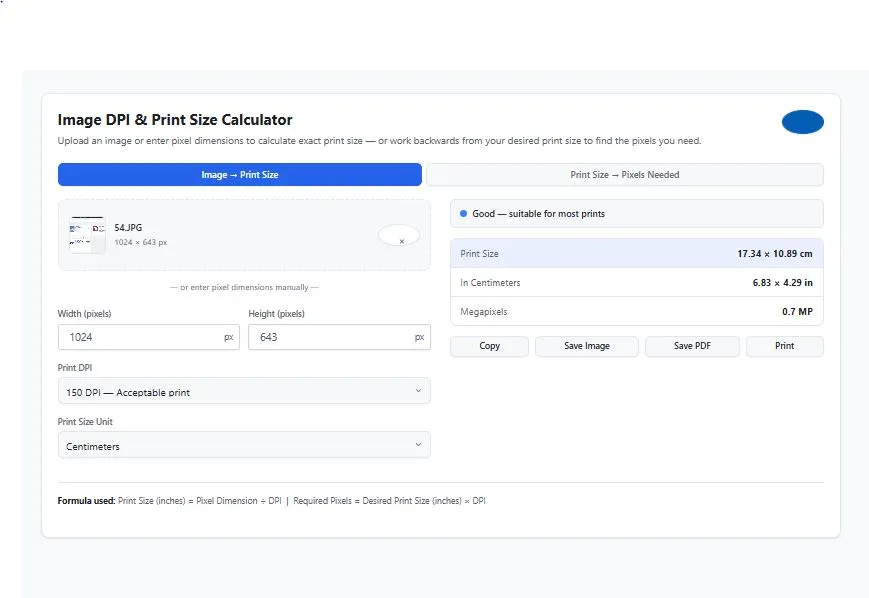
This calculator works in two directions, depending on what you already know.
If you have an image and want to know how big it can print: Upload the image (or type in its pixel width and height manually), pick a DPI, and you'll get the maximum print size — in inches and centimeters — along with a quality check.
If you know the print size you need and want to know what resolution to shoot or export at: Switch to the second mode, enter your target print dimensions and DPI, and the calculator tells you exactly how many pixels you need.
Formula:
Print Size (inches) = Pixel Dimension ÷ DPI
Required Pixels = Print Size (inches) × DPI
Everything happens instantly as you type or upload — no submit button, no waiting.
What Different DPI Levels Actually Mean
Not every print needs the same resolution. What counts as "good enough" depends entirely on what you're printing and how close someone will stand to look at it.
Table
| DPI Range | Quality Level | Best For |
|---|---|---|
| 300+ | Excellent | Photo prints, portraits, anything viewed up close |
| 150–299 | Good | Most standard prints, brochures, flyers |
| 72–149 | Low | Large posters/banners viewed from a distance |
| Below 72 | Very Low | Screen use only — not recommended for print |
A large banner or poster can look perfectly sharp at 150 DPI because it's viewed from several feet away — while the same DPI on a small photo held in your hand would look noticeably soft. This calculator's quality indicator reflects these standard thresholds, but always consider your actual viewing distance for large-format prints.
Common Print Sizes at 300 DPI
If you're not sure what pixel dimensions to aim for, here are the pixel requirements for standard print sizes at 300 DPI — the resolution most photo labs and print shops recommend for sharp results.
Table
| Print Size | Required Pixels (at 300 DPI) |
|---|---|
| 4 × 6 in | 1200 × 1800 px |
| 5 × 7 in | 1500 × 2100 px |
| 8 × 10 in | 2400 × 3000 px |
| 11 × 14 in | 3300 × 4200 px |
| 16 × 20 in | 4800 × 6000 px |
| A4 (8.27 × 11.69 in) | 2481 × 3508 px |
These figures are calculated using the same formula as this calculator: pixels = DPI × inches. If your source image falls short of these numbers, you can either accept a lower print quality or reduce your intended print size to match your available resolution.
Who This Calculator Is Built For
This DPI calculator is built for anyone who needs to confirm an image will print sharp before it's too late to fix:
- Photographers — checking maximum print size before delivering files to a client or photo lab
- Graphic designers — verifying client-supplied images meet resolution requirements for brochures, posters, or packaging
- Print shop staff — quickly checking customer-submitted files without opening design software
- Small business owners — preparing product photos or marketing materials for print without technical background
Tips
- Use the original file, not a screenshot — screenshots and downloaded web images are often compressed or resized to 72 DPI for screen display, losing the resolution needed for print.
- Check before you crop — cropping an image reduces its pixel dimensions. If you plan to crop before printing, measure the cropped area's pixel size, not the original full image.
- Don't rely on "increasing DPI" in software — changing the DPI value in editing software without changing the actual pixel count doesn't add real detail; it just stretches or compresses existing pixels.
What DPI is best for printing photos?
300 DPI is the standard for photo-quality prints viewed up close, such as portraits or photo albums. This is the resolution most professional photo labs recommend and expect.
How do I calculate print size from pixel dimensions?
Divide the pixel width and height by your target DPI. For example, a 2400 × 3000 pixel image at 300 DPI prints at 8 × 10 inches. This calculator does this automatically when you upload an image or enter pixel dimensions.
Is DPI the same as PPI?
Technically no — PPI (Pixels Per Inch) describes image resolution, while DPI (Dots Per Inch) describes printer output. In everyday use, though, both terms are commonly used interchangeably, and the math for calculating print size is the same either way.
Is this DPI calculator free to use?
Yes, this calculator is completely free, requires no login or signup, and has no usage limits.
Disclaimer
The DPI Calculator and all information on this page are provided by BytePriva for general estimation and informational purposes only. Print quality depends on multiple factors beyond DPI alone, including printer type, paper quality, ink quality, color calibration, and image sharpness — this calculator estimates resolution-based print size and quality only, not final print appearance.
This tool is not a substitute for professional print preparation software or a professional print lab's own file requirements. Users are solely responsible for independently verifying image resolution and print settings before submitting files for professional printing, especially for large-format, commercial, or client-facing print projects.
By using this calculator, you acknowledge and agree to these terms. For critical or high-value print projects, please consult your print lab's specific file requirements before finalizing your images.
Note: All image processing for this calculator occurs locally within your browser. No images are uploaded, transmitted, or stored on BytePriva's servers.