This WhatsApp store builder no signup turns a plain product list into a clean shop page that your customers can open on any phone. Type your shop name, add products with photos and prices, pick your brand color, and press Export. You get one index.html file that you can upload to any web host you like. When a customer taps Add on items and sends the cart, a ready-made order message opens in WhatsApp, with the items, quantities, total and their name already written. You don't create an account, you don't pay a monthly fee, and the tool takes 0% commission, because the order goes straight from your customer to your number. Everything you build stays inside your own browser until you export it, so your product photos are not sent to any server while you work.
Table of Contents
How to Use This WhatsApp Store Builder
The page you see is your shop: click any text or photo to edit it. Your work saves automatically in your browser. Follow these steps once and you will have your shop file.
Step 1: Add your shop details
- Click Settings in the top bar.
- Type your shop name.
- Choose your country.
- Enter your WhatsApp number the way you dial it locally.
- Press Test this number in WhatsApp to check it.
Step 2: Edit the page texts
- Click any text on the page and type your own.
- Change the headline, product names, descriptions and prices.
- Type a category above a product name to get filter buttons.
Step 3: Add products and photos
- Click Add product, then click the photo box to upload a picture.
- Use Photos → products in Settings to add many photos at once.
- Or type one product per line in Add many products at once, like "Red Shoes - 45".
Step 4: Make products stand out
- Use the small buttons on a card for a sale price or Sold out.
- Hover over a photo to resize it or add an animation.
- Use Change all prices by % in Settings to update every price.
Step 5: Set delivery and payment info
- Open Store rules in Settings.
- Add a delivery fee, a free-delivery amount and a minimum order.
- Write how customers should pay.
Step 6: Preview and back up
- Press Mobile to see the phone view.
- Press Undo if you make a mistake.
- Press Save project file in Settings to download a backup.
Step 7: Export and publish
- Press Export to download one index.html file.
- Open it on your phone and place a test order.
- Upload it to your web hosting and share the link.
Step 8: Change it later
- Open the builder in the same browser and your shop is still there.
- Edit, press Export again, and replace the old file.
- On another device, use Open project file first.
Good to know
- There is no order dashboard. Orders arrive as WhatsApp or email messages.
- There is no online payment. You agree on payment in the chat.
- Stock is not counted automatically. Mark items Sold out by hand.
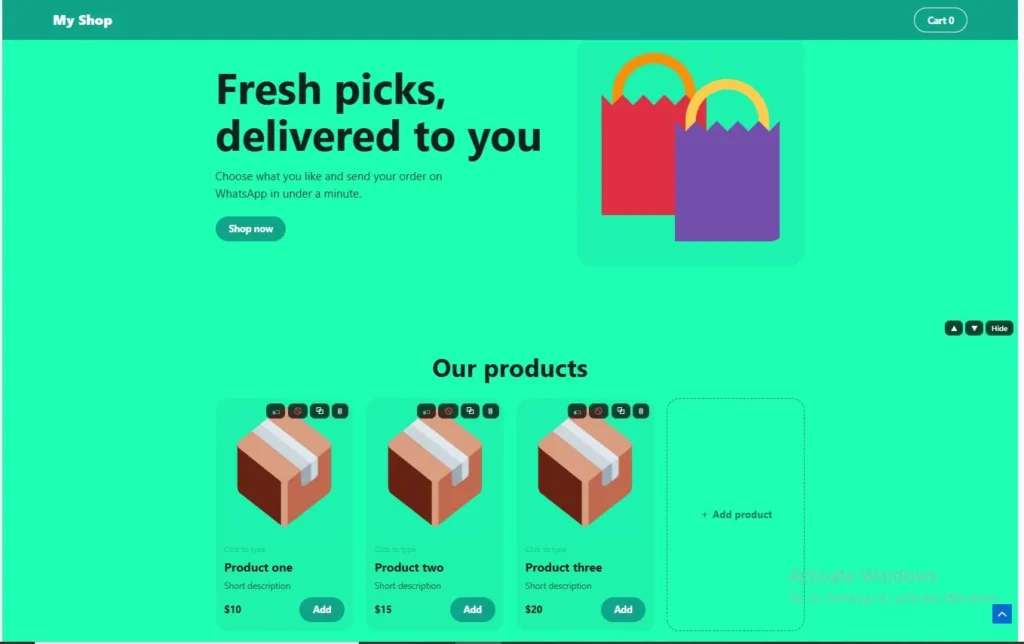
A Bakery Shop Page, Start to Finish (Example)
Imagine Sana runs a small home bakery and takes every order by typing prices into WhatsApp chats. She wants an online store without coding, so she opens the builder and clicks Settings. She types her shop name, picks her country, and enters her WhatsApp number the way she dials it locally. A small line under the box shows the full number customers will message, and the Test this number in WhatsApp button lets her check it before anything goes live.
Next she fills the shop. Every text on the page is editable: she clicks the sample title and types her own, then clicks a product photo to upload her cake picture. For the rest of the menu she uses Add many products at once and types one product per line, like "Chocolate cake - 1800". She sets her currency, picks a brand color that matches her logo, and presses the Mobile button to see how the page looks on a phone, since most of her customers will open it there.
Then she adds the details a bakery needs. In Store rules she sets a delivery fee, a free-delivery amount and a minimum order, and writes how customers should pay. A birthday-cake item that is booked out gets the Sold out button, and a discounted item gets a sale price. Everything saves in her browser as she types, and she presses Save project file so she has a backup.
When she presses Export, the tool first checks for common slips, such as a missing WhatsApp number, products without photos or prices, or the sample shop name still in place, and asks whether she wants to fix them. Then it downloads a single index.html file. She opens that file in her own browser to try it, then uploads it to her web hosting.
Now a customer opens the link. She taps Add on two items, and a View order bar appears with the running total. She enters her name and delivery details, then taps Send on WhatsApp. WhatsApp opens with the order already written out: the items, the quantities, the total and her name. Sana replies in the same chat, as she always did, only now she never has to type a price list again.
Platform-Style Builders vs a Single-File Shop: What Actually Differs
Most WhatsApp order website services work as hosted platforms: you create an account, manage products in their dashboard, and your shop lives on their servers. This builder works the other way round. You make the page in your browser and get a plain file that you host. Neither approach is better for everyone, so here is how they differ in practice.
| What you compare | Typical hosted platform | This builder |
|---|---|---|
| Getting started | Usually an account and a setup flow | Open the page and start editing, no account |
| Where the shop lives | On the platform's servers | In one HTML file on your own hosting |
| Order records | Often a dashboard with order history | No dashboard; orders arrive as WhatsApp or email messages |
| Payments | Often built in, depending on the platform | None built in; you agree on payment in the chat |
| Who controls the files | The platform | You |
Platforms give you things this builder does not, such as order history, built-in payment options and staff accounts, so if you need those, a platform is the right tool. If you only want a clean page where customers pick items and send you the order, a WhatsApp online store free to build, with nothing to log into, can be enough. Compare the exact plans and terms on each service's own page before you decide.
Frequently Asked Questions
Do I need an account to use this builder?
No. There is no login and no signup to build your shop. You open the page, click any text or photo to edit it, and the tool saves your work in your own browser as you go.
How does an order reach my WhatsApp?
When a customer sends their cart, the tool opens a WhatsApp chat with your number and a ready-written message containing the items, quantities, total and their name. The customer still taps send inside WhatsApp, and you reply in the same chat. This is the standard wa.me method described in WhatsApp's own guide to click-to-chat links, so it is a simple way to sell on WhatsApp with a link without extra software. If you add an email address, customers can also send the order by email.
Does the tool take a commission or handle payments?
No to both. Orders go straight from your customer to your number, so the tool takes 0% commission, and it does not process payments. You write how customers should pay (cash, bank transfer and so on) in Store rules, and settle it in the chat. That keeps the builder an online shop with no monthly fee, though any web hosting you choose may have its own cost.
What happens if I clear my browser data?
Your shop is stored in the browser you built it in, so clearing site data or switching devices removes it from that browser. Press Save project file now and then to download a backup, and use Open project file to load it again. A Delete all saved data button is also there if you want to start fresh.
Does it work on phones and tablets?
Yes. The shop layout adapts to phones, tablets and desktop screens, and the Mobile button in the editor shows you the phone view while you build. Photos are resized automatically when you upload them, and JPG, PNG, WebP and GIF files are accepted.
Can I set delivery fees and a minimum order?
Yes. In Store rules you can set a delivery fee, an amount above which delivery is free, and a minimum order. Customers can also choose delivery or pickup, and share their location in the order. Products can have categories, a sale price, or a Sold out mark, and a search box appears when you have more than six products.
Can I use Urdu, Arabic or another language?
You can type your shop texts in any language your keyboard supports. For languages written from right to left, such as Urdu and Arabic, there is a writing direction option in Settings that flips the shop layout. The fonts are your customers' own system fonts, so the look can differ slightly from device to device.
How do I put the shop online?
Press Export and the tool downloads a single index.html file. Upload it to any web hosting that can serve a normal HTML page, then share that link with your customers. Before you export, the tool warns you about common slips such as a missing WhatsApp number, products without photos or prices, or the sample shop name still in place.
Quick Summary
This WhatsApp store builder no signup lets you create a shop page in your browser: add products, photos and prices, set your delivery rules, and export one index.html file. Customers pick items, and a ready-written order opens in WhatsApp or email. There is no account and no commission, and there is no order dashboard, so keep a project file backup and host the file on your own web hosting. It suits small sellers who already take orders in chat and want a cleaner way to show their prices.
Disclaimer
This tool runs in your browser and keeps your shop on your own device. Before you share your shop link, please double-check your WhatsApp number, prices and delivery details, and place one test order yourself. Payment and delivery terms are between you and your customers. This tool is not affiliated with or endorsed by WhatsApp.