You can redact PDF and image online for free, directly in your browser — no signup, no software, and nothing ever uploaded to a server. Draw a solid box, use a freehand brush, or pixelate and blur sensitive areas like ID numbers, account numbers, signatures, and addresses before you share a document with anyone. Unlike tools that just draw a shape on top of your file, this one permanently destroys the original pixels and text underneath — once you export, there's no hidden layer left to peel back or recover.
It works on JPG, PNG, WEBP, and multi-page PDFs, and every export automatically strips file metadata too, so GPS location, device info, and author details don't travel along with your document. Everything runs locally on your own device, from upload to export.
Table of Contents
How to Redact PDF and Image Online
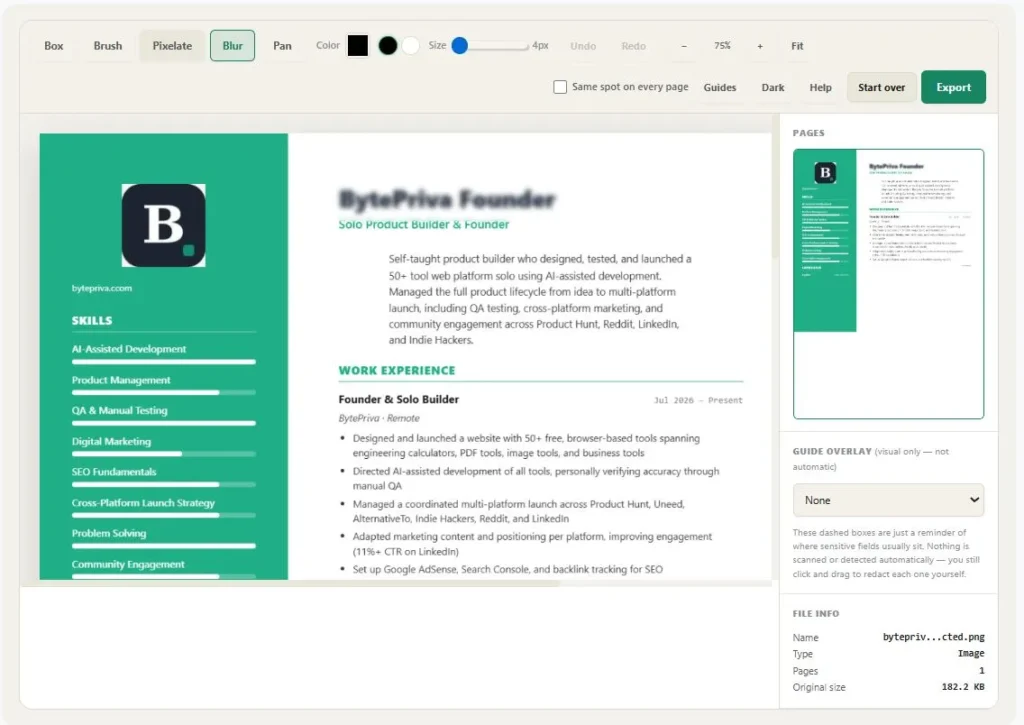
- Upload your file. Drag and drop, or click to choose a JPG, PNG, WEBP, or PDF — everything loads straight into your browser, and nothing is sent anywhere.
- Pick a redaction style. Choose a solid box, freehand brush, pixelate, or blur, then click and drag over anything sensitive — an ID number, a signature, an address, an account number.
- Fine-tune as needed. Zoom in for small text, flip between PDF pages, use undo/redo freely, or turn on guide overlays as a visual reminder of where sensitive fields usually sit.
- Export. Download as PDF, PNG, or JPG — the redaction is baked permanently into the pixels of a brand-new file, and metadata is stripped automatically on export.
Why Use This Tool
If you've ever tried to redact PDF and image online using a basic photo editor or PDF viewer, you've probably just drawn a shape on top of the file — the original text or pixels are often still sitting right there underneath, recoverable by anyone who knows where to look. That defeats the entire point of covering something up before you send it to a stranger, a landlord, or a company you don't fully trust.
This tool re-renders every page as a flattened image the moment you export: the black box, blur, or pixelation is the pixel data at that point, permanently, and file metadata is stripped in the same step. This isn't an unusual standard to hold a tool to — it's the same one courts hold themselves to. As the U.S. Court of Appeals for the Seventh Circuit puts it in its own official redaction methodology guidance, sensitive information has to actually be deleted from a document, not just visually covered, or it can still be recovered later.
Because everything runs locally in your browser — no AI, no API calls, no server round-trip — none of your documents, images, or personal data are ever uploaded, stored, or transmitted anywhere. Whether it's a passport scan or a bank statement, the file never leaves your device from the moment you open it to the moment you download the redacted version.
Who This Is Built For
Here's who typically needs to redact PDF and image online before sharing a document:
- Anyone selling something online — cover your address or ID on a proof-of-purchase before posting it in a listing or dispute.
- Job seekers and freelancers — hide an account number on a bank statement you're using as proof of address.
- Tenants and renters — redact a signature or ID number on documents you're forwarding for a reference check.
- Support and admin teams — sanitize a screenshot or scan before attaching it to a public ticket or forum post.
- Anyone scanning a passport, CNIC, driver's license, or similar ID — black out everything except what the recipient actually needs to see.
Tips for Getting a Clean Redaction
A few tips for getting a clean result whenever you redact PDF and image online:
- Zoom in before redacting small print — a box drawn at low zoom is easy to place a pixel or two off.
- Pixelate or blur work well for photos where a hard black box would look jarring; use solid black or white when you want zero ambiguity.
- For a multi-page bank statement with the same header on every page, turn on "Same spot on every page" once and draw it a single time.
- Always double-check the exported file at full size before sending it — zoom into the exported image itself, not just the on-screen preview.
Frequently Asked Questions
Is my file actually uploaded anywhere?
No. When you redact PDF and image online with this tool, everything runs in your browser using the Canvas API — your image or PDF is read, edited, and exported locally on your device. Nothing is sent to a server at any point.
Can someone recover the original text or pixels from the exported file?
No. Export re-renders every page as a flattened raster image, so the redaction is baked directly into the pixel data. For PDFs, the exported file contains only images — there's no underlying selectable text layer left to copy or extract.
What's the difference between the box, brush, pixelate, and blur tools?
Box and brush give you a hard, opaque cover in the color you choose — best when you want zero ambiguity. Pixelate and blur soften the area instead of blocking it entirely, which some people prefer for photos, though a solid box is the safest choice if you want to guarantee nothing is readable.
Does this remove metadata like GPS location or device info?
Yes. Exported images are re-encoded from scratch, which strips EXIF metadata such as GPS coordinates, camera or device model, and timestamps. Exported PDFs have their document metadata fields cleared as well.
Can I redact a multi-page PDF, or just one page at a time?
You can navigate between pages and redact each one independently, or turn on "Same spot on every page" to apply one redaction to the same position across every page — useful for a repeating header or footer.
What are the guide overlays, exactly?
They're optional, non-destructive dashed outlines that show where fields like a name, ID number, signature, or photo usually appear on a typical ID card, bank statement, or passport. They're a visual reminder only — nothing is scanned or detected automatically, and you still draw every redaction yourself.
Can I undo a mistake after I've already drawn a few redactions?
Yes, undo and redo both support multiple steps, so you can step back through your recent edits, not just the last one, right up until you export.
Does this work on my phone or tablet?
Yes. You can redact PDF and image online from your phone or tablet just as easily as from a desktop — drawing, pinch-to-zoom, and panning all work with touch, and the layout adjusts for smaller screens.
Quick Summary
This tool lets you redact PDF and image online for free, right in your browser — no signup, no upload, nothing sent to a server. Choose a solid box, freehand brush, pixelate, or blur to cover ID numbers, account numbers, signatures, or addresses, then export as PDF, PNG, or JPG. Because every page is re-rendered as a flattened image on export, the redaction is permanently baked into the pixels — there's no hidden layer to recover. Metadata is stripped automatically, multi-page PDFs are fully supported, and everything works smoothly on desktop, tablet, and mobile alike.
Disclaimer
This tool lets you redact PDF and image online free of charge, as a browser-based aid for covering sensitive information before you share a document — nothing you upload is ever sent to a server, and no account is required to use it.
Results can vary depending on your device, the file you upload, and how carefully each area is drawn, so no specific outcome is guaranteed. This tool is offered as-is, with no warranty of any kind, and we accept no liability for how an exported file is used or shared afterward.
You are solely responsible for reviewing your exported file at full size before sending it anywhere, and for deciding whether it meets your needs. For documents involving legal, financial, medical, or other high-stakes information, consider having the final result checked by a qualified professional before you rely on it.